Share

Cloud assets (libraries) are missing in Fusion

Technical Support

Issue:

Users reported that in Fusion, one or more of the following cloud assets are missing or not available:

  • Cloud CAM Tool Library.
  • Cloud CAM Post Processor Library.
  • Cloud CAM Machine Library.
  • Cloud CAM Setup Sheet Library.
  • Cloud CAM Templates Library.
  • Cloud CAM Print Settings.

Causes:

  • Service Outage.
  • Cloud asset was deleted.
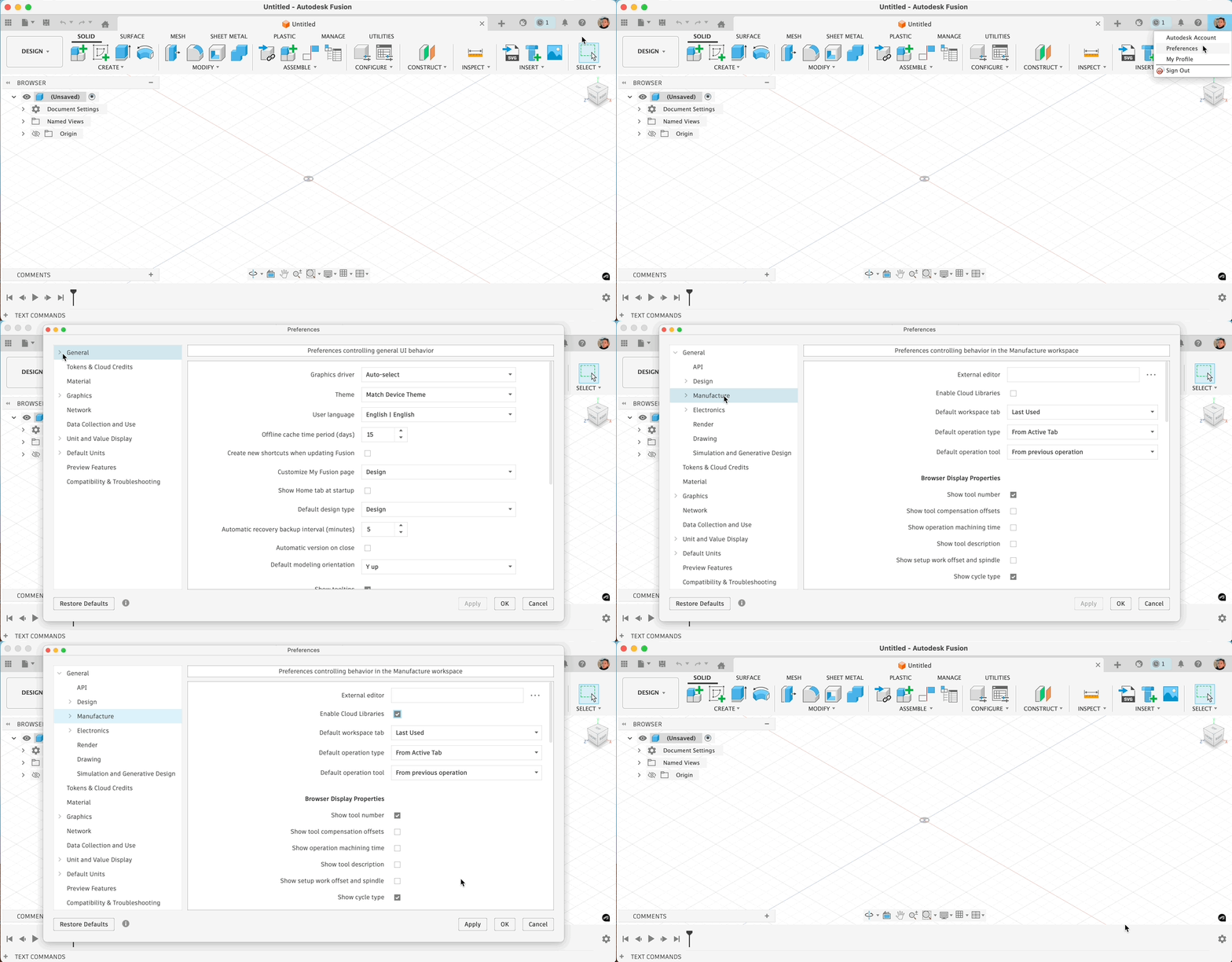
  • Cloud libraries are not enabled in preferences.

Solution:

Cloud Service Outage

Check the Autodesk Health Dashboard for any service outages or degradation that would affect Fusion's ability to access the cloud.

Enable Cloud Libraries in Preferences

Follow the instructions in the article: How to enable cloud libraries in Fusion.

Browse the Assets folder for missing libraries

Check for the missing libraries in the Assets project. If they are there, download and then re-upload them.
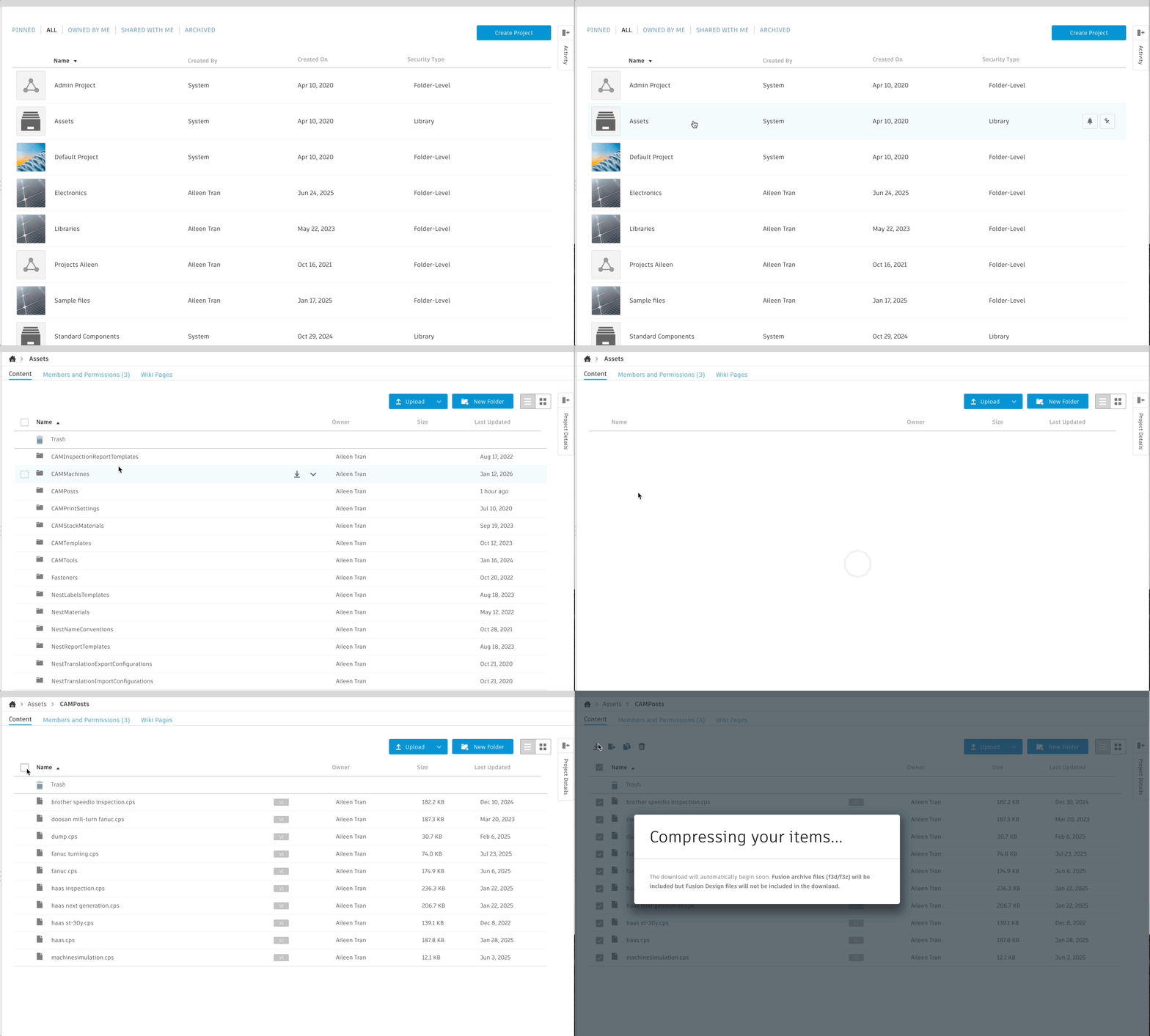
Here is how that can be done for the Tool Libraries (use similar steps for other libraries):

  1. Go to the Fusion Teams website.
  2. Got to the Assets project. 
  3. Open the folder associated with the library type (for example CAMTools for Tool library)
  4. Select all.
  5. Download all.
  6. After the download is complete, Delete all from the library folder.
  7. Unzip the downloaded tool libraries.
  8. Click Upload.
  9. Upload all the tool libraries.
  10. Check if the libraries appear in Fusion.
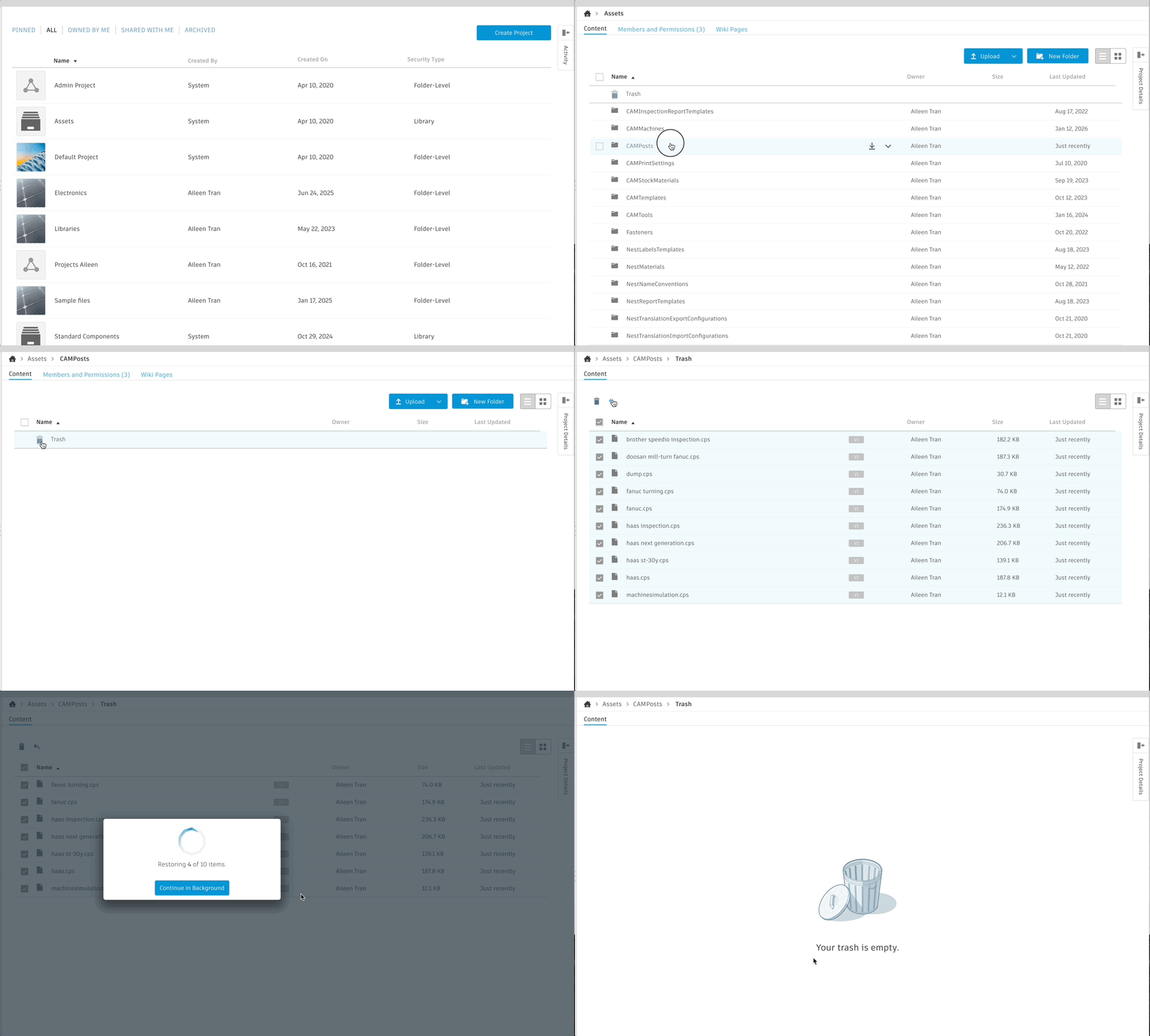
Search the Trash folder of the Fusion Team Hub web page

Check for the missing libraries in the Trash folder of the Assets project. Tool Library example (use similar steps for other libraries):

  1. Go to the Fusion Teams website.
  2. Go to the Assets project. 
  3. Open the folder associated with the library type (for example, CAMTools for Tool library)
  4. Go to the Trash.
  5. Select all.
  6. Restore.
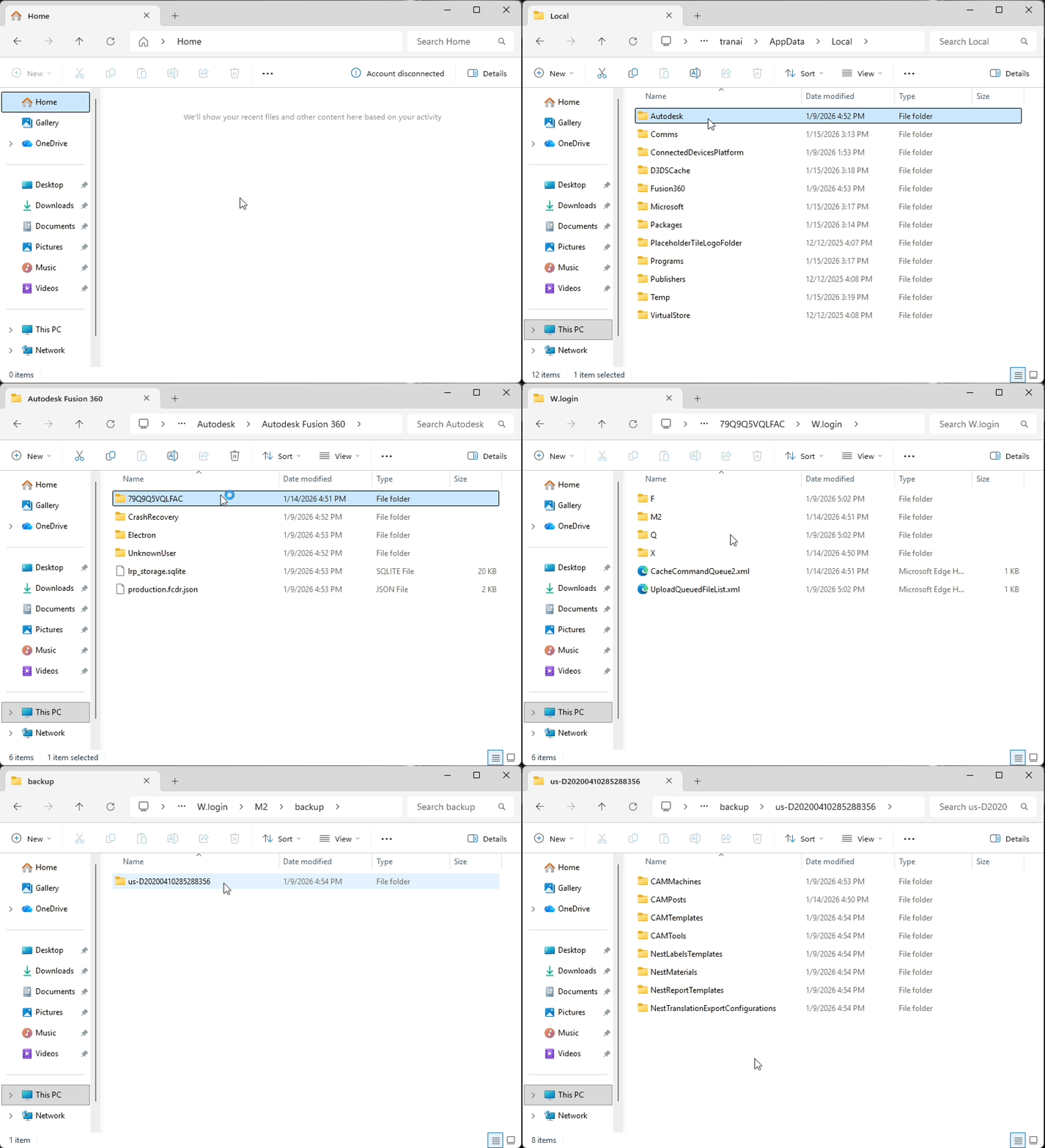
Search the local cache for cloud libraries
  1. Cloud assets are also locally cached by Fusion. On the computer that originally edited the library, navigate to the following file path:
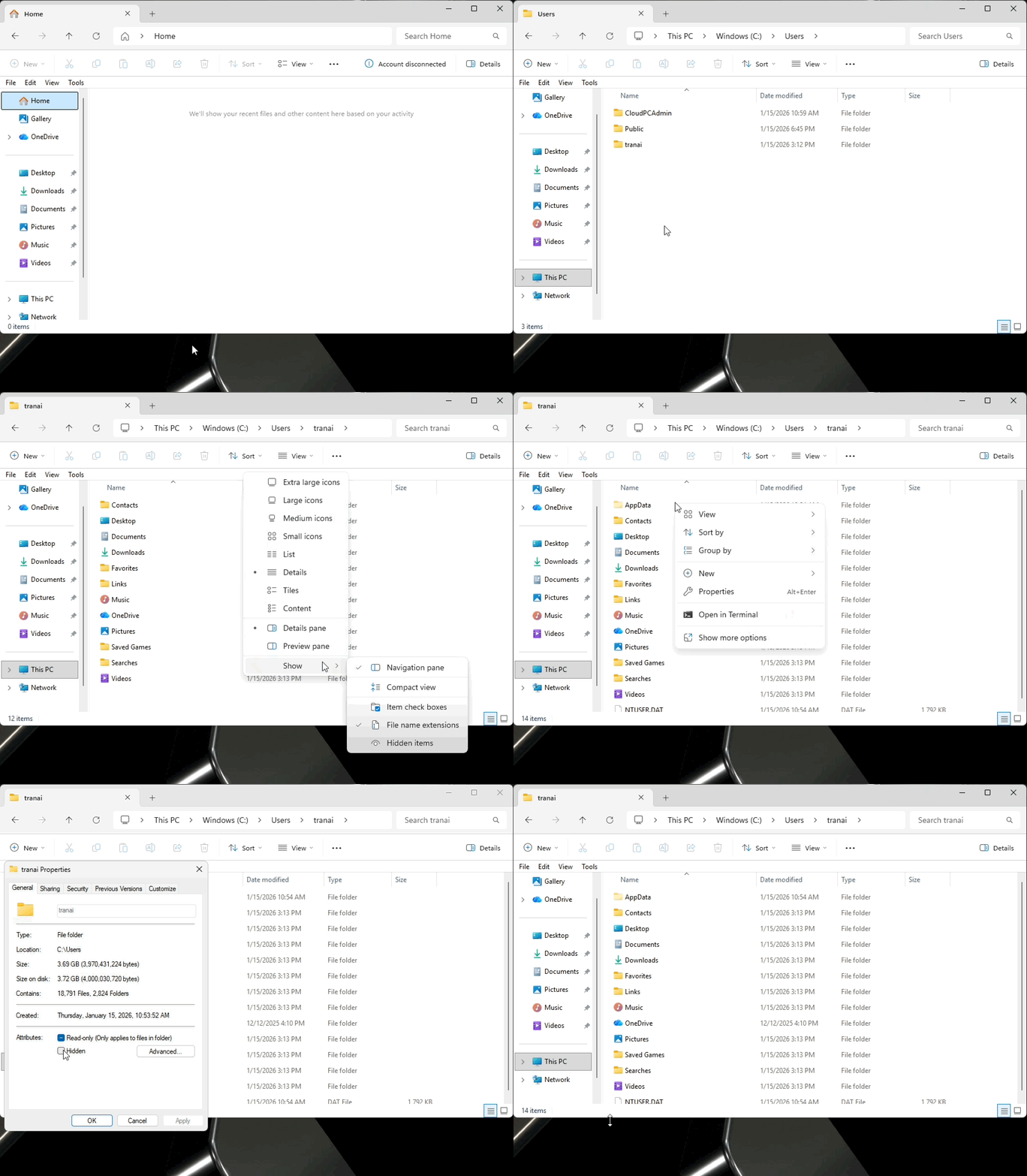
    • Windows%localappdata%\Autodesk\Autodesk Fusion 360\ <AlphanumericID>\W.Login\M
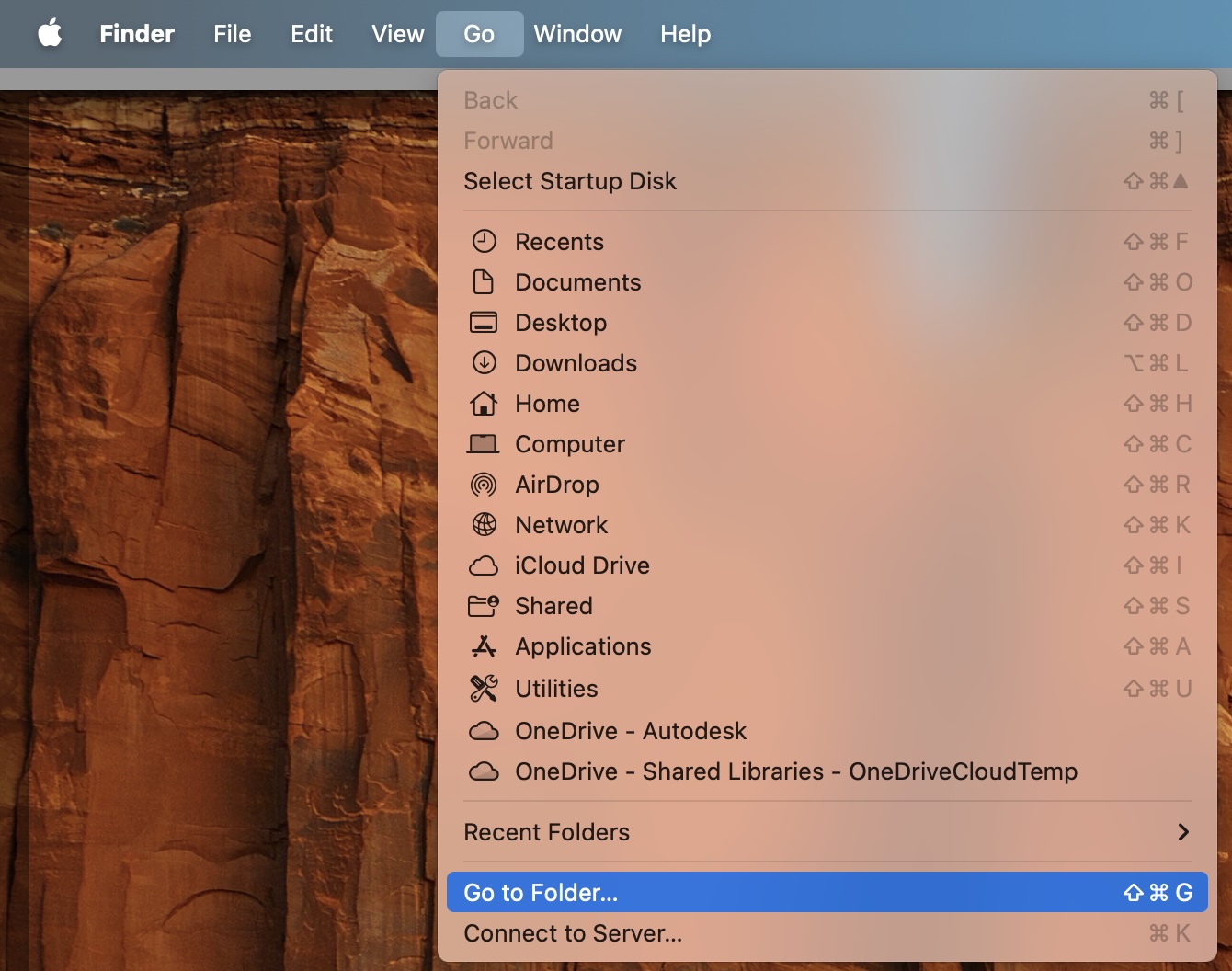
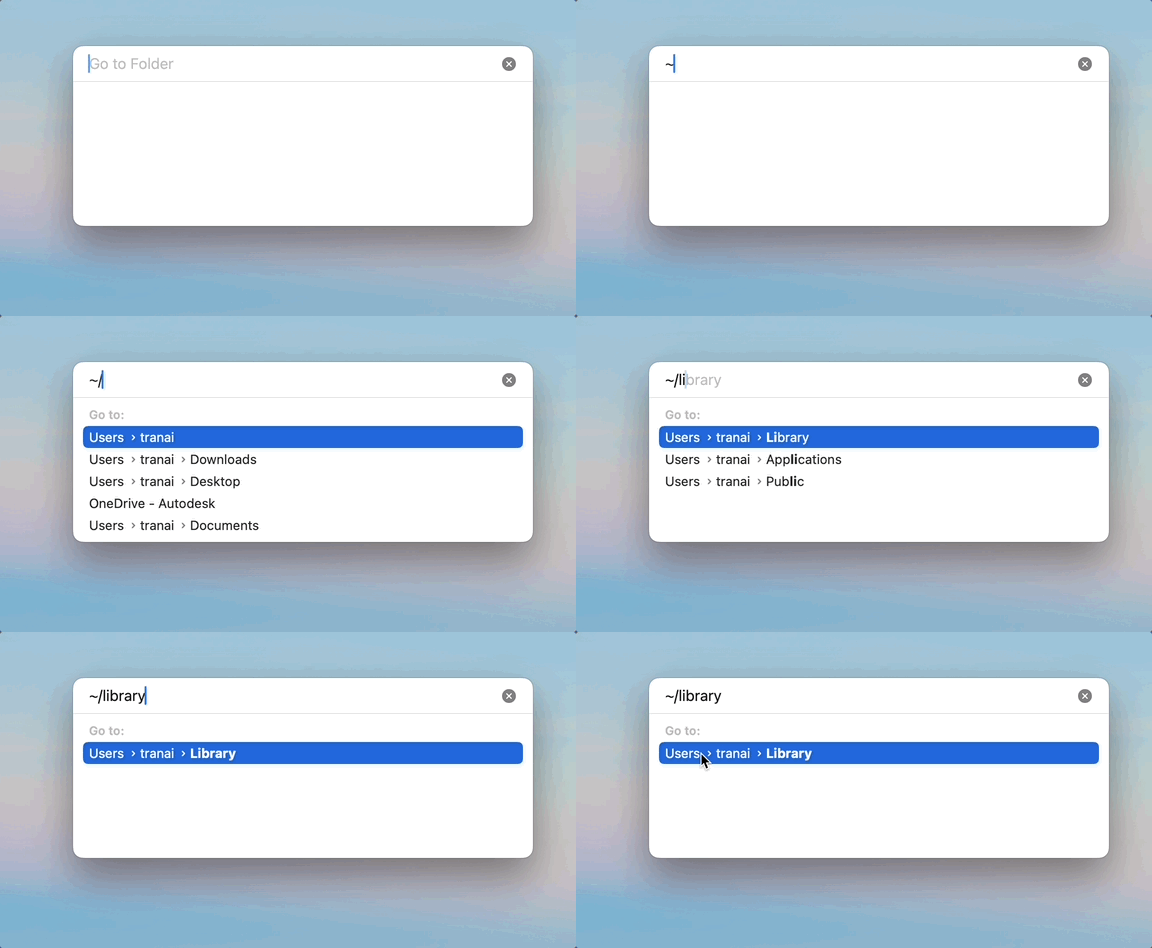
    • MacMac HD>Users>USERNAME>Library>Application Support>Autodesk>>Autodesk Fusion 360> ALPHANUMERIC ID>W.login>M
    • Note: If the "M" file is not present in the "W.Login" directory check for "M2."
  2. Within the "M" directory, there are alphanumeric folders (for example "D2017012059661301"). Within these folders, the cloud assets cached by Fusion can be found.
  3. If an asset is found here, but not in the Fusion Data Panel, upload it to Fusion as a new version.
    • Note: Ensure that no European umlauts or special characters are used on the library name.
App data Folder is set as hidden

For some reason, if the Appdata folder is hidden, unhide it and open the properties tab for the Appdata folder. Now, uncheck the Hidden option.

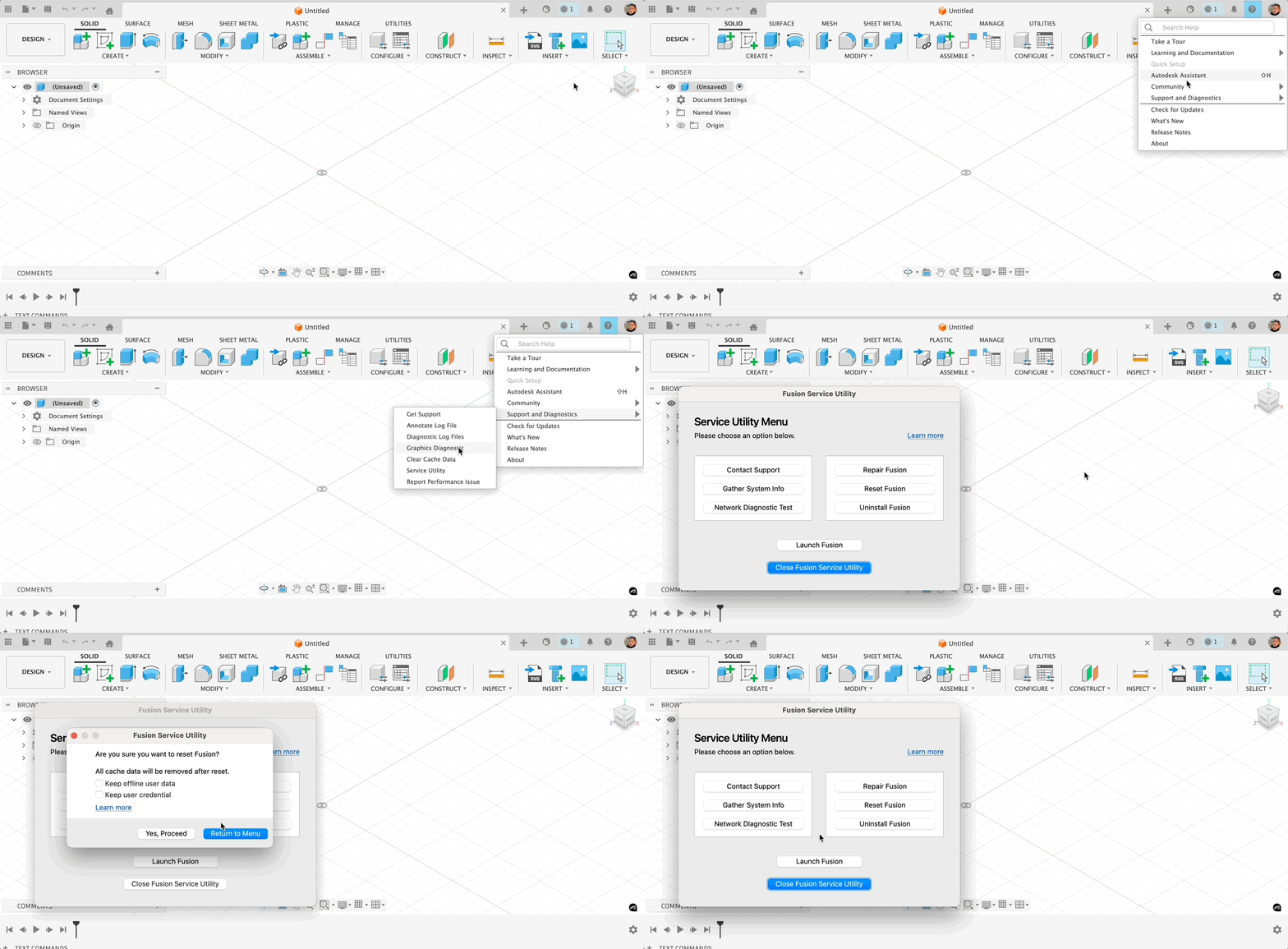
Clear Local Cache

Clear local cache and restart Fusion. 

Clear Local cache                                                                                                                                          

Clear the local user cache and restart Fusion.


Products:

Fusion;

Was this information helpful?