Issue:
Instructions on how to turn on hidden files and folders within Windows in order to navigate to a hidden folder location.Solution:
To display hidden files in Windows
Windows 11:
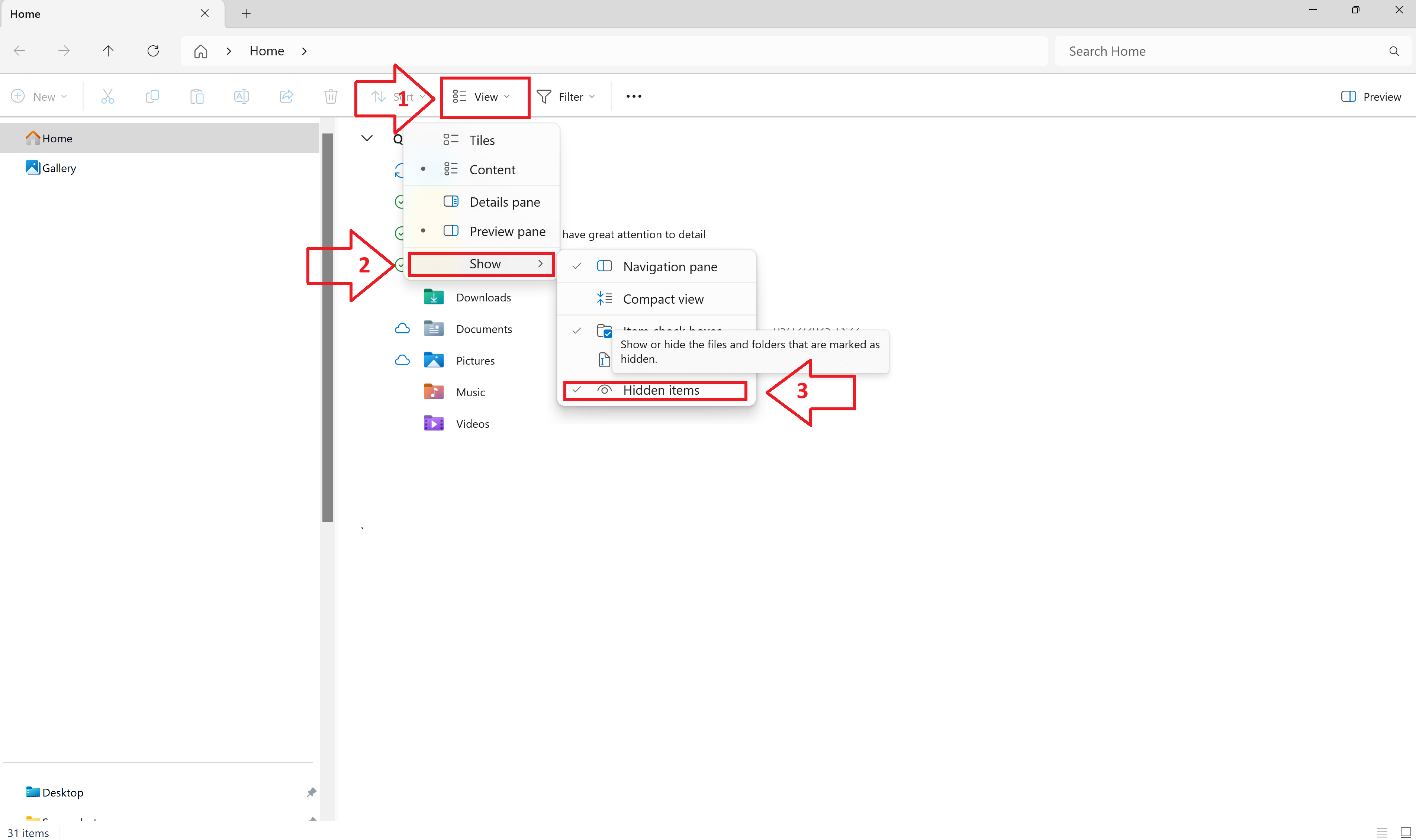
Open the File Explorer by right-clicking the Start menu and choosing "File Explorer" (or open any folder window).
- Click on the View tab.
- Click Show.
- Select "Hidden items". When hidden items is activated, a check mark will show beside the Hidden items symbol.
Windows 10:
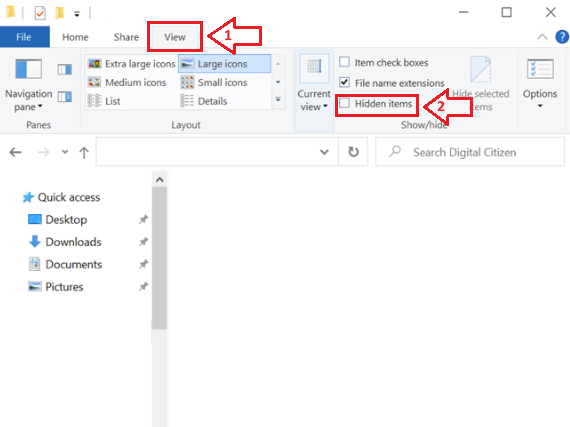
Open the File Explorer by right-clicking the Start menu and choosing "File Explorer" (or open any folder window).
- Click on the View tab.
- Select the checkbox "Hidden items."
Any version of Windows (including Windows 10):
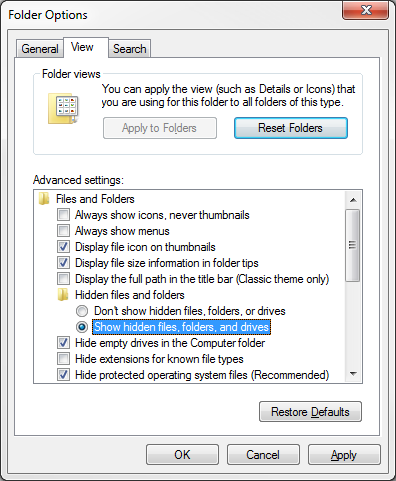
- In the Start menu search, type 'folder options' (Windows 7) or 'file explorer options' (Windows 10).
- In the Folder Options window, click the View tab.
- Select "Show hidden files, folders, and drives."
- Click OK.