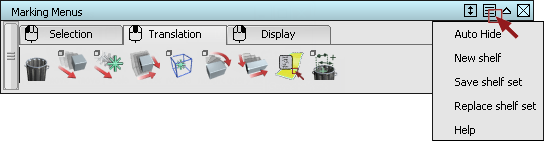
Marking menus use the shelf interface for set up, but do not support the cascading functionality. The images below illustrate how the marking menus display when you customize the marking menu shelf using Preferences InterfaceMarking Menus.
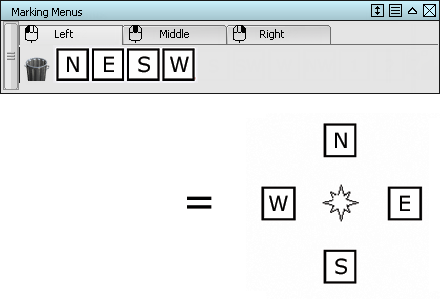
If four items are placed into the Marking Menu shelf, the four tools are automatically balanced into the North, East, South, and West positions.
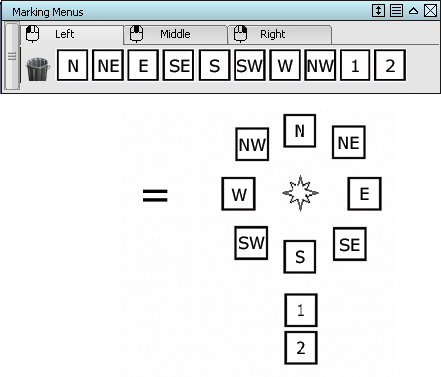
When more than four items are placed on the shelf, the Marking Menus automatically use the 45 degree positions as well. The items fill the eight main directions (which are the gestural positions). All additional items fill in a menu below the South position.
Click the  icon on the shelf title bar to reveal the Shelf options. You can make new tabs to add to the current shelf set, save the shelf set, or load an existing shelf set. Shelf sets are saved in your UserPrefs2014 folder. They are also displayed at the bottom of the menu allowing you to switch between them.