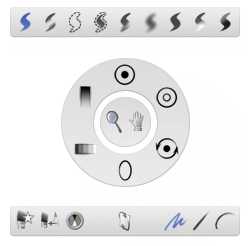
When a brush tool is active, you can use hot keys to interactively adjust brush settings.
You can customize your hotkeys in Preferences InterfaceHotkeys/Menus. In addition to the menu and palette sections in this editor, paint-specific bindings can be found under SpecialPaint.
Brush Modes
F – Cycle through brush modes
1 – Paint
2 – Erase
3 – Hide
4 – Show
5 – Smear
6 – Blur
7 – Sharpen
C – Color grab
L – Clone brush reset
O – Opacity
P – Aspect ratio
R – Inner/outer radii
S – Brush size
T – Rotate
V – Twist canvas
X – Reset brush
Z – Snap mode
= – Marquee add
The following bindings for canvas layers can be found under SpecialCanvas Layer Editor:
Ctrl + K – Clear layer
Ctrl + L – New layer
Ctrl + M – Merge down
Ctrl + T – Transform layer
Ctrl + I – Invert layer
Alt + H – Toggle marquee
Alt + I – Invert mask
Alt + X – Delete active layer
If a brush is in use, holding down the Space bar opens the Hot Spot Editor to access paint functionality.