Alias has three types of curves: NURBS Curves, Blend Curves, and Keypoint Curves.
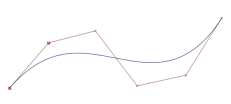 |
NURBS – this is the most used curve type in Alias. It is also described as a freeform curve. NURBS curves can be drawn by placing Control Vertices (CVs) or Edit Points (EPs) or by drawing them freehand (Curves |
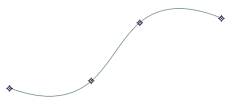 |
Blend Curve – is a NURBS Curve with special constraint points (blend points) that provide different manipulation tools for curve placement, and alignment with construction history. These curves display in green by default with crosshair anchor points. Blend Curves have their own toolbox. Blend Points can either be edited through the Blend Tools toolbox or with Pick |
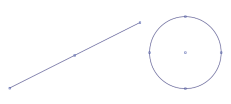 |
Keypoint Curve – is a NURBS Curve with special constraints to generate CAD-like lines and arcs. These curves display in blue by default with square anchor points. Keypoint curves have their own toolbox. The extra CAD-like information is accessible in the Information Window. Keypoints can only be moved interactively using the Drag Keypoints tool in Curves |

The simpler the curve, the better. Curves are the foundation of surface creation. Poor quality curves result in poor quality surfaces.
Do not hesitate to rebuild curves to clean or simplify them as you work, especially if the curves have been edited by inserting points, connecting curves, etc.

|
Curves Creates new NURBS curves by placing CVs. Curves of degree 1, 2, 3, 5 or 7 can be generated. The default is 3. By default the curve starts displaying after the minimum number of CVs based on the curve degree are set. To see the curve build as CVs are laid down, select the Progressive Degree option. |

|
Curves Creates new NURBS curves in the scene by placing edit points. Curves of degree 1, 2, 3, 5 or 7 can be generated. The default is 3. |

|
Curves Creates a NURBS curve in the form of a planar circle. The circle diameter is driven by the object's scale. |

|
Curves Creates basic shape using keypoint curves. This tool enables you to specify a circle by first placing its centerpoint, and then clicking to indicate a point that lies on the curve. The circle's radius can then be edited in the Information Window. |

|
Curves
Allows you to create a single keypoint line. The line's length can then be edited in the Information Window. |