Unlike with Rhino, you can open multiple files in a single Alias session. When multiple files are opened, they are referred to as Stages. Stages are useful to copy or compare data between different files.
When creating a file, Alias usually asks whether to delete or not the previously opened or created file(s). Answering Yes deletes the previously opened or created file(s) and creates a unique file in the session. Answering No keeps the previously opened or created files and creates a New Stage.
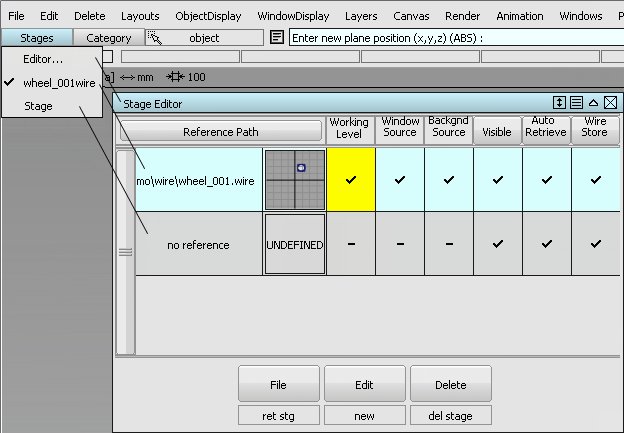
To switch between stages, select the stage name in the pull-down menu or change the Working Level in the Stage Editor.
To switch between stages AND change the Modeling Window Source, hide other stages, press the Ctrl key when selecting the stage name in the pull-down menu or Stage Editor.
Saving Files
The first time you save a file, File Save opens a dialog asking for a file name. On subsequent occurrences of FileSave, that file is overwritten. To not overwrite a file, or to save a file under a new name, use FileSave As.
Files should always be saved in Alias Wire format to save all the Alias features. Saving (FileSave) or exporting active geometry (FileExportActive As) in other formats—which is required for data transfer for instance—only saves the features supported for the selected format.
Supported file formats can be selected in the FileSave As and FileExportActive As option dialogs. Each format has its own set of options.
Opening Files
Alias can open or import many different type of files such as Alias Wire and industry standard formats. Some file formats offer some options that can be set during FileOpen or Import. See the FileOpen or Import option dialogs for more details.
Supported File Formats
For information about file formats supported for import and export in Alias, please refer to the Alias Help in the How toImport and Export Data section, and in the Reference section for FileOpen and FileSave.
Organizing Data
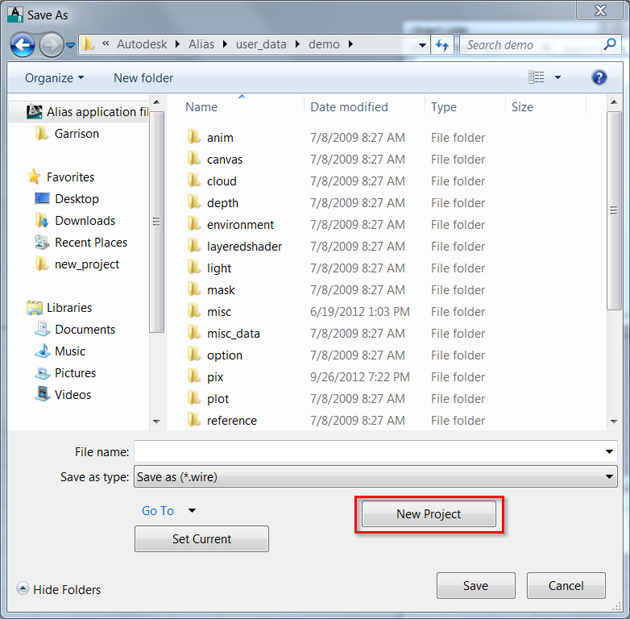
To keep your data organized, create a New Project on a per project basis. This helps you manage your projects with all the files associated with them.