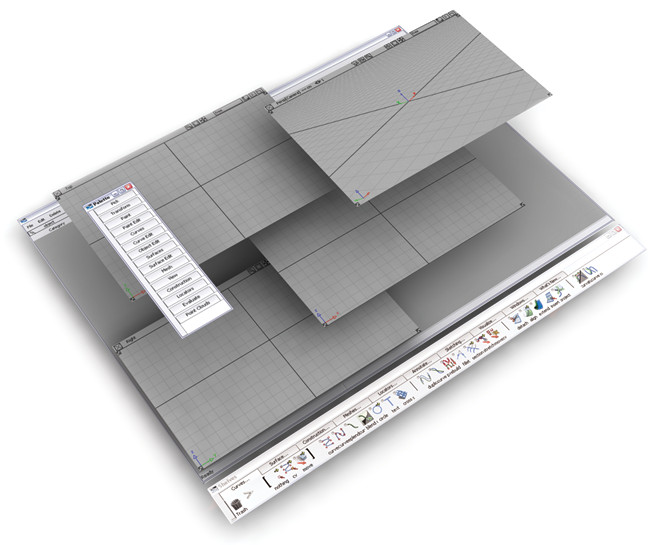
When you launch Alias, or when you create a new file (File New in the menu bar), a single Perspective window is automatically generated. At any time, you can change the number of windows or position and resize them to suit your needs. The windows can overlap each other. In this case, the active window is drawn on top.
Although you can view multiple windows at once, you can only work in one at a time. Moving the cursor into a window and clicking in it, or on its window bar, makes that window active. New windows and window layouts can be selected from the Layouts menu.
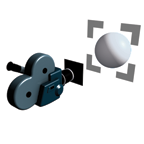
In Alias, windows are associated with virtual cameras, so a window is like looking through a view finder at your data. Windows are independent of your data, so closing a window does not delete objects in your scene, or the cameras. There are three types of windows in Alias: Orthographic, Perspective, and Paint.
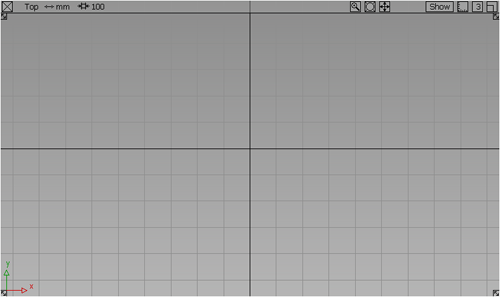
The Orthographic Window
The orthographic window gives you a two dimensional view of the objects in your scene. These windows provide fixed views. The orthographic views are Top, Left, Right, Bottom, Front and Back.
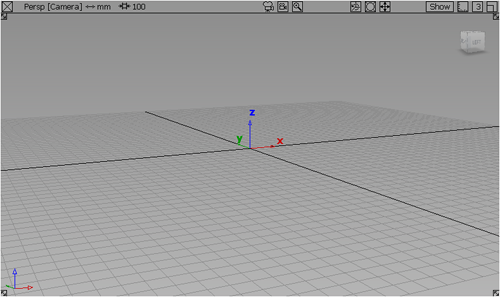
The Perspective Window
This window lets you view your 3D scene from any angle. You can tumble, zoom, and pan the camera view. You can turn off the perspective in this window and tumble in an orthographic mode. The perspective window also has an associated ViewCube and NavBar, allowing access to preset views and camera controls.
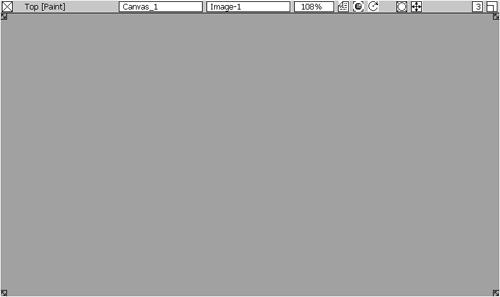
The Paint Window
The paint window is for viewing Canvases and Overlays. This window type supports sketching and annotation workflows.