2D Factory layouts can be populated with associative factory assets. There are System Assets which are those delivered with the Factory Design Suite; User Assets, those which you or someone else creates; and Cloud-based Assets, factory assets that exist on a cloud server and can be downloaded and used.
Placing System Assets
- On the Factory tab, in the Tools panel, click Palettes, and then select Asset Browser
 from the drop-down menu. The browser displays and is docked, by default, on the right. It can be moved to another location or left floating.
 - The browser has two view styles, Tree and Thumbnail. To change the view, at the top of the browser, click the down arrow on the Thumbnail/Tree Views buttons
 to expose the list and select the view style you want to use.
 - Double-click the System Assets folder to navigate to a particular asset.
- Right-click the browser thumbnail image and click Preview... from the pop-up context menu to see the asset in the Preview window.
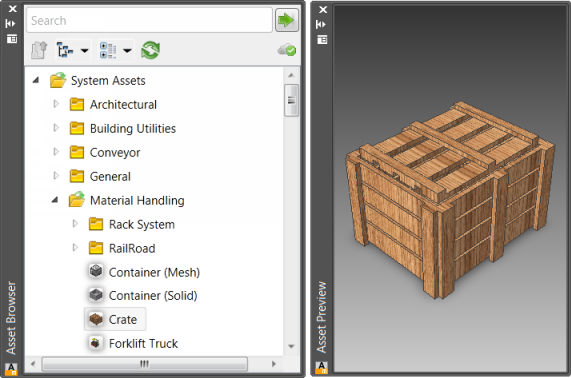
- To specify whether the asset uses imperial or metric units, right-click the browser thumbnail image and click Explore... The Open dialog box presents the asset folder in the Factory Asset Library where you find Imperial and Metric folders having versions of the asset based on those unit types. Open the folder to select the asset using that unit system.
- To place an asset, click and drag the asset from the browser into the graphics display.
- The asset has a base point definition and is ready for you to specify that location in the layout. Click to place the asset.
- Specify a rotation value, if needed. Otherwise, press Enter.
- Continue to place copies of these assets or place other assets as needed.
- Press Enter to end the input.
Cloud-based assets
When you drag and drop an asset that is cloud-based and has not been used previously, a message is displayed regarding the asset. To use the asset, accept the download option and the asset is downloaded into the FactoryCloudLibrary folder and an instance is made ready for placement in the graphics display.
Placing User Assets
- On the Factory tab, in the Tools panel, click Palettes, and then select Asset Browser from the drop-down menu.
- Double-click the User Assets folder to navigate to a particular asset.
- Any assets created with variations (called Asset Variants) in Inventor Factory appear with an icon similar to this at the upper left
 . The numeral indicates the number of variants available. Right-click over the asset to access the pop-up context menu. Then select the desired asset variant from the Asset Variant submenu.
 - Follow the same steps that are used to place System Assets.
Searching for Assets
The asset search tool, located at the top of the Asset Browser, provides a continuously refined search.
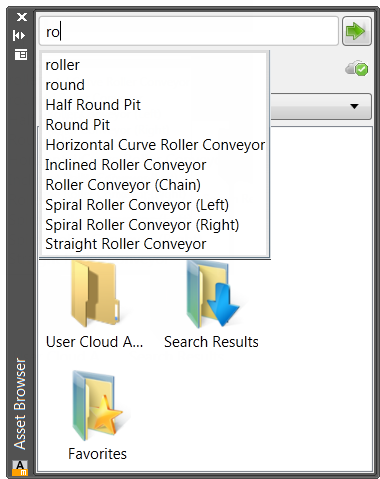
- In the Asset Browser, enter the component name or a parameter value into the Search field at the top of the browser. When searching on parameter values, the Name, Author, Category, Comments, Company, Keywords, and Title parameters are searched.
- As you enter text, a list of valid search terms is dynamically displayed.
- Select a search term or complete the search phrase and click the Search assets button
 . The search results are displayed in the browser area below the browser controls.
Once a search is conducted, a Search Results folder is added to the Asset Browser. The folder contains the asset that was found. The component remains stored in the folder until the next search is conducted when it is replaced with the new search result. A component can be selected from the Search Results folder and placed in the factory layout.
Sorting Assets
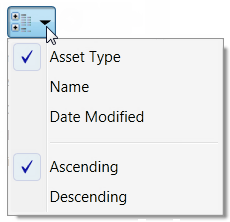
Saving Favorite Assets
The Favorites folder in the Asset Browser lets you add, or remove, frequently placed assets into a separate folder for quick and easy access. A component can be selected from the Favorites folder and placed in the factory layout.