Distributed memory processing (using several computers to solve the analysis) is currently implemented for the following analysis types when the analysis is solved on a Linux cluster using the MUMPS sparse solver (see the appropriate Analysis Parameters dialog for setting the sparse solver):
- Static Stress with Linear Material Models
- Mechanical Event Simulation (MES) with Linear or Nonlinear Material Models
- Static Stress with Nonlinear Material Models
- MES Riks Analysis
To perform such an analysis, MPI (Message-Passing Interface) needs to be installed.
- Operating system for Linux cluster computing nodes: Red Hat Enterprise Linux 6.2.
- Operating system for a remote submission PC: Windows XP (32 and 64 bit), 7 (32 and 64 bit), 8 (64 bit), Server 2008, or Server 2012
- MPI version: MPICH2 platform (obtain the current stable version from the MPICH Download Page. )
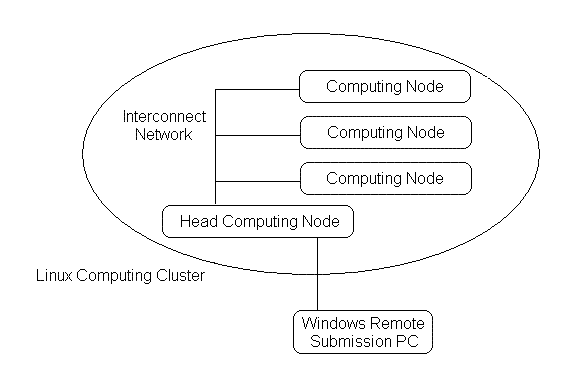
The figure below shows a system overview of the Linux computing cluster and a Windows-based remote execution PC. It is recommended that all the computers in the Linux cluster share the same file system. If this condition is met, the following installation should be performed on this shared file system. If this condition is not met, follow the instructions in each step to install and set up the software on each node.
Installation on the Linux Cluster Computing Nodes
- Download the Red Hat Enterprise Linux (RHEL) 6.2 package from https://access.redhat.com/downloads/. (You will have to have a Red Hag support account in order to perform the download.) Install RHEL 6.2 on the Linux PC. It is highly recommended that the user chooses/adds the software development option during the configuration of the installation. This step will help the user to compile the MPICH source code and run the multi-purpose daemon (MPD) on the PC. If the software development option is not chosen or if the system has been configured already without it, the user might need to install several other packages, such as Python, depending on the messages given during the installation and testing steps. It is also recommended that the user disable Firewall and SELinux during the configuration of the installation.
- Create a non-root user account which will be used to run the distributed processors on the Linux cluster. In this guide, the username for this account will be referred to as algoruser, and the password will be referred to as password.
- Download the MPICH2 package from http://www.mpich.org/downloads/. A brief installation goes as follows: (More details can be found in the MPICH2 install manual and user guide. Obtain these documents from the webpage http://www.mpich.org/documentation/guides/.)
- Login as root.
- Copy the compressed MPICH2 installer file to a temporary directory, such as /tmp. Go to that temporary directory and unzip it as follows:
tar -zxvf filename.tar.gz, where filename is the name of the downloaded installer. After this step, a new directory will be created in the above temporary directory.
- Create a directory in which the user wants to install MPICH2, such as /opt/mpich2-x.y (where x.y is replaced with the MPICH2 version number). It is highly recommended that the user put this directory on a shared file system in the cluster. If not, the user needs to copy this directory to all the nodes in the cluster after installation.
- Go to the new directory created by unzipping the installer (in Step 2 above), then configure and build MPICH2 as follows:
/configure -prefix=/opt/mpich2-x.y (substitute the actual folder name if different)
make
make install
- After the installation, the user should see several new directories in /opt/mpich2, such as bin, include, and lib.
- In Red Hat Enterprise Linux 6.2, if Firewall and SELinux have not been disabled, disable them now on all cluster nodes from System: Administration: Security Level and Firewall. Advanced users might enable the firewall, but additional configuration is needed so that the MPD service can pass through the firewall. SELinux causes conflicts for the Samba file sharing service in RHEL 6.2 and should be disabled.
- Start the Samba service on the head node of the cluster to share files between Linux and Windows systems. (If this service has not been installed on the head node, its installation package can be found in Applications: Add/Remove Software: Server. Highlight Windows File Server and click the Apply button to install the package.)
- Go to System: Administration: Server Settings: Services. Activate the smb service and click the Start button. Make sure the service is running.
- After installation, go to System: Administration: Server Settings: Samba. In the pop out window, select Preferences: Samba Users. Add a new user and choose algoruser as a samba user. Also use algoruser as the Windows username and enter a password.
- Next, in a Linux terminal, create a directory such as /home/algoruser/shared. It will be used as a Samba shared directory and the models created in Windows will be copied to this directory for distributed processing in Linux environment. Click Add Share to add this directory to Samba share; enter shared in Shared name and activate Writable and Visible. In the Access tab, grant access to the user algoruser.
- Install and start the xinetd and rexec services:
- Go to Applications: Add/Remove Software: Servers: Legacy Network Server. Click the Optional packages button, then activate rsh-server package, and apply the installation.
- Go to Applications: Add/Remove Software, click the Search button, and type xinetd. Then perform the search. In the search results, activate xinetd package and Apply the installation.
- Go to System: Administration: Server Settings: Services. In the On Demand Services tab, activate rexec service.
- In the Background Services tab, activate xinetd service, and click the Restart button. When quitting the service configuration, choose to save the settings.
- Start the multi-purpose daemon (MPD). It is recommended that MPD be started with a normal user account (algoruser in this example).
- Create a .mpd.conf file in user's home directory on all nodes as follows:
cd /home/algoruser
touch .mpd.conf
chmod 600 .mpd.conf
- Use an editor to open .mpd.conf and add the following line:
MPD_SECRETWORD=yourpassword
- There are several ways to start the MPD service for the cluster. MPD manages the processes which are started on each of the computing node, and the best utilization also depends on the hardware configuration of the PCs in the cluster. Users might want to check the MPICH2 document for details. For example, if all the K nodes in the cluster are homogenous, and each node has N computing cores, a simply way to start MPD would be as follows:
- Create a file, for example /opt/mpich2-x.y/mpd.hosts. In this file, each line contains the name of a cluster node:
node1.company.com
node2.company.com
......
nodek.company.com
- Now start the MPD with the following command:
/opt/mpich2-x.y/bin/mpdboot -n K --ncpus=N -f /opt/mpich2-x.y/mpd.hosts
- The status of the current MPD service can be checked by using the mpdtrace command in the bin directory. The mpdallexi command can be used to exit the current MPD. The MPICH2 installer's guide also has a chapter for troubleshooting MPDs.
- Create a file, for example /opt/mpich2-x.y/mpd.hosts. In this file, each line contains the name of a cluster node:
If the Linux PCs are rebooted, MPD should also be manually restarted.
- Create a .mpd.conf file in user's home directory on all nodes as follows:
- Install the software on all nodes in the cluster. See the Linux Installation topic for details. It is also recommended to install the software on a shared file system in the cluster.
- The following lines should be added to the user's bash profile (in the above example, /home/algoruser/.bashrc) for setting up the path of MPICH2 in Autodesk Simulation and the license for the distributed solver.
export ALGOR_MPICH=/opt/mpich2-x.y
export MALLOC_TRIM_THRESHOLD_=-1
export MALLOC_MMAP_MAX_=0
Test the Autodesk Simulation Mechanical and MPICH installation in Linux
After installing the Autodesk Simulation and MPICH software on the nodes, it is suggested to test the installation manually before attempting to submit an analysis from the interface.
- Test whether Autodesk Simulation works fine on a single processor. This can be done by building a small linear static stress model in on a Windows computer, and then
- Perform the Analysis: Check Model command on the model.
- Copy all the files (ds.* and ds.mod\*.*) from the design scenario folder (my_sample_model.ds_data\1 for example) into a directory on the Linux machine (/home/algoruser/example/ for example).
- Open a new Linux terminal, change to the folder where the sample model was copied, and run the example model from the command line as follows:
cd /home/algoruser/example/
/opt/algor/ssap0 ds -run
where
- /home/algoruser/example/ is the directory where the model was copied to.
- /opt/algor/ is the directory where the Autodesk Simulation software is installed on the node.
- ssap0 is the name of the Static Stress with Linear Material processor
- ds is the name of the model from the design scenario folder
- -run is a runtime option that runs the processor without further user intervention.
- Test this model in the MPI mode with the additional ¬nmpi=N option from the command line:
/opt/algor/ssap0 ds -run -nmpi=N
where N is the total number of distributed processes to start.
Run Analyses on a Linux Cluster
Once the cluster is functioning properly, the cluster can be accessed from the interface as described on the following pages:
- Create a link to the cluster as described on the page Remote Hosts Tab under General Options: Using the Tools Pull-Down Menu: Options Dialog: Analysis Tab in the Autodesk Simulation User's Guide.
- Submit the analysis to the cluster as described in the paragraph Performing the Analysis on Linux Operating System on the page Setting Up and Performing the Analysis: Performing the Analysis in the Autodesk Simulation User's Guide. For the first test, set the Number of nodes to 1 on the Analysis window, and then start the analysis. If this works, repeat the analysis using more than one computing node.
Swap Files in Linux
Due to high memory requirement for the sparse solver, users may want to add more swap space for their Linux systems if the original swap space is not enough for the sparse solver. Based on the Red Hat manual, this can be done as follows:
- Determine the size of the new swap file in MB and multiple by 1024 to determine the block size. For example, the block size for a 64 MB swap file is 65536.
- At a shell prompt as root, type the following command with count being equal to the appropriate block size:
dd if=/dev/zero of=/swapfile bs=1024 count=65536.
- Set up the swap file with the command: mkswap /swapfile.
- To enable the swap file immediately but not automatically at boot time, type: swapon /swapfile.
- To enable the swap file at boot time, edit /etc/fstab to include:
/swapfile swap swap defaults 0 0
- After adding the new swap file and enabling it, make sure it is enabled by viewing the output of the following command: cat /proc/swaps or free.