Surfaces that originate in other CAD systems can have data inconsistencies or other irregularities that require repair. For best results, use the Find Errors command in the repair environment to analyze surfaces. Fix surface errors before using them in downstream modeling operations in the part environment.
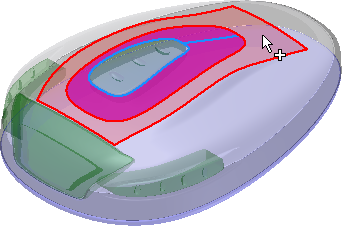
What are differences between stitching surfaces in the repair and part environments?
The Stitch command differs in its capabilities and results in the repair and part environments:
|
Repair environment |
Part environment |
|
|
Surfaces |
Uses only surfaces in the repair environment. |
Uses only surfaces and quilts in the part environment. |
|
Operations |
Analyzes and marks surface edges to show which can be successfully stitched into a quilt. Specialized tools repair data errors. |
Analyzes and marks surface edges to show which can be successfully stitched into a quilt. Specialized tools repair data errors. |
|
Browser |
No feature created. Operations are not parametric and have no history. |
Stitched surfaces create a stitch feature and place an icon in the browser. Like other features, can be used in parametric editing operations, such as suppressed rollbacks, and so on. |
|
Results |
Geometry remains in the repair body. |
All surfaces, including the surfaces that do not successfully stitch, reside in the part environment. |
Is there an advantage to selecting individual surfaces or all surfaces?
In most cases, stitch all surfaces into a quilt or solid body in the repair environment.
Once selected, you can analyze surfaces to identify the faces that cannot be stitched or have gaps, and then stitch the eligible surfaces.
What are the results of using surfaces that cannot be stitched into a quilt?
When you use Stitch to analyze surfaces in the repair environment, the analysis results are shown in the preview as color-marked surface edges.
- Black edges are stitched to adjacent surfaces to form a quilt.
- Red edges in a quilt indicate free edges of a surface. Red edges also indicate the outer edge of the quilt if the quilt does not enclose a volume.
- Magenta edges are stitched to adjacent edges, but the joined edges are not tangent. You can use the surfaces; however, the near-tangent edges may not be suitable for some design operations, such as creating a shell.
Can I unstitch a surface?
Use the Unstitch command to convert faces in a composite to surfaces and retain the composite. If you unstitch a quilt or a solid, you create a new composite.
How do I group surfaces or transfer a surface to a different group?
Use the Transfer Surface command to select faces or bodies and move to a new composite or stitch to a selected body. You can also right-click a quilt in the browser and use the context menu command Add Surface to stitch a selected surface to the active quilt.