On the Table: components and layout tab of the Definition/modification of a table style dialog, you can define the column names and layout for a summary table.
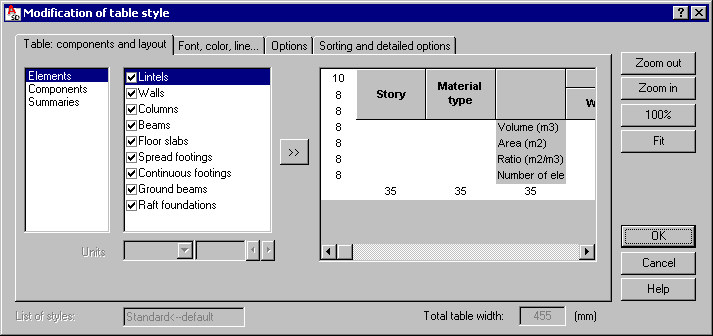
Note: The options located on this tab depend on the table type selected in the Summary tables - style manager dialog. The drawing above shows the options available after selecting the detailed table.
At the bottom of the dialog, for List of styles, enter a name for the defined table style (this field is not available if you are modifying an existing table style).
To define/modify a table style:
- Select a set of table categories (in the example shown, these are Elements, Components and Summaries
- In the field next to the categories, select the components to be included in the table
- Click >> to add the selections to the table, which is displayed on the right.
Note: Location of columns and column names may be modified for every table style.
Additional options for specifying table components and layout:
- Total table width - this is a read-only field that displays a width of a defined table as determined by the software.
- Zoom out, Zoom in, 100% buttons, which allow you to change the zoom scale of the table.
- Fit button - click this to adjust the width of table columns to length of texts in column headers.
You can rearrange the order of individual table columns by selecting the column and dragging it to a chosen location. It is also possible to increase height of table cells and in table headers, to define additional user descriptions, or to change names of existing columns.
You can format tables by:
- inserting additional blank lines at the beginning and end of a table
- inserting blank columns in tables
- defining table dimensions (width of columns and height of lines) - dimensions of column widths and line heights are presented under the table and on the left side of the table, respectively.