The lights for the deck area are mounted in six lamp posts around the pool. Setting them up is not much different from setting up the other lights, except that these are fluorescent lamps that cast shadows from a rectangular area, so the orientation of the light objects becomes important. Also, because of the large fixture size, you will use a self-illuminating material, and later a Glare shader, to improve the realism of the rendered scene.
Set up the lesson:
- Continue working on your own scene file or
 open the scene file
med_villa_lighting_no_deck_lights.max.
open the scene file
med_villa_lighting_no_deck_lights.max.
Add fluorescent lights for the deck around the pool area:
- Activate the Top viewport, and
 zoom out around the swimming pool so you can see all six lamp post objects, as shown in the next illustration.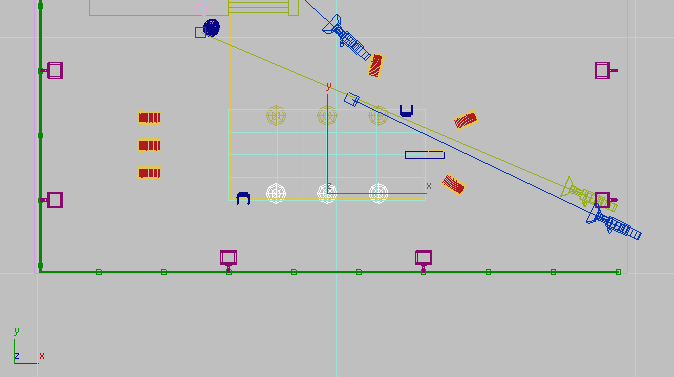
- On the Scene Explorer panel, click to highlight LampPost01.
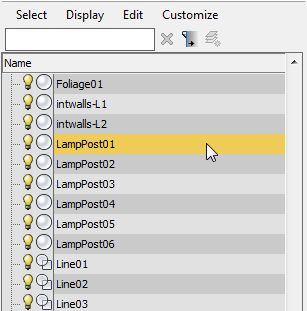 Tip: By default, the Scene Explorer panel appears to the left of the viewports, but if it has been hidden, you can press the H key to display a floating version of the Explorer.
 - Right-click the viewport and choose Isolate Selection from the quad menu.
- Activate the Camera-Terrace viewport and press P to change to a Perspective view.
- Click
 (Zoom Extents) to get a closer look at the lamp post. Continue to zoom in until the light panel is clearly in view.
- Change the Camera-Hi-Point viewport to a Left viewport.
-
 Zoom in to the top of the lamp post object in the Front and Left viewports as well.
 - On the
 Create panel, activate
  (Lights). On the Object Type rollout, click Free Light to activate it, and turn on AutoGrid.
 - In the Perspective viewport, click once in the center of the light panel to place the light object on its surface. Turn off AutoGrid when you’re done.
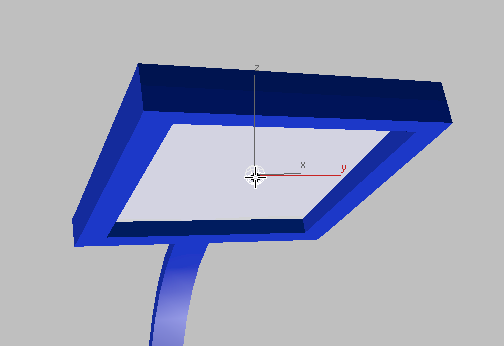
Set the light properties:
- Go to the Modify panel. On the Templates rollout, open the drop-down list and choose 4ft Cove Fluorescent (Web).
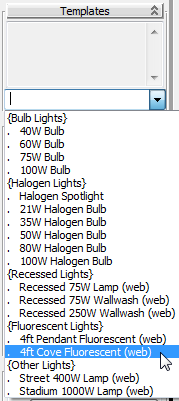
By default, this type of object emits light as a point. However, you want the object to emit light in a rectangular area that corresponds to the geometry of the panel on the lamp post.
- In the Shape/Area Shadows rollout
 Emit Light From (Shape) group, choose Rectangle from the drop-down list.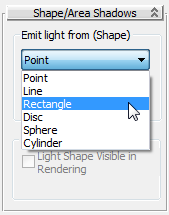
- Drag the Length and Width spinner arrows until the rectangular bounding box matches the dimensions of the lamp post light panel.
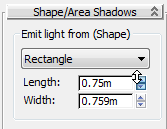
Use the Top and Left viewports to check your work. Use
 (Select And Move) to adjust the position of the light object if you need to.
 - Activate the Front viewport.
- Activate (Select And Move).
- On the main toolbar, change the Reference Coordinate System to Local.
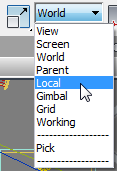
- Move the light object downward slightly, toward the lower surface of the fixture.
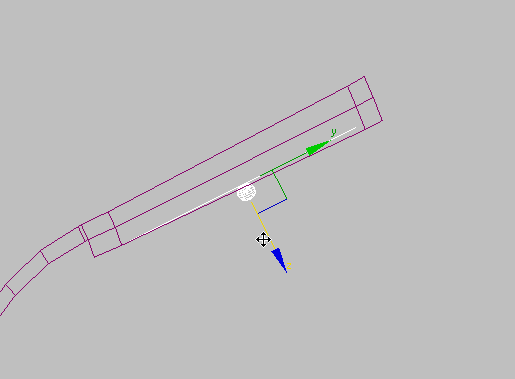
- Change the Reference Coordinate System back to View.
- Right-click the viewport and from the quad menu, choose End Isolate. Then click the Perspective viewport label and choose Cameras Camera-Terrace.
Clone the original fluorescent light:
- Activate the Top viewport, press
 +Z to return to the view of all six lamp posts, then use (Select And Move) to +clone the light object to the neighboring lamp post, as shown in the next illustration. Make the cloned light an instance of the original.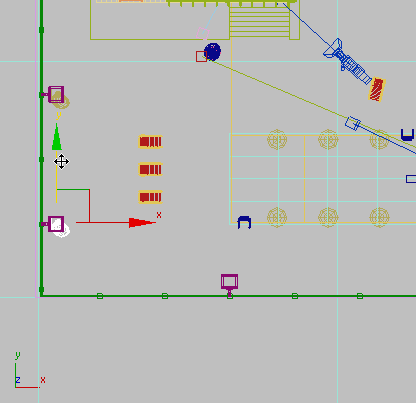
- In the Top viewport,
 +click to select the first light (both deck lights should be selected), and then on the main toolbar, click
  (Mirror).
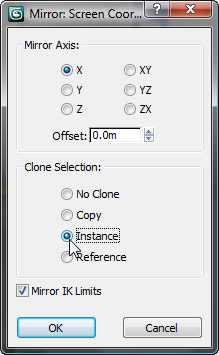
 - In the Mirror dialog Mirror Axis group, make sure X is chosen. In the Clone Selection group, choose Instance and then click OK.
- In the Top viewport,
 move the cloned light objects to the lamp posts on the opposite side of the pool.
- Activate the Front viewport, and zoom in to the top of the lamp posts.
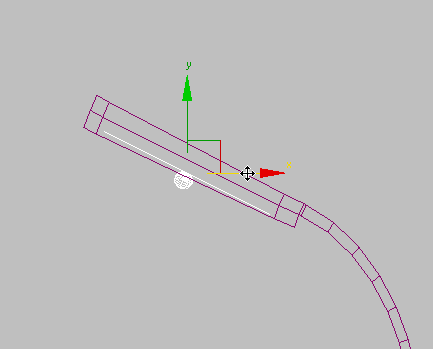
- Drag the two new lights along X axis until they approach the lower surface of the fixture.
Add the lights on the lower side of the pool:
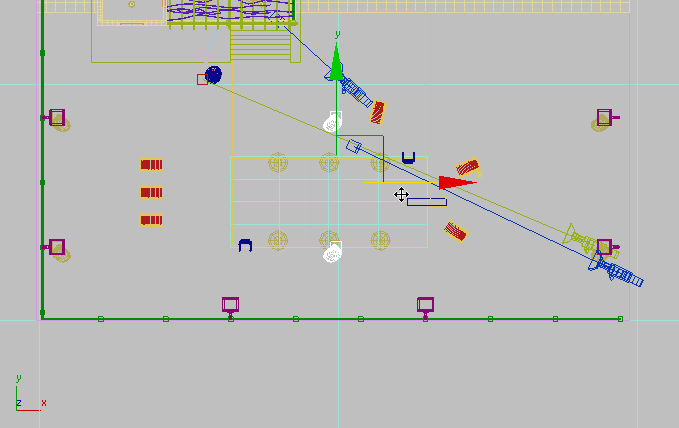
- In the Top viewport, +clone the light objects to the mid point between the two remaining lamp posts, as shown in the next illustration. Make the clones instances, again.
- On the main toolbar, turn on
 (Angle Snap Toggle).
 -
 Rotate the lights’ position by –90 degrees about the Z axis.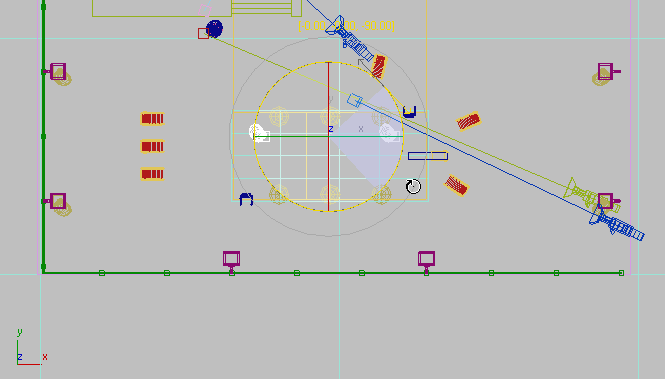
- Move the lights on their Y axis until they are in line with the two remaining lamp posts, as shown in the next illustration.
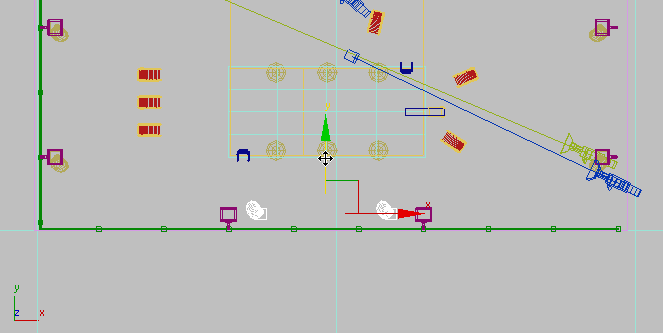
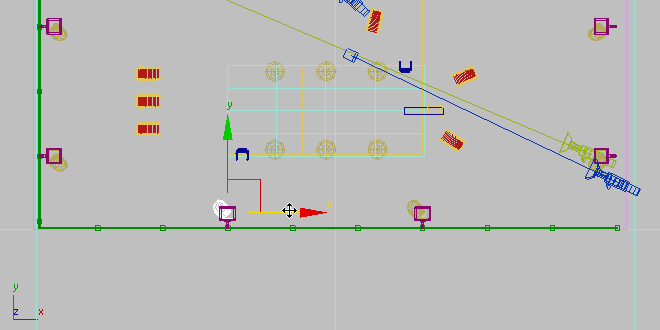
- Move each light individually on its X axis until the light is repositioned inside the corresponding lamp post.
- In the Left viewport, zoom in to the light objects you just repositioned.
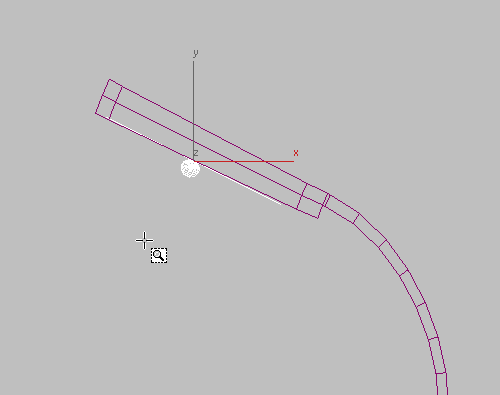
- If you need to, move both lights along the X axis until they are near the front edge of the fixture.
- Change the Left viewport back to a Camera-Hi-Point view.
Render the scene to check the illumination:
- Activate the Camera-Terrace viewport and
 render the scene.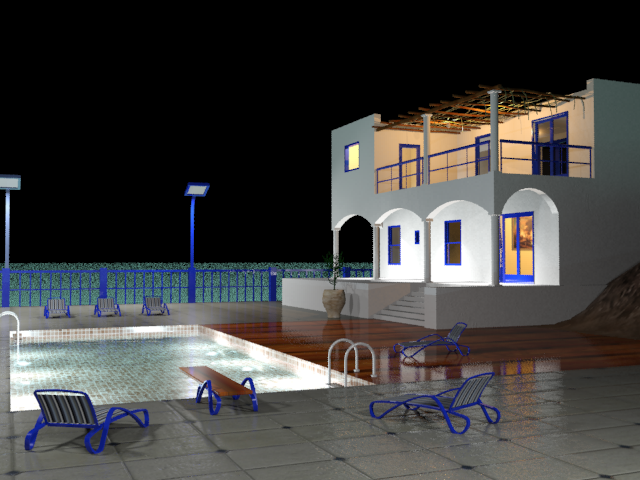
With the addition of these latest light objects, the time it takes to render the scene has increased considerably.
The area around the pool is now illuminated, but the scene remains under-lit. The intensity of the fluorescent light objects needs some adjustment.
- Minimize the Rendered Frame Window.
Fine-tune the fluorescent illumination:
-
 Select one of the fluorescent light objects.
 - Go to the
 Modify panel. In the Intensity/Color/Attenuation rollout Dimming group, double the value of Resulting Intensity from 100 to 200.0 percent.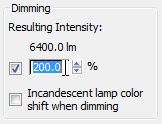
- Activate the Camera-Terrace viewport and render the scene.
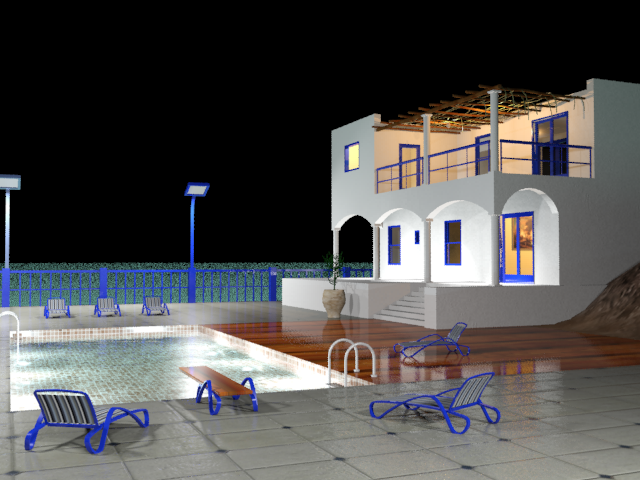
Because the light objects were cloned as instances, all lights are affected by the change to the Resulting Intensity setting. The amount of available light in the scene has greatly increased, rendering the shadows cast by the floor vase and diving board in greater detail.
The scene is almost complete, but one flaw remains. The frosted glass panels that cover the lamp posts are not glowing as they should, considering that the lamps are the major source of your outdoor illumination.
The fluorescent light objects you created for the pool deck emit a light intensity that corresponds to their product specifications. However, you have the option of overriding this setting. Here, you will increase the intensity to provide added illumination.
Make the lamp post fixtures self illuminating:
-
 Open the Slate Material Editor.
 A lot of materials are already in the active View1 view, so you’ll create a new view for editing the Glow material.
- Right-click the blank area next to the View1 tab, and choose Create New View. Name the new view Glow Editing, then click OK.
Glow Editing becomes the active View.
- In the Material/Map Browser panel at the left, open the Scene Materials group, locate the Glow material, and drag this entry into the Glow Editing view. When 3ds Max prompts you to create either a Copy or an Instance, make sure Instance is chosen, then click OK.
Glow is a mental ray Arch & Design material. It is used by the shades for the balcony lights, and also by the glass panels in the lamp posts around the swimming pool.
- Double-click the Glow material node so you can see its parameters in the Parameter Editor at the right.
- On the Self Illumination (Glow) rollout, turn on Self Illumination (Glow).

The controls in the Color group lets you specify the color of the glow material, but leave default filter color of white unchanged.
In the Luminance group, choose Physical Units (cd/m 2 ). If you later choose to add lighting effects such as Glare, you can adjust this value to fine-tune the result. For now, leave the setting unchanged, at 1500 candelas per square meter.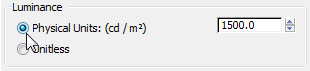
- In the Glow Options group, turn off Visible In Reflections.
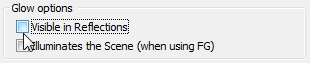
Since the rendered image already shows some reflectance of the lamp posts, you don’t need this option. The other option in this group, Illuminates The Scene (When Using FG), turns a self-illuminating material into its own light source. But the lamps already have their light objects in place, so any additional illumination from the Glow material is unnecessary.
 Close the Slate Material Editor.
 - Render the Camera-Terrace viewport.
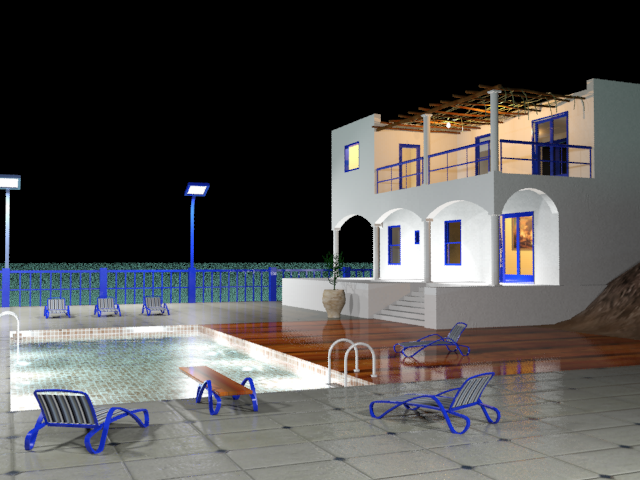
The light sources in the lamp posts now look illuminated. On the other hand, their edges look too precise for light sources: They should have the glare that you see on streetlights and other nighttime outdoor lighting. You can correct this with the mental ray Glare shader.
Add a Glare effect:
- On the main toolbar, click
 (Render Setup). On the Render Setup dialog, go to the Renderer tab. In the Camera Effects rollout Camera Shaders group, turn on the Output shader toggle.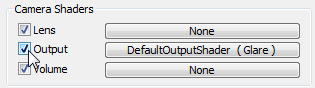
As the shader button shows, mental ray provides a Glare shader as a default shader for camera output, but by default this shader is turned off, so you have to enable it “by hand.”
- Open the Slate Material Editor, and move it so you can see both dialogs.
- In the Material/Map Browser panel on the left, navigate to the Sample Slots group.
- Drag the Camera Shaders Output button from the Render Setup dialog and drop it onto an unused sample slot. The sample slot shows a red bar across it when you are able to drop the map.
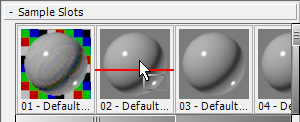
3ds Max asks if this should be an instance or a copy. Make sure Instance is chosen, and then click OK.
- Close the Render Setup dialog.
- Drag the sample slot with the Glare shader into the active View.
Once again, 3ds Max asks if this should be an instance or a copy. Make sure Instance is chosen, and then click OK.
- In the active View, double-click the Glare node so you can see its parameters in the Parameter Editor panel to the right.
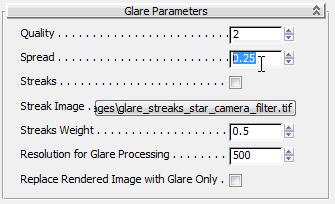
- On the Glare Parameters rollout, change the value of Spread from 2.0 to 0.25.
- Close the Slate Material Editor.
- Make a
 clone of the existing rendered frame, then render the scene.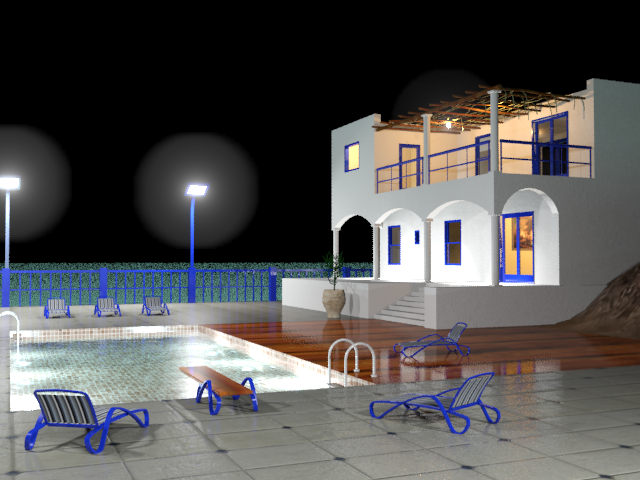
Rendered scene with Glare effect added to light sources
Compare the two images to see the Glare effect. This effect is most pronounced on the lamp posts for the deck, but it is also noticeable on the balcony light that is not hidden by the pillar.
- Close the Rendered Frame Windows.
mental ray provides a number of special effects designed to give light objects added realism. Here, you will add a Glare effect to the lights in the villa, to simulate their interaction with dust particles and ambient humidity.
Save your work:
- Save the scene as my_villa_nighttime_pool_and_deck.max.