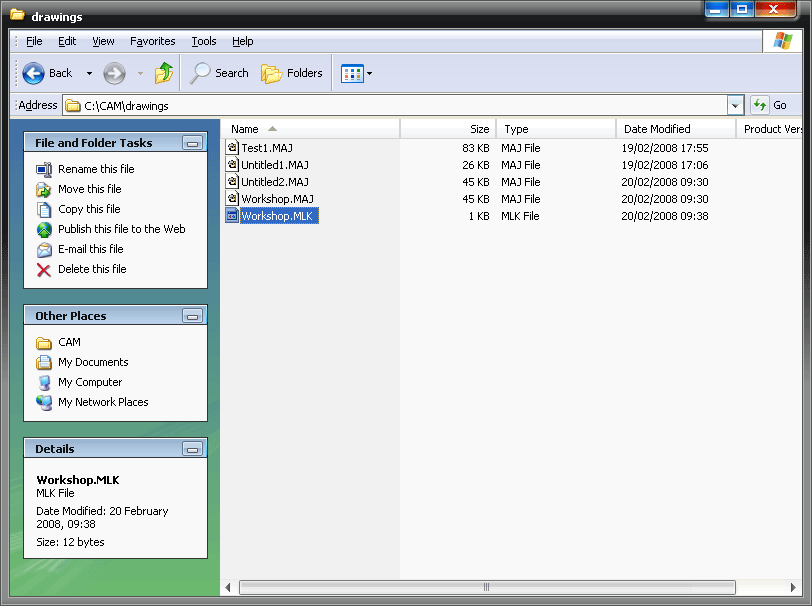
Problem: On occasions, a customer will close a job but for some reason (e.g. a systems problem) it remains 'in use' as far as our software is concerned. The next time that the user tries to access the job, the system recognises that it is still in use and warns them that the job is locked. It can then only be opened in read-only mode, preventing any changes from being made.
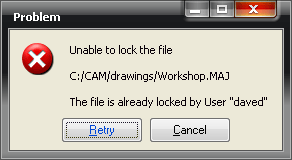
If this occurs, then there are three methods of unlocking the job and allowing the user to continue.
1. Job Browser
First, and simplest, the job may be released via the job browser. From the menu choose File > Browse for Jobs and a list of jobs should be shown. If the job you are looking for is displayed, it will have a red key symbol alongside it, indicating that it is locked.
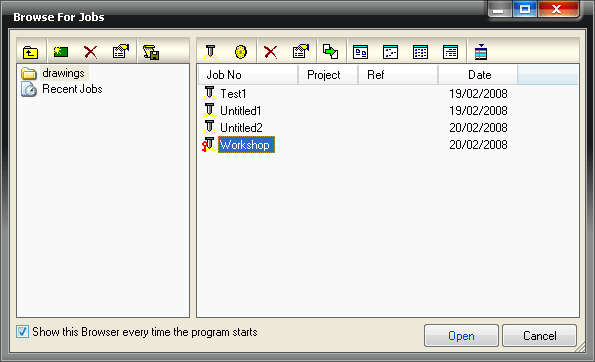
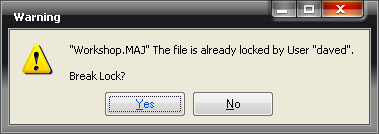
Right-click on the icon and click on the option Break Lock. Although this is the simplest method of unlocking a job, it will only work if the Job Browser recognises the job, and this may not be the case if the job is external, e.g. on a remote network.
2. Console
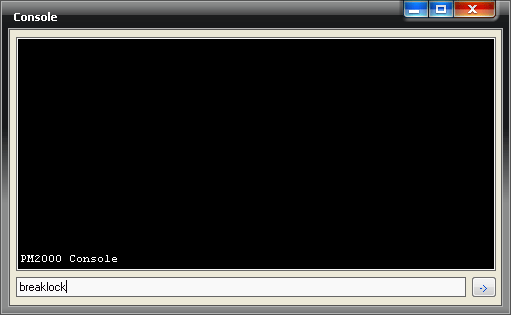
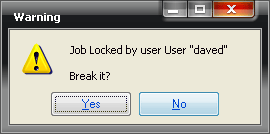
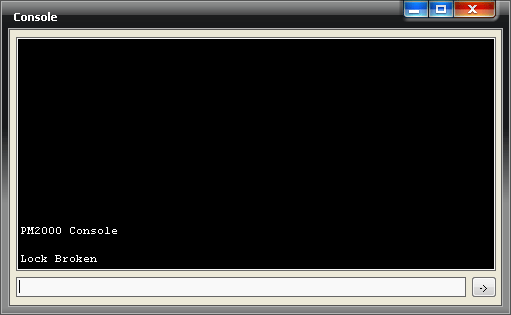
Alternatively, the console can be brought up by typing CTRL+SHIFT+C. This will then allow the word breaklock to be typed in, which releases the lock.
3. Delete all lock files
The third option is to Find all files on the system that have suffixes of .MLK or .ELK, and these can be deleted at the Windows level to free the locks