Product Listed Dynamical Valve Set Sub Assembly
A pre-configured Valve set dynamic sub assembly, can be utilised to represent several types of Valve set sizes by applying various Dimensions within the product list itself. This Tutorial describes how the various dynamical sub assembly Valve sets can be designed.
- Locate the Valve set sub assembly, within the folder structure.
- Right click, then select Create Product List.
- This prompts the edit item dialogue box including Dimension, Option, Item and Other tabs.
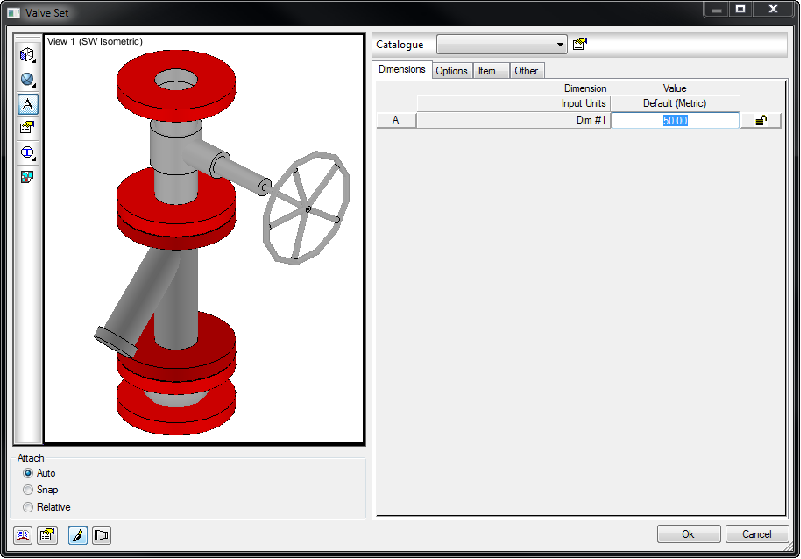
- Select the Edit Product List icon

,to create the below fields illustrated below : Select the cell within the Name Column.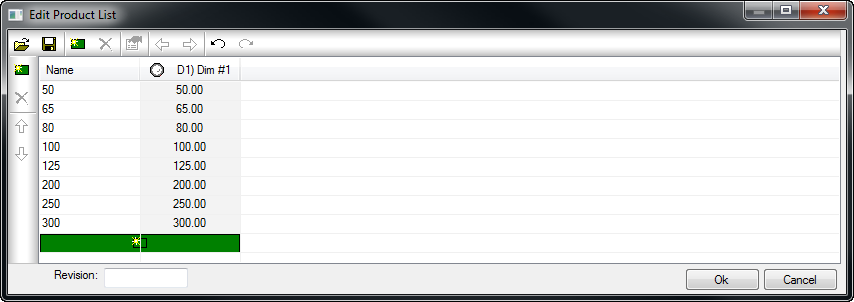
- To apply a dimension to drive the various sizes of the Sub-assemblies valve set, select the New Add Column

icon. A dialog will appear. Configure as illustrated below, now select OK to proceed.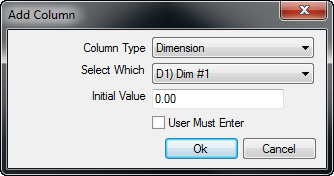 Note: Various columns can be applied to the product list, this can range from e.g. Area, Weight, Order No, ID No, etc.
 - Type within the following for the Name : 50 , D1) Dim #1 : 50 (Enter the Initial value of 50 for Dim#1) . Repeat this step for all the outstanding sizes ranging from 65, 80, 100, 125, 200, 250, 300.
- Select Ok to finalise the Product list. The edit item dialog will reappear, select OK. Then name and locate a save location, within the folder structure of the installation.
- To utilise the Sub-assemblies valve set, apply accordingly to the appropriate service template.