This section will show the user how to add individual ancillaries and ancillary kits to single items in the item folders. For more information on how to define ancillaries please see here.
Firstly open CAM-Duct and navigate to your Item Folders.
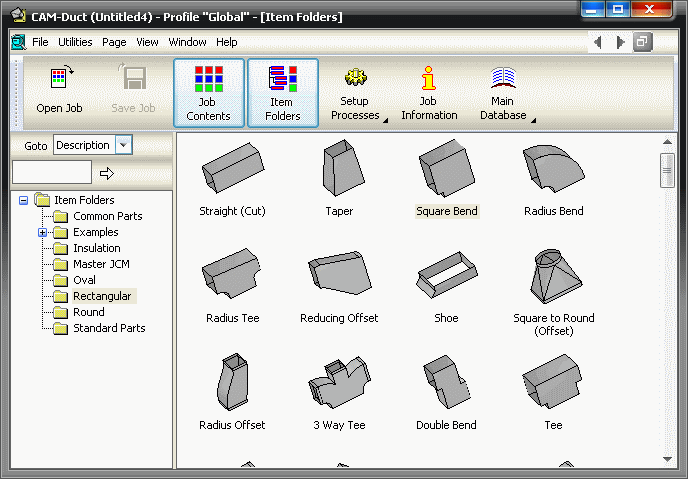
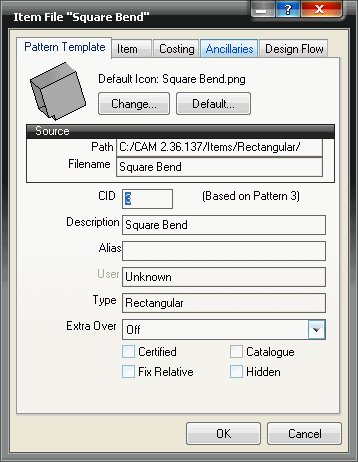
To apply ancillaries to an individual item, first right click on the item you wish to configure and left click properties. then go to the Ancillaries Tab.
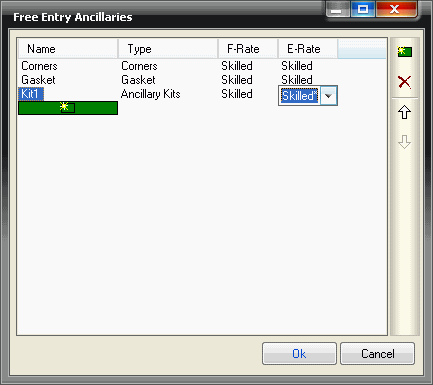
Then Left Click Define Ancillaries, click the new button  and type a name for the ancillary you wish to attach to this item. Then choose a type of ancillary (pre configured in the ancillary database) to assign to the item. You can then choose the F-Rate (Fabrication Cost) and then E-Rate ([Erection] Installation Cost). Once you are satisfied with the values in this table you can click Ok.
The ancillary required can then be selected by clicking the drop down menu and selected the appropriate group and ancillary component. The quantity and lengths required can also then be set by filling in the appropriate boxes.
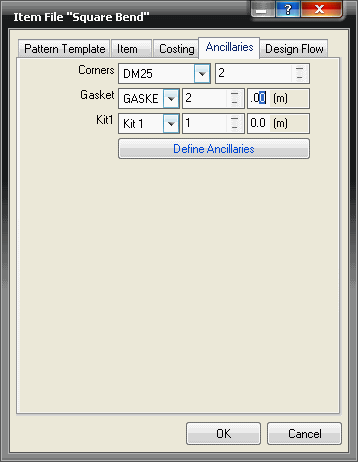
Please Note, to apply an ancillary kit the exact same method detailed above can be used. However, they can be applied it two different ways. If, for example ancillaries are already assigned to an item, e.g. the corners for the connectors. But you wish to turn this single item into an ancillary kit (with multiple items), you can simply change the selected ancillary from the "corner group" to the kit that has been added to the ancillary database, without working through and adding gaskets and bolts etc.
Alternatively, a kit can be added from scratch, through the "Define Ancillaries" button, this will only allow an ancillary kit to be selected, instead of a single ancillary item as well as a kit, as explained above.