Utilising the Sub assembly function to create a Valve Set into a single dynamic product listed item
- Plan the required items to be combined as a dynamic product listed sub assembly. Illustrated below a generic example of a "Valve", with a "Strainer & Expansion Bellow". To insert the items into the model, Select within the active Service Template or folder structure, then position individually within the model accordingly.
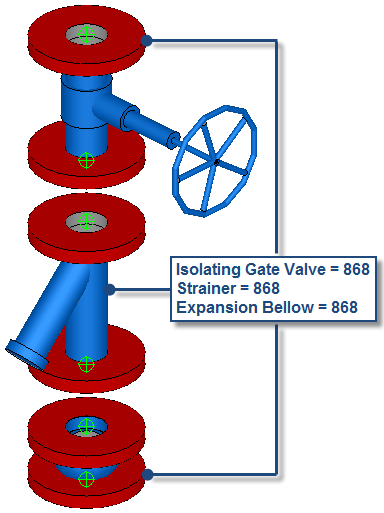
- With the items present in the model, consider the position and orientation of the items are in relationship of each other, as you would expect when utilising for co-ordination. Each individual item has a distinctive node insertion point present. See illustration below:
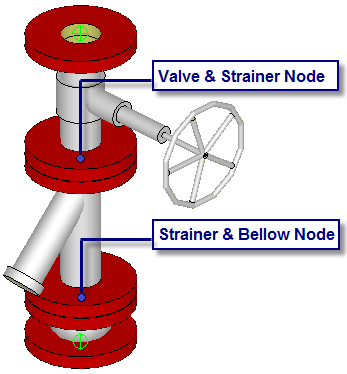
- With the items in the correct location & orientation in relationship with other, Type SAVEASSUBASSEMBLY . Select the "Valve" "Strainer" & the "Bellow".
- Automatically, the Save Item to folder dialog will be prompted, Name and save to an appropriate location within the folder structure. Select OK, to finalise the command.
- To edit and customise, Type FOLDERS. Locate the appropriate sub assembly previously saved.
- Right click on the Sub Assembly >> Select >> EDIT.
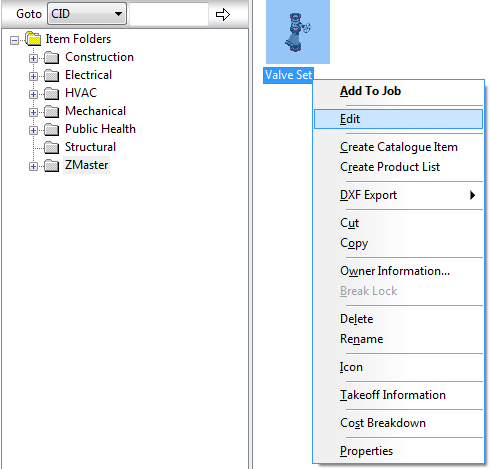
- Automatically, the "Edit Sub Assembly" dialog will appear for the appropriate sub assembly.
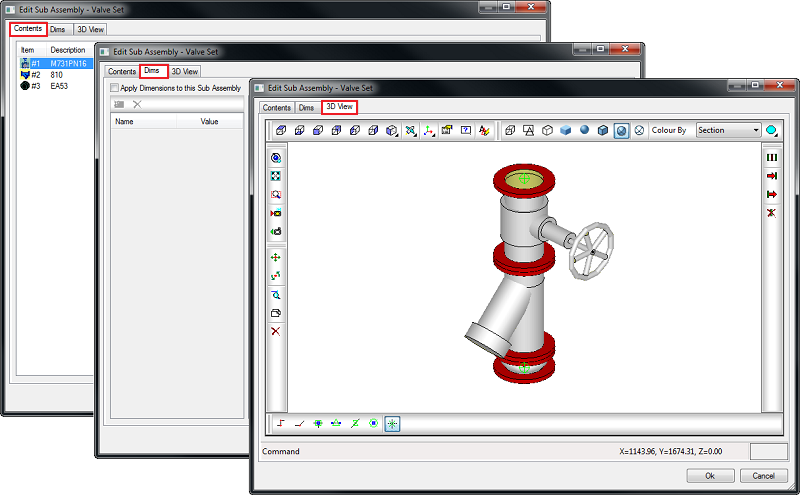
As illustrated above, the dialog is categorised into three individual tabs, these consist of : "Contents Tab", "Dims Tab" & "3D View Tab". For additional information and functionality, please refer to Sub-Assemblies - Toolbar/Commands documentation.
- The next stage is to customise and configure the critical dimensions to drive the combined items within the Sub assembly as a dynamic individual item. Select the "Dims" tab , then enable the "Apply Dimensions to this Sub Assembly option", the dimensions for each individual item will be indicated driving each pattern:
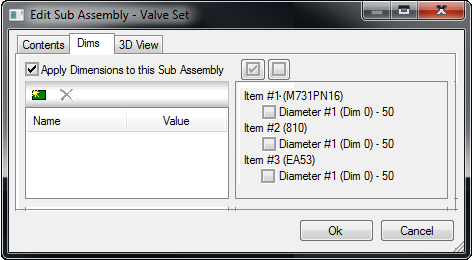
- Prior to setting up the critical dimensions. Plan and determine the dynamics required to drive the Sub assembly:
Dynamically driving the common diameter of Item #1 (Valve) Item #2 (Strainer) & Item#3 (Bellow)
Select the "New Dimension" command. The column below titled Name, will populate a "Dim#1" title, name as required "Connection Dia", then enter a value of 50.0 within the value column.
- To link the dimensions for "Diameter #1 (Dim 0)" for "Item #1" "Item #2" & "Item #3" , by selecting the box in each field, a tick will appear. This indicates the three items within the sub assembly are now being driven by one common dimension for "Diameter #1 (Dim 0) titled "Connection Dia".
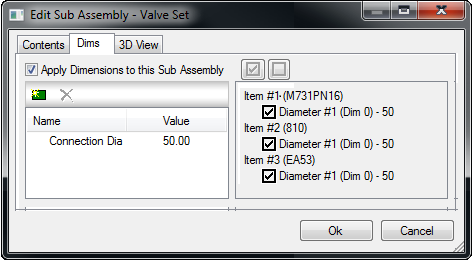
- Select "OK" to finailise and save the configured information to the dynamic sub assembly.
- Default Insertion Point
A default insertion point is required on all items and sub assemblies. If this is not configured or applied correctly, the insertion of the item can become out of relationship with the cross hair / cursor. It is very important to plan the insertion location on how the item / sub assemblies will interact when utilising for design or co-ordination purposes within a building information model.
- To configure an insertion point appropriately on an item / sub assemblies, right click on the item, Select "Edit". Note: This can either be executed in the "Item folder" structure or alternatively within the "Service Template" if the item has been applied to the latter.
- The "Edit Sub Assembly" dialog will appear, Select the "3D View" tab:
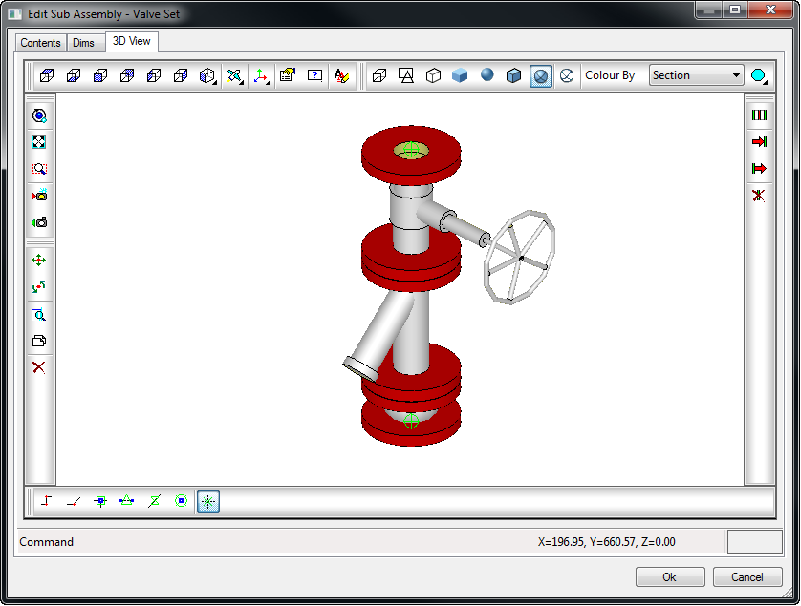
- When locating the required default insertion point, the basic principle to co-ordinate / move the item sub assemblie, to be in a co-ordinate location (@ X=0 Y=0 Z= 0). For this example "Valve Set" the default insertion may be located on the base of the Flange "Bellow".
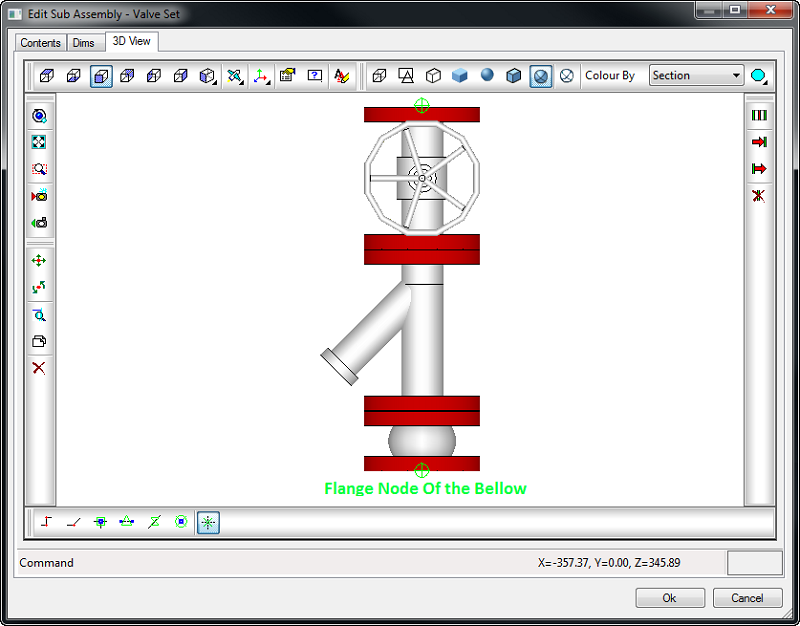
- Execute the Move command, Select the "Flange Node of the Below". Then type @0,0,0, this will move the selected, to the appropriate relative co-ordinate.
- To test the insertion of the item / sub assemblies, apply to the appropriate "Service Template" accordingly. Then insert into the model.
- To configure the Valve Set dynamic sub assembly, into a Product listed item. Refer to the appropriate Product List tutorial.