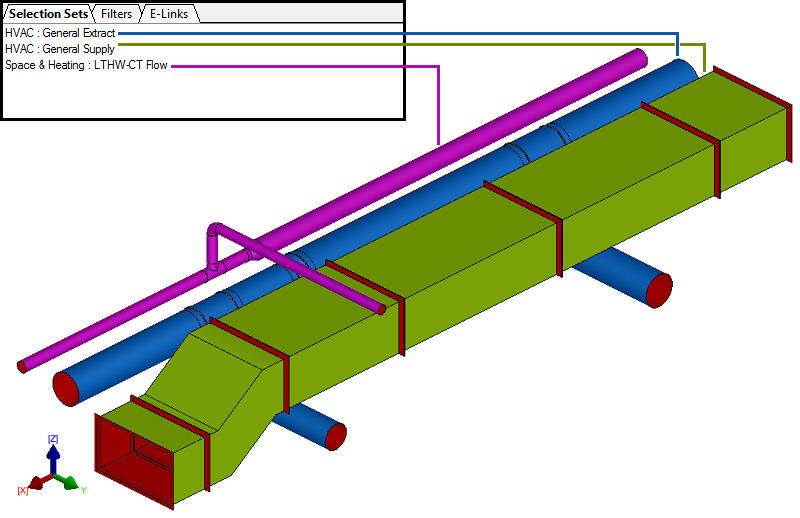
Utilising Selection Sets & Filters
- Prior to creating "Selection Sets" within a model, the user must consider the most effective and efficient method of selecting items / services. The utilisation of "Filters" will enable a user to categorise from the "Filter" drop down specific information contained on the item e.g . "Item-Service Name", "Item Specification", "Item Custom Id Number (CID) etc.
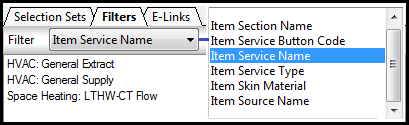
- Select within the "Workspace" toolbar "Filters". From the drop down menu select "Item Service name", the dialog will populate all the active services contained within the model. Note as default the "Filter" is set to "None".
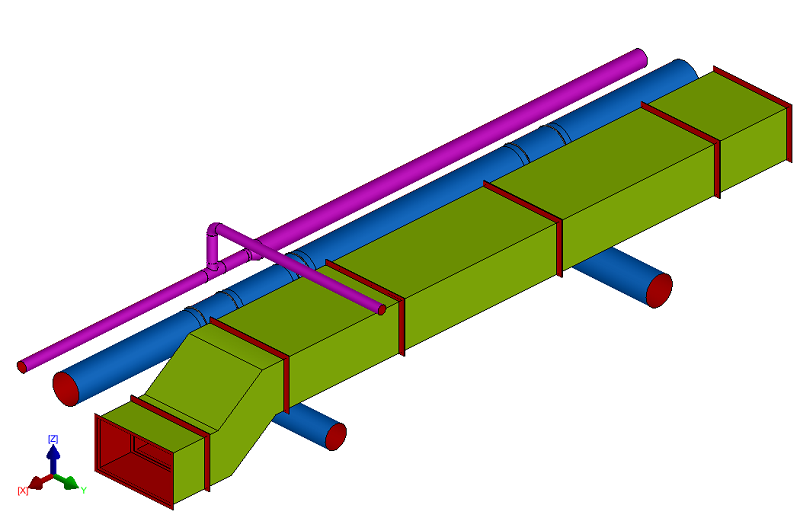
- To select all the items that are contained within a connected service system, right click on the appropriate service name : "HVAC : General Supply", a dialog will appear. Click on the "Select", all the items contained within the service will become highlighted.
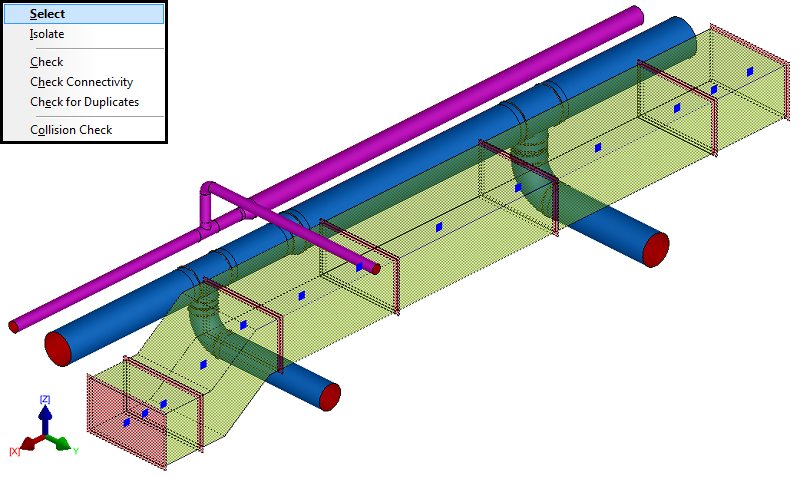
- With all the items highlighted within the "General Supply" service, the utilisation of "Selection Sets" can be created. Click on "Selection Set" tab. Right click within the dialog box below, Select "New", a "New Selection Set - Enter Name" dialog will appear. Title as required "HVAC : General Supply", Select "OK" to finalise the command.

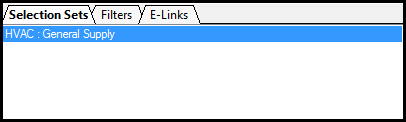
- The selection set for the "HVAC : General Supply" service is now populated in the dialogue. This now can be utilised on various commands within the Autodesk Fabrication Products.
- To populate other services contained within a model, repeat the same procedure.