It is possible to run two separate CAMduct applications on the same PC. One for using normal manufacturing takeoff and the other for placing into a Batch Mode.
This help topic will explain how to configure CAMduct to run in a Batch Mode.
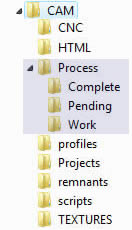
Batch Mode is run minimised and is continuously processing/scanning in the background for files to be processed. In order for it to do this a folder must be created in the CAM folder called Process. CAMduct will then create 3 sub folders within this folder called Pending, Work, and Complete shown as below.
A shortcut to the application exe file needs to be created and a switch is required in the Target at the end of the path as shown below: Creating the shorctut to the software (i.e umdiapp) and placing /Process at the end of the target enables Batch Mode when the shortcut is run.
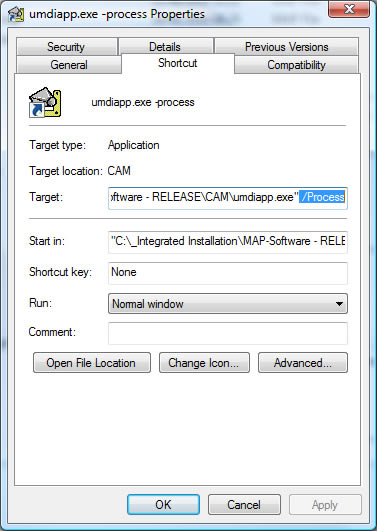
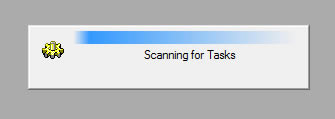
This shortcut can be ran to start the software in Batch Mode and alternatively placed in the Windows Start-up folder to run each time the PC is turned on. The application should display a Scanning for Tasks if the configuration has been successful.
Any files placed in the Pending folder will be automatically dealt with by the Batch Mode application.
The program can also be started in Batch Mode from the New Job Wizard.