|
-
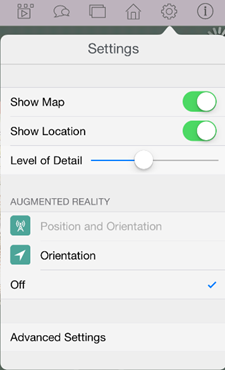
Show Map
: Hide or show an inset map. If the scenario represents a real-world area, the inset map displays the surrounding area.
-
Show Location
: Hide or show your current location in the inset map and in the model. You must be within the bounds of the model to display your current location. Make sure Location Services is turned on in your iPad settings. In the inset map, your current location is indicated with a small red dot. In the model, it takes the form of an avatar.
-
Level of Detail
: Adjust the amount of detail displayed for building facades. A higher setting displays more of the details of the scenario at once, but will decrease performance.
-
Augmented Reality
: see the help topic, To use Augmented Reality.
-
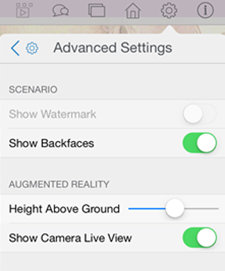
Advanced Settings
: opens another panel with additional settings.
|
 to display the Settings panel.