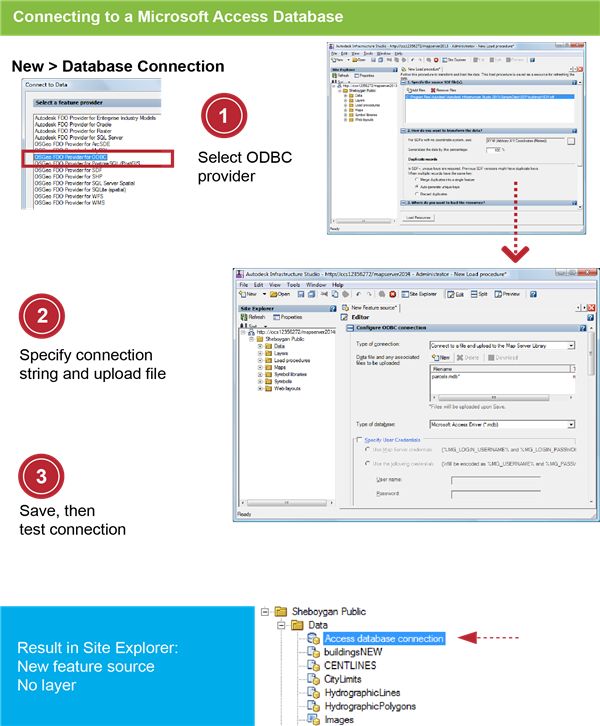
In this exercise, you make a connection to the Microsoft Access database for the Sheboygan parcels data and save the connection as a resource.
| |
Detailed steps |
|---|
|
|
- Right-click the Data folder in the Site Explorer and then click
 . .
- In the Connect to Data dialog box, select OSGeo FDO Provider for ODBC.
|
|
|
- In the New Feature Source Editor, for Type Of Connection, select Connect To A File And Upload To The Map Server Library.
- Under Data File And Any Associated Files To Be Uploaded, click New and then navigate to the folder: C:\Program Files\Autodesk\Autodesk Infrastructure Studio 2013\Sample Data\Database.
- Select Parcels.mdb. Click Open.
|
|
|
- Click and save the connection resource in the Data folder with the name Access database connection.
-
It may take a minute for the file to upload to the server.
Click Test Connection. You should see a “Successful Connection” message.
- Close the resource editor.
|