You can validate an area topology by checking the data in the topology support tables for topology errors. Topology errors can include polygons crossing themselves or centroids without polygons.
To check an area topology
- In the Industry Model Explorer, click
 Industry Model Explorer.
 - In Industry Model Explorer, expand the Topologies item.
- Right-click an area topology and click Topology Checker.
In the resulting window, each topology error type is stored in its own node.
- Expand the nodes and items to see more details.
At the feature level, by default, the FID and name of the feature class is shown. Double-click an item to display the feature information related to the error message.
Note:You must enable the double-clicking in the application options. See Setting Application Options.
The following error types may be displayed:
- Centroid Has No Surface: A centroid feature does not lie within a surface. This may be due to a “Line Not In Closed Loop” error.
- Line Not In Closed Loop: The edges of an area topology have to build a closed polygon. If a line is not part of a valid polygon, it is listed here. This may be due to a “Lines Cross or Touch” error or a “Line Crosses or Touches Self” error.
- Lines Cross Or Touch: An edge crosses or touches another line.
- Line Crosses Or Touches Self: Lines cross or touch each other.
- Centroid Has Null-Geometry: The centroid has no geometry (no coordinates).
- Line Has Null-Geometry: The edge has no geometry (no coordinates).
- Surface Has Errors: Invalid polygons are saved in the system table _TSER. The reason for this error can be one of the following:
- Line Has More Than {0} Vertices: The edge has many vertices.
- Line Has Duplicated Sections: The edge has a section that has been digitized twice (mostly forth – back – forth).
- Line Has Adjacent Points: The edge has two or more adjacent points that lie together closer than the tolerance value.
- Two Or More Rings Touch: An outer and inner ring or two inner rings touch.
- Coordinates are outside of the spatial extents. : The coordinates are outside of the spatial extents.
- Surface Has Multiple Centroids: The surface has more than one centroid. Expand the surface items to see the centroids.
- Do any of the following:
- Select an error and click
 .
. All features under the selected item are highlighted. To remove the highlighting, click
 .
.  Zoom to the highlighted feature in your map. You can also click Zoom On Click to automatically zoom to a feature when you click it.
  Open the feature class form to see feature information.
  Delete the selected feature from the database.
  Create missing centroids for the selected polygon. This tool is not available unless a polygon is missing a centroid.
  Find intersecting lines that were not detected by the standard topology check. This tool is for rare cases, where intersecting lines do not cause invalid polygons. It can take a long time to execute.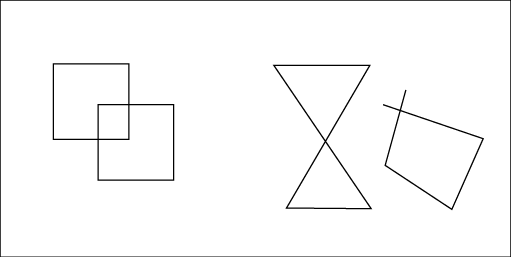
The polygons on the left can be detected only with Find Intersecting Lines. The polygons on the right are detected using the standard topology checker.
- Select an error and click
- When you are finished repairing topology errors, click
 to make sure no errors remain.