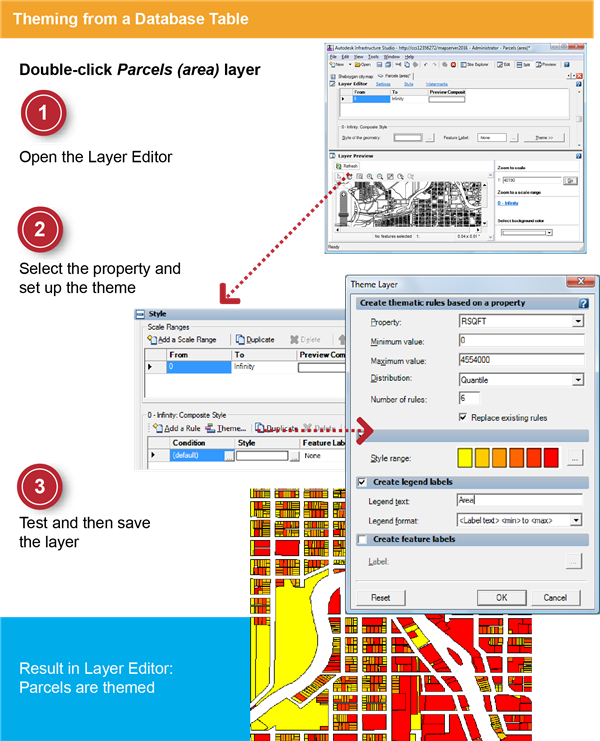
In this exercise, you theme the parcels in your map according to their area in square feet, using a column (property) from a database table.
Note: The following exercise uses the standard layer style to configure styles in the Layer Editor. Also available is the enhanced layer style, which supports compound symbols and composite styles. To change the layer style, click Tools menu  Options Layer Editor tab. Under Layer Style, select Standard for this exercise. See the Studio User's Guide for instructions on using enhanced styles.
Options Layer Editor tab. Under Layer Style, select Standard for this exercise. See the Studio User's Guide for instructions on using enhanced styles. | Detailed steps | |
|---|---|
 |
|
 |
|
 |
|