This illustration of the Arc Intersection dialog box shows the dialog controls and components.
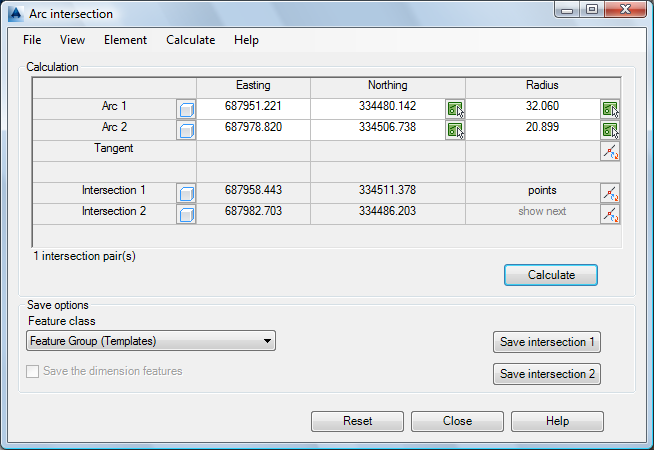
Construction dialog box
Construction dialog boxes contain the following elements:
|
Element |
Description |
|
White text box |
Edit to modify values. |
|
Shortcut menu |
Right-click any text box in the construction dialog boxes to view its shortcut menu. |
|
Gray text boxes |
View the results of calculations. |
|
Feature Class list box |
Select the feature class to save the calculated object to (point or line string feature class). This list displays all appropriate feature classes for the workspace. For example, if the result is a point, it displays point feature classes. |
|
|
Switch to the drawing and select an element. You can also acquire distances, but not angles or orthogonal projections. |
|
|
Change the element’s orientation or toggle between two possible results. |
|
|
Highlight a result or a construction element. |
|
|
Modify or determine an abscissa value in the drawing. |
|
New |
Reset all entries and start a new calculation. When prompted, identify the required elements. |
|
Calculate |
Start a calculation, for example, after modifying parameters. The result is not stored in the database, but the display in the drawing is updated. |
|
Save |
Save the result in the database. If a calculation has more than one result, you can save result 1or result 2. |
|
Save The Dimension Features |
Automatically save dimensioning for the calculated features. Available for Orthogonal Calculation and Arc Intersection. Use the COGO And Dimensioning industry model options to specify the dimensioning feature classes. See Setting COGO and Dimensioning Industry Model Options. This option is available if the industry model contains the Dimension extension and the COGO and Dimensioning options have been set and saved. |
|
Reset |
Reset all entries and start a new calculation. |
|
Close |
Close the dialog box and exit the calculation. |
|
Status row |
View the number of intersections or tangents for the calculation. |


