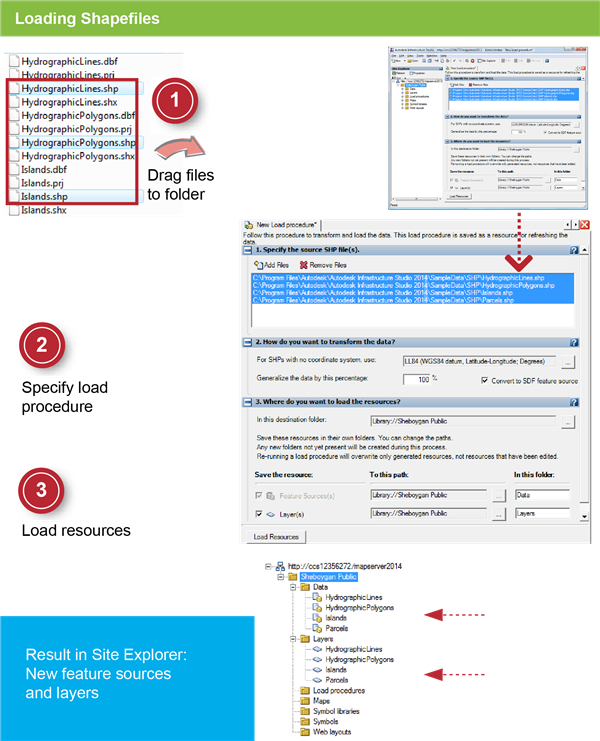
In this exercise, you load SHP files in the simplest way, by dragging them directly into a folder in the Site Explorer.
| |
Detailed steps |
|---|
|
|
- In Windows Explorer, navigate to the folder: C:\Program Files\Autodesk\Autodesk Infrastructure Studio 2013\SampleData\SHP.
- Select the four files: HydrographicLines.shp, HydrographicPolygons.shp, Islands.shp, and Parcels.shp. Drag the files to the Sheboygan Public folder in the Site Explorer.
|
|
|
- In the Load Procedure Editor, select the coordinate system WGS84 datum, Latitude-Longitude; Degrees (in the Category Lat Longs, code=LL84).
|
|
|
- Click Load Resources.
Note the new feature sources and layer resources in the Site Explorer Data and Layers folders.
- Click
 and save the load procedure resource in the Load Procedures folder with the name Load SHP files. and save the load procedure resource in the Load Procedures folder with the name Load SHP files.
- Close the load procedure editor.
|