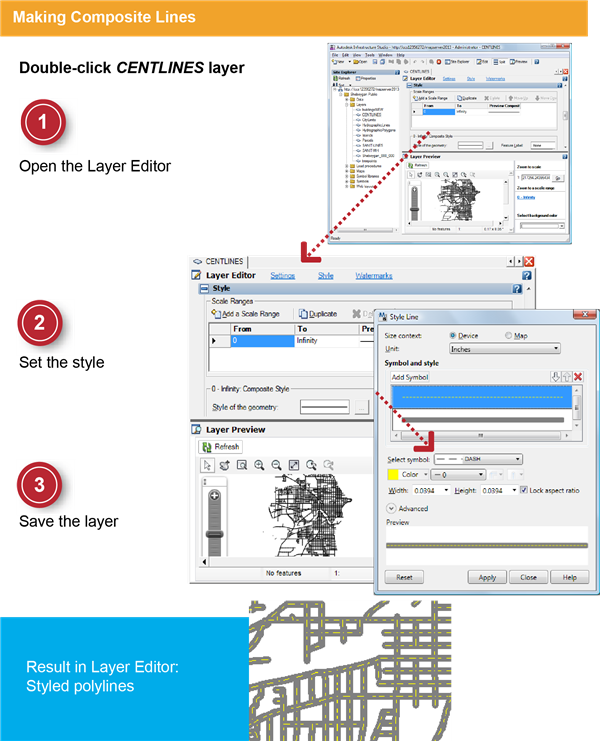
In this exercise, you define a composite line style for a polyline layer. In the next exercise, you will specify the scale range at which this style appears.
Note: The following exercise uses the
standard layer style to configure styles in the Layer Editor. Also available is the
enhanced layer style, which supports compound symbols and composite styles. To change the layer style, click Tools menu

Options
Layer Editor tab. Under Layer Style, select Standard for this exercise. See the Studio User's Guide for instructions on using enhanced styles.
| |
Detailed steps |
|---|
|
|
- In the Site Explorer, double-click the layer CENTLINES (not the CENTLINES feature source).
The Layer Editor is displayed with the default window split between the Preview panel (below) and Editor panel (above).
- Click Refresh in the Preview panel to see the layer.
- At the top of the Layer Editor, click Style.
The Layer Editor brings the Style panel of the editor to the top. Scrolling to the Style panel makes it easier to specify the style for the layer.
|
|
|
- In the Layer Editor, for Style Of The Geometry, click [...].
- In the Style Line dialog box, click Create Composite Lines.
- For Thickness, select 0.2 and then select a dark gray color. For Build Up Composite Styles, click New and then select a yellow color. For Pattern, select Dot. Click OK.
You should have a thick dark gray line with a thin dashed yellow line inside it.
|
|
|
- In the Layer Preview panel, click Refresh.
- Use the Zoom To Rectangle tool to zoom the Layer Preview panel.
- On the toolbar, click Save to save the layer resource.
|