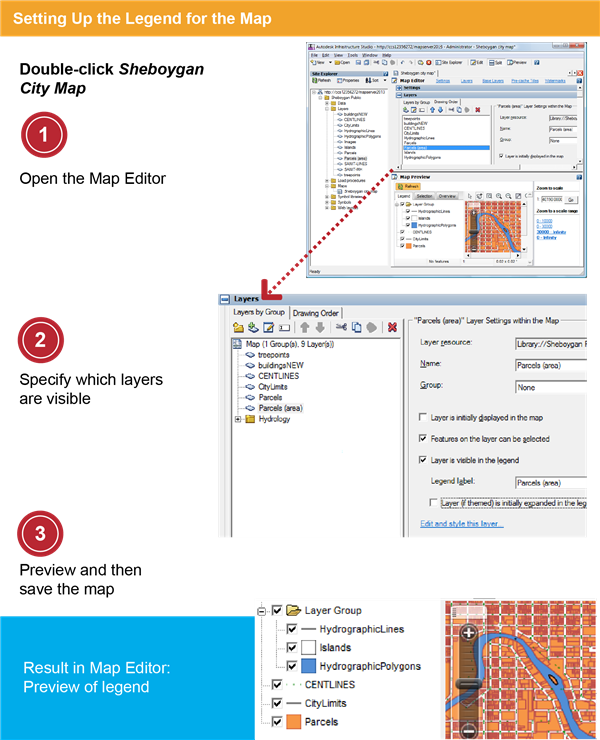
In this exercise, you specify how you want the legend to appear. Some layers are initially turned on while others are turned off. You will be able to view the legend in the Web browser in the next exercise.
| |
Detailed steps |
|---|
|
|
- In the Site Explorer, double-click the map Sheboygan City Map to open it.
- On the Infrastructure Studio toolbar, click Edit.
|
|
|
- Drag the Parcels (area) layer from the Layers folder to the list of layers in the Layers panel.
- Click the Drawing Order tab and move the Parcels (Area) layer up until it is immediately below the Parcels layer.
- Click the Layers By Group tab and make sure that the Parcels (Area) layer is still selected. Clear the checkboxes for Layer Is Initially Displayed In The Map and Layer (If Themed) Is Initially Expanded In The Legend.
The layer will be turned off when the map is displayed in the viewer and the color-key for the theme will not be expanded.
|
|
|
- On the Infrastructure Studio toolbar, click Split.
- In the Map Preview panel, click Refresh to test the legend.
- Clear the checkbox next to Parcels and select the one next to Parcels (area). Expand the Parcels (area) layer to view the key to the theme.
- Save the map resource.
|