Checks out a file from the vault.
You can check out and modify a file in your working folder.
New in 2015 Extension
AutoCAD Plant 3D Lakshya Extension will support Get/Check Out to include OPC and XREF related files. This means that multiple files may be downloaded when requesting a single file. Also, the Lakshya Extension will behave like the Vault client where possible.
The most noticeable change is the Get / Check Out dialog box. We are integrating a subset of features from the identically named dialog found in Vault Client 2015. Adding this dialog box allows Plant to support related files and to combine Check Out, Refresh From Vault, and Get Revision dialog boxes. Combining these dialogs allows us to align with Vault UI and to address related-file issues in one location (as opposed to supporting related files and a partial local workspace with separate UI).
Primary workflows affected in Lakshya Extension:
- 1. Related files are downloaded with a file. This supports partial local workspaces.
- 2. Files modified in the local workspace are not downloaded by default.
- 3. You can specify the file revision in the Get / Check Out dialog box. This eliminates the Get revision dialog box.
In Vault 2015, a Force Overwrite option replaces Don't download latest copy from vault and new status icons display when working with files that were edited out of turn. The Force Overwrite option is available in Vault Client only and we are not implementing it in our UI. Get revision and undo check-out can provide this functionality if vault client is not installed.
We are removing the [x] Don't download latest option ftom our check-out boxes. Partially to align with Vault 2014, but also to decrease the chance that a user will not have the latest version (including related files) during check-out.
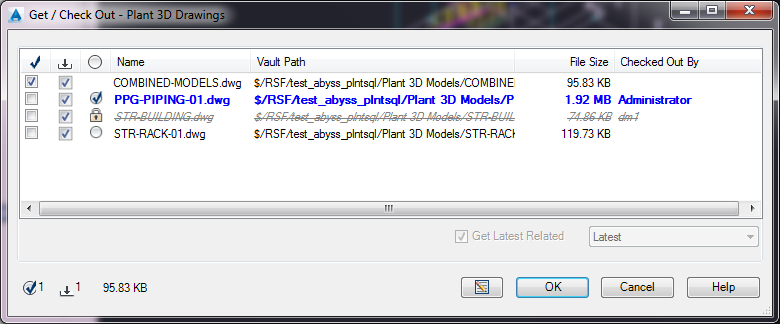
If you get or check out a file that references other drawing files (Xref), the referenced drawings are added to the check-out dialog box and are downloaded automatically (for example: if you check out combined-models.dwg the three additional files it references are added to the list).
Related files are automatically downloaded if you get or check out a file from Project Manager. Related files are not considered if you get or check out a folder from Project Manager.
- Check-Out (checkbox column)
-
Selects a file is to check out.
 click the check icon in the table header to select and clear check-out for all files.
 - Vault Status (image column)
-
Displays the vault file status icon. If there is no icon, the file is not in the local workspace.
- Get Revision
-
Specifies the revision of a file to get. Active only if getting a single file from Project Manager. Latest is the default.
This option is available when you get or check-out a single file from Project Manager. It is not enabled if you get or check out a folder or the entire project (root folder).
- Get Latest Related
-
Downloads the latest revision for all related files. If you get an earlier revision of a file and do not specify Get Latest Related, older revisions of related Xref files may be downloaded. If you do specify Get Latest Related the latest version of related Xref files are always downloaded.Note: If Xrefs were added in any related files and Get Latest Related is specified the additional related files may need to be downloaded separately.
- Check Out and Download Count
-
Displays the number of files to check out and the number of files to download. Files that are up-to-date in the local workspace are not counted and are not downloaded.
- Comments
-
 Specifies vault check-in comments.