- General
-
Autodesk Robot Structural Analysis 360 is an application based on Autodesk Robot Structural Analysis Professional and a cloud computing platform. This platform enhances computing capacities by providing users with access to the computing power of multiple high-end machines.
With Autodesk Robot Structural Analysis 360, pre- and post-processing tasks are still performed locally, but instead of being analyzed locally, the model is sent to the cloud platform for analysis, thus leaving you free to complete other tasks on your desktop, until the results are transmitted back to you.
Through cloud computing services, you can simultaneously execute multiple analyses in less time, and increase your productivity without worrying about machine restrictions or memory usage.
- Licensing
-
Autodesk Robot Structural Analysis 360 uses a login-based system for licensing. This convenient approach simplifies your licensing process compared to "Traditional" licensing systems.
To use Autodesk Robot Structural Analysis 360 software, you will need an Autodesk ID.
If you do not have an ID, you will be able to request one after installing the software.
For more information about signing in to Autodesk Robot Structural Analysis 360, click here.
- Simulation Job Manager
-
The Autodesk Simulation Job Manager is a utility for managing communication between the desktop and Autodesk Robot Structural Analysis 360, and is included in the Autodesk Robot Structural Analysis 360 installation.
- There are two ways to open the Simulation Job Manager:
-
- From the Windows® Start menu, click All Programs
 Autodesk Autodesk Simulation Job Manager Simulation Job Manager.
 - From the Notification Area, click the Simulation Job Manager icon in the Notification Area:
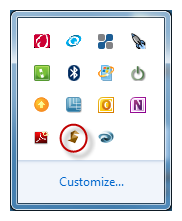
Note: When you have exceeded the number of jobs available to your account, the Simulation Job Manager issues an error message indicating that you need to add additional job Cloud Credits to run the job. From this dialog, you can access your Autodesk® 360 account page by clicking here. For more information about Cloud Credits, click here. - From the Windows® Start menu, click All Programs
A known conflict has been identified between the Simulation Job Manager and Adobe Acrobat 9. The workaround is to disable Acrobat 3D Capture. To do this:
- Download and run the utility by clicking here.
- In the AppInit tab, disable the acaptuser64.dll library.
- Reboot the computer.
For more information about the Simulation Job Manager, click here.
- Analysis monitoring and Calculation messages
-
During the analysis, Autodesk Robot Structural Analysis 360 keeps you informed on the analysis progression, and reports all errors or warning messages in real-time. This allows you to cancel the analysis if necessary.
While the analysis is run in the cloud, you can simply use the buttons available in this dialog to work on another project, or even exit the Autodesk Robot Structural Analysis Professional application.Note: Because the analysis is performed remotely, you can close a project and even exit the application. If the analysis is still unfinished when you next open the project, then the calculation dialog opens and displays the current status of the analysis. If the analysis is finished, then the results are automatically uploaded to your computer.Once the analysis is finished, the Calculations messages dialog opens automatically. This dialog is also available by clicking Analysis
Calculation messages.