In this step, we open the AEC model into Autodesk® Simulation CFD.
1. Start Simulation CFD, and click New.

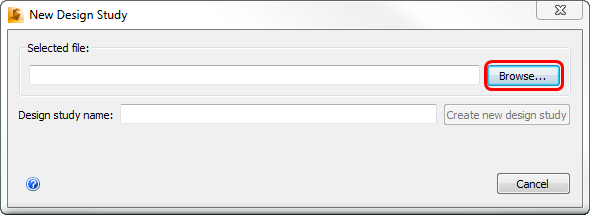
2. On the New Design Study dialog, click Browse...
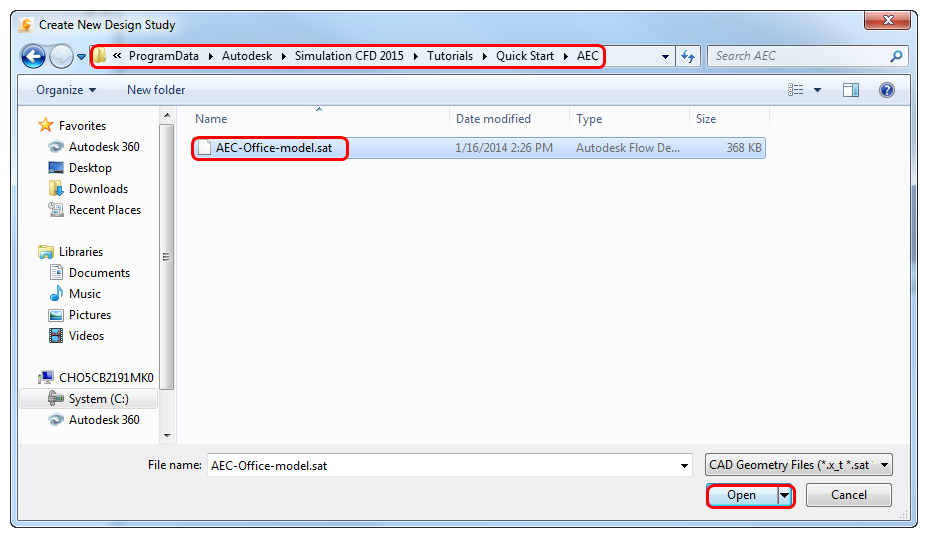
3. Navigate to C:\ProgramData\Autodesk\Simulation CFD 2015\Tutorials\Quick Start\AEC, and select AEC-Office-model.sat. Click Open.
Can't find the ProgramData folder?
Open a file browser window (Start menu > Computer).
From the top left corner, click Organize > Folder and search options.
Click the View tab.
Select the Show hidden files, folder, and drives option.
Click Ok.
Using Simulation CFD 360?
Navigate to C:\ProgramData\Autodesk\Simulation CFD 360 2015\Tutorials\Quick Start\AEC
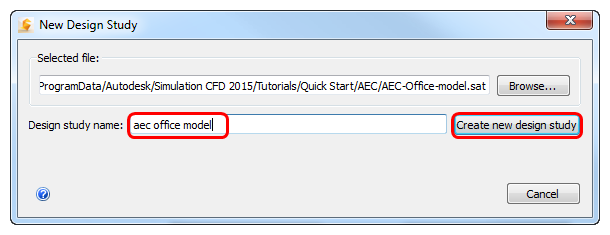
4. On the New Design Study dialog, enter a name for the Design study name, and click Create new design study:
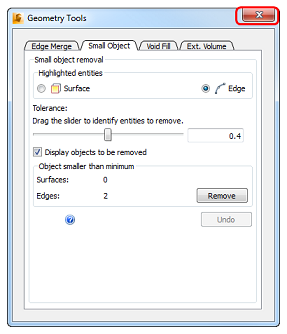
5. You will probably see a dialog called "Geometry Tools." Close it by clicking the "X" in the top right corner:
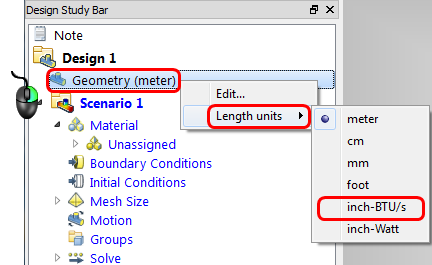
6. The geometry imports in units of meters, but we need to convert it to inches. To do this:
- Right click on the Geometry branch of the Design Study Bar, select Length units, and click on inch-BTU/s.
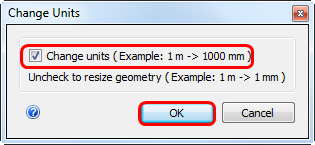
- On the Change Units dialog, make sure Change Units is checked, and click OK.
What it should look like:
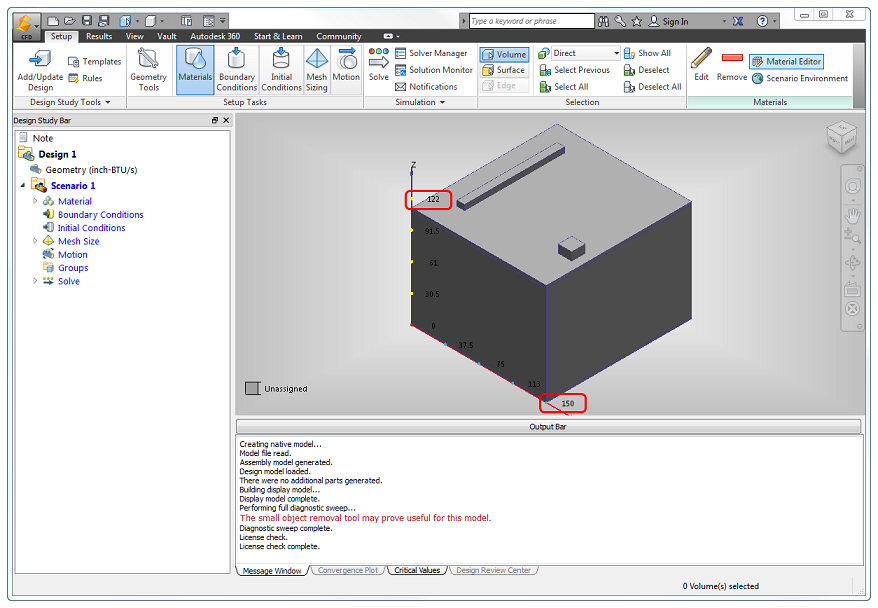
Autodesk® Simulation CFD starts, and you should see the model. Note the dimension values on the axes: