The Autodesk® Simulation Job Manager provides real-time status information for jobs run with Autodesk® 360 products. You can use the Simulation Job Manager to perform the following tasks:
- Monitor the status of simulations running in the cloud.
- Stop simulations that are running.
- Run simulation jobs in the background, and download results even when your Autodesk® 360 product is not running locally.
There are two ways to open the Simulation Job Manager:
- From the Windows® Start menu, click All Programs > Autodesk > Autodesk Simulation Job Manager > Simulation Job Manager.
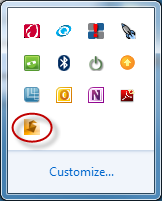
- From the Notification Area, click the Simulation Job Manager icon:
Note: When you have exceeded the number of jobs available to your account, the Simulation Job Manager issues an error message indicating that you need to add additional job Cloud Credits to run the job. From this dialog, you can access your Autodesk® 360 account page by clicking here.