The BuildingStructureManager class provides access to the building structure elements of the current drawing.
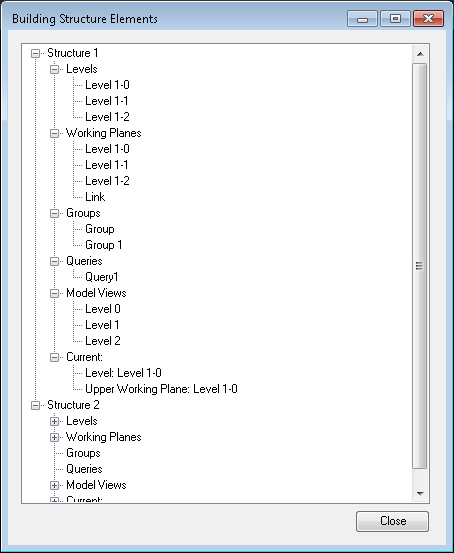
This walkthrough will look at how to get the building structures for the drawing, including levels, model views, queries, groups and workplanes, and display the information in a simple tree view. This is the same data that is shown in the Project Browser.
Begin by creating a new Advance Steel addin project called BuildingStructureElements with one class file that implements the IExtensionApplication interface.
Next add a WindowsForm to the project and call it StructuresTreeForm. Design a simple form with a TreeView that is exposed through a public property called ElementsTreeView, and a Close button. The code for the Form class will look something like this:
|
Code Region: Form with TreeView |
using System;
using System.Collections.Generic;
using System.ComponentModel;
using System.Data;
using System.Drawing;
using System.Linq;
using System.Text;
using System.Threading.Tasks;
using System.Windows.Forms;

namespace BuildingStructureElements
{
    public partial class StructuresTreeForm : Form
    {
        public StructuresTreeForm()
        {
            InitializeComponent();
        }

        public TreeView ElementsTreeView
        {
            get { return treeView1; }
        }

        private void closeButton_Click(object sender, EventArgs e)
        {
            this.Close();
        }
    }
}
|
See the end of this tutorial for an example of the form when the addin is run.
Building Structure Manager
|
Code Region: ListStructures class |
using Autodesk.AdvanceSteel.BuildingStructure;
using Autodesk.AdvanceSteel.CADAccess;
using Autodesk.AdvanceSteel.CADLink.Database;
using Autodesk.AdvanceSteel.DocumentManagement;
using Autodesk.AdvanceSteel.Geometry;
using Autodesk.AdvanceSteel.Runtime;
using System.Collections.Generic;
using System.Windows.Forms;

namespace BuildingStructureElements
{
    public class ListStructures
    {
        // Iterate all building structure objects
        [CommandMethodAttribute("TEST_GROUP", "ListAllBuildingStructures", "ListAllBuildingStructures", CommandFlags.Modal)]
        public void ListAllBuildingStructures()
        {
            // Create form to display building structure elements
            StructuresTreeForm structuresForm = new StructuresTreeForm();
            // Use a TreeView to display the Building Structures
            TreeView elementsTreeView = structuresForm.ElementsTreeView;

            // get the building structure manager of the curent drawing
            BuildingStructureManager buildStructMan = BuildingStructureManager.getBuildingStructureManager();
        }
    }
}
|
Next, we'll add methods to get and display the data. This example uses a TreeView to display the data because the BuildingStructureManager provides access to the data from the Project Browser in a tree format, with parent and child objects, similar to a TreeView control.
|
Code Region: ListName |
private void ListName(BuildingStructureItem item, TreeNode node)
{
    BuildingStructureTreeObject parent = item.Parent;
    string name = parent.GetStructureItemName(item);
    node.Nodes.Add(name);
}
|
BuildingStructureItem is the parent class for LevelObject, ModelViewObject, ObjectsGroup, ObjectsQuery, and WorkingPlane, which provide information on the corresponding elements of the Building Structure.
LevelObject
|
Code Region: Iterate LevelObject |
private void ListLevelObject(LevelObject level, TreeNode node)
{
    ListName(level, node);

    // a levelObject has a main working plane attached
    WorkingPlane mainWorkingPlane = level.MainWorkingPlane;

    // ... and maybe some other working planes
    List<WorkingPlane> attachedWorkingPlanes = level.AttachedWorkingPlanes;

    // it also may have a level below
    LevelObject levelBelow = level.LevelBelow;

    // and one or more levels above
    List<LevelObject> levelsAbove = level.LevelsAbove;

    // it also may have a model view attached
    ModelViewObject modelView = level.ModelView;

    // .. and objects attached to this level
    List<ObjectId> linkedObjectsIds = level.LinkedObjectsIds;
}
|
ModelViewObject
Add the code below to the ListStructures class to list the name of a model view. You can also get the associated level, if applicable, and the visibility for the model view.
|
Code Region: List ModelViewObject |
private void ListModelViewObject(ModelViewObject modelView, TreeNode node)
{
    ListName(modelView, node);

    // may be linked to a level
    LevelObject level = modelView.Level;

    // has visibility property
    int nVisible = modelView.ModelViewBoxVisibility;
}
|
ObjectsGroup
Groups are named collections of different elements that can be handled at once by several tools. They are represented by the ObjectsGroup class in the API. Add the method below to list the name of a group in the TreeView. You can also get the list of ObjectIds that belong to the group.
|
Code Region: List ObjectsGroup |
private void ListObjectsGroup(ObjectsGroup objectsGroup, TreeNode node)
{
    ListName(objectsGroup, node);
    List<ObjectId> attachedObjects = objectsGroup.getObjectsIDs();
}
|
ObjectsQuery
The queries displayed in the Query list of the Project Explorer are represented by the ObjectsQuery class. Add the method below to display the name of a query in the TreeView.
|
Code Region: List ObjectsQuery |
private void ListObjectsQuery(ObjectsQuery objectsQuery, TreeNode node)
{
    ListName(objectsQuery, node);
}
|
WorkingPlane
The WorkingPlane class represents the workplanes from the Workplanes tab in the ProjectBrowser. The code below shows how to get the geometric plane for the named workplane, as well as the associated level, if applicable.
|
Code Region: List WorkingPlane |
private void ListWorkingPlane(WorkingPlane workingPlane, TreeNode node)
{
    ListName(workingPlane, node);

    Plane geomPlane = workingPlane.GeomPlane;
    LevelObject attachedToLevel = workingPlane.ReferencingLevel;
}
|
BuildingStructureTreeObject
|
Code Region: Iterate a BuildingStructureTreeObject |
private void IterateTree(BuildingStructureTreeObject treeObject, TreeNode node)
{
    // iterate items
    List<BuildingStructureItem> structureItems = treeObject.StructureItems;

    foreach (BuildingStructureItem currItem in structureItems)
    {
        string itemName = treeObject.GetStructureItemName(currItem);

        if (currItem is LevelObject)
        {
            ListLevelObject(currItem as LevelObject, node);
        }
        else if (currItem is ModelViewObject)
        {
            ListModelViewObject(currItem as ModelViewObject, node);
        }
        else if (currItem is ObjectsGroup)
        {
            ListObjectsGroup(currItem as ObjectsGroup, node);
        }
        else if (currItem is ObjectsQuery)
        {
            ListObjectsQuery(currItem as ObjectsQuery, node);
        }
        else if (currItem is WorkingPlane)
        {
            ListWorkingPlane(currItem as WorkingPlane, node);
        }
    }
}
|
BuildingStructureObject
|
Code Region: Iterate a BuildingStructureTreeObject |
public void ListAllBuildingStructures()
{
    // Create form to display building structure elements
    StructuresTreeForm structuresForm = new StructuresTreeForm();
    // Use a TreeView to display the Building Structures
    TreeView elementsTreeView = structuresForm.ElementsTreeView;

    // get the building structure manager of the curent drawing
    BuildingStructureManager buildStructMan = BuildingStructureManager.getBuildingStructureManager();

    // get the list objects from the manager
    BuildingStructureManagerListObject buildStructManListObject = buildStructMan.ListObject;

    // get all of the structures in the BuildingStructureManagerListObject
    List<BuildingStructureObject> bsoList = buildStructManListObject.Structures;

    // iterate them and get properties
    foreach (BuildingStructureObject currBSO in bsoList)
    {
        // building structure objects have a name
        string name = buildStructManListObject.GetStructureName(currBSO);
        TreeNode node = elementsTreeView.Nodes.Add(name);

        // .. and a parent
        BuildingStructureManagerListObject bsoParent = currBSO.Parent;

        // .. and a list of levels
        BuildingStructureTreeObject levelTreeObject = currBSO.LevelTreeObject;
        TreeNode levelNode = node.Nodes.Add("Levels");
        IterateTree(levelTreeObject, levelNode);

        // .. and a list of working planes
        BuildingStructureTreeObject workingPlaneTreeObject = currBSO.WorkingPlaneTreeObject;
        TreeNode wpNode = node.Nodes.Add("Working Planes");
        IterateTree(workingPlaneTreeObject, wpNode);

        // .. and a list of groups
        BuildingStructureTreeObject groupsTreeObject = currBSO.GroupsTreeObject;
        TreeNode groupsNode = node.Nodes.Add("Groups");
        IterateTree(groupsTreeObject, groupsNode);

        // .. and a list of queries
        BuildingStructureTreeObject queriesTreeObject = currBSO.QueriesTreeObject;
        TreeNode queriesNode = node.Nodes.Add("Queries");
        IterateTree(queriesTreeObject, queriesNode);

        // .. and a list of model views
        BuildingStructureTreeObject modelViewsTreeObject = currBSO.ModelViewsTreeObject;
        TreeNode mvNode = node.Nodes.Add("Model Views");
        IterateTree(modelViewsTreeObject, mvNode);

        // the building structure object also keeps the current level, upper and lower workingPlanes
        TreeNode currWPNode = node.Nodes.Add("Current:");
        LevelObject currentLevel = currBSO.CurrentLevel;
        currWPNode.Nodes.Add("Level: " + currentLevel.Parent.GetStructureItemName(currentLevel));
        WorkingPlane currentUpperWorkingPlane = currBSO.CurrentUpperWorkingPlane;
        if (currentUpperWorkingPlane != null)
            currWPNode.Nodes.Add("Upper Working Plane: " + currentUpperWorkingPlane.Parent.GetStructureItemName(currentUpperWorkingPlane));
        WorkingPlane currentLowerWorkingPlane = currBSO.CurrentLowerWorkingPlane;
        if (currentLowerWorkingPlane != null)
            currWPNode.Nodes.Add("Lower Working Plane: " + currentLowerWorkingPlane.Parent.GetStructureItemName(currentLowerWorkingPlane));
    }

    structuresForm.Show();
}
|
The BuildingStructureManager has a list of BuildingStructureObjects, each of which represents a Structure in the Project Browser. Each BuildingStructureObject has one BuildingStructureTreeObject for each set of data associated with the Structure, such as model views and groups. They are obtained as properties of the BuildingStructureObject class: LevelTreeObject, WorkingPlaneTreeObject, GroupsTreeObject, QueriesTreeObject, and ModelViewsTreeObject. The code above creates a node in the TreeView for each category of data and then lists the names of the objects contained in the list.
The last part of the method shows how you can also get the current level and the current upper and lower working planes (if applicable).
Example
The following is an example of the output for a .dwg file with two Structures defined.