Displays the project components and provides quick access to management commands via context menus.
By default, the Project Explorer contains two panes:
- Structures
- Workplanes
The two panes can be displayed in the same window or separately.
Structures Pane
Manages the structure.
Displays three panels that can be resized: Model views, Queries and Groups. You can extend or hide the panels by clicking their title bars.
The toolbar
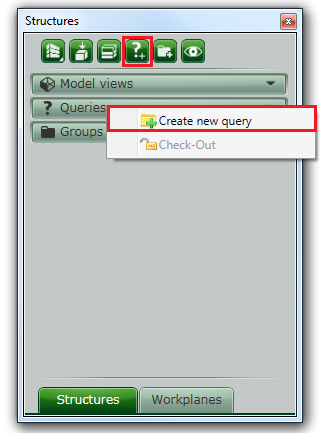
Contains tools for adding new items in the project tree (model views, levels, queries and groups). The same tools can be accessed from the context menus of the corresponding category. Right click the category title bar to display the context menu.
Example:
You can access theCreate new query tool both from the toolbar and from the Queriescontext menu.
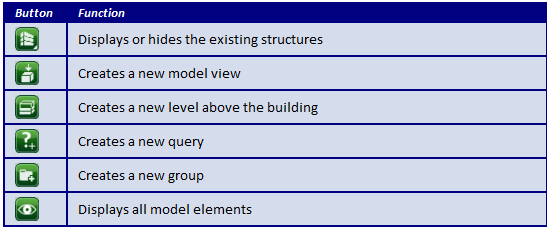
Categories
The following categories are displayed:
Structures
Displays the list of existing structures. Activating a structure turns off all model views and displays the entire structure in 3D. You can work in 3D without constraints.
Only one structure must be active at a time. To manage the list of structures, click in the upper side of the
Project Explorer
window.
in the upper side of the
Project Explorer
window.
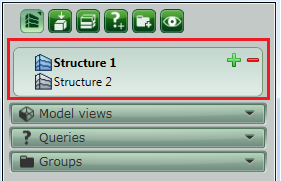
In the upper-right corner, two buttons allow modifying the structures list.

Workplanes Pane
Displays the list of work planes for the selected structure.
When a structure is activated, the trees in the Project Explorer and in the Workplanes pane are updated to reflect the collection of objects from the selected structure. It displays the list of work planes for the selected structure.
The upper side of the window displays the two currently active work planes. The button switches to None.
The bulb icon controls the visibility of the Workplane entity.
You can move Workplanes individually or in a group, from one folder to another by dragging & dropping.
The Workplanes that are designated as main work plane of a level cannot be moved to a different folder. They are always grouped in a folder with the same name and path as their level.
The Workplanes pane can be displayed as a tab in the Project Explorer window or separately. When separated, the Workplanes pane can be extended or collapsed by clicking the bottom bar.