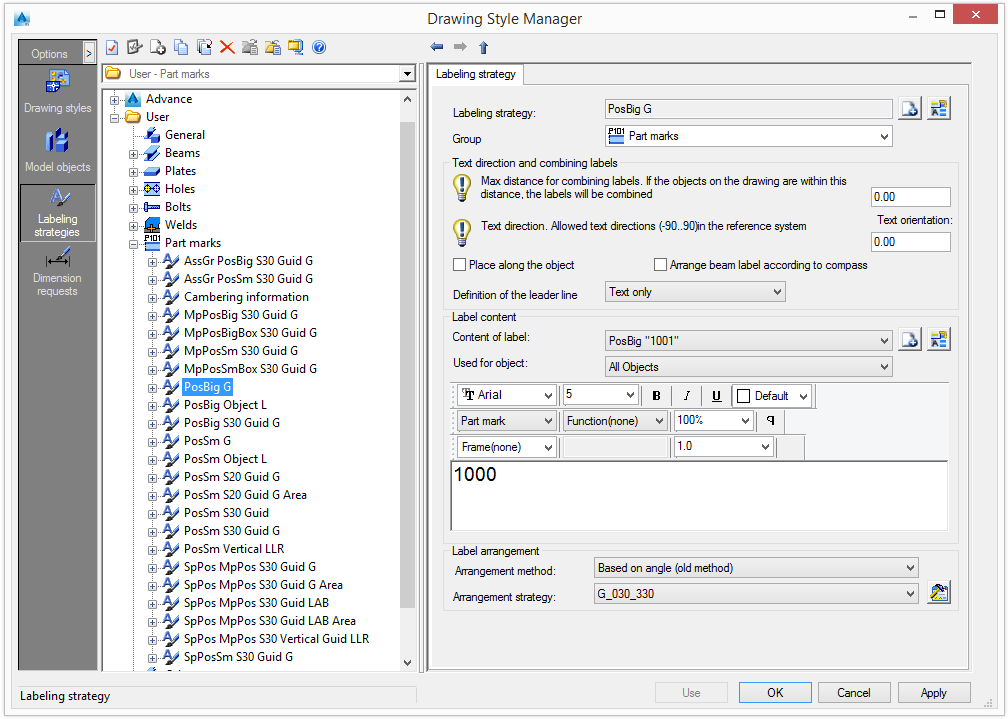
In the component panel, select Labeling strategies. The tree panel displays all the labeling strategies grouped by the associated type of Advance object.
In the tree panel, model objects are grouped by Advance object: Bolts, Beams, Welds, etc. A small image depicts the content of the group. All the management functions refer to the labeling strategies.
Create a new group
- Click New
 .
.
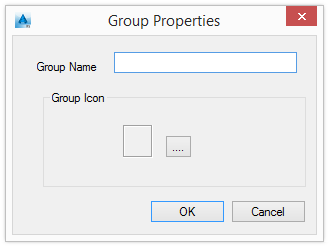
- Enter the name for the group.
- Click
 .
. - Select the .bmp file that contains the icon for the new group.
Modify group properties
- Select a group.
- Click Properties
 .
. - Change the name of the group.
- Click .
- Select the .bmp file that contains the new icon for the selected group
Copy a labeling strategy
- Select the labeling strategy to be used as template.
- Click Copy
 .
.
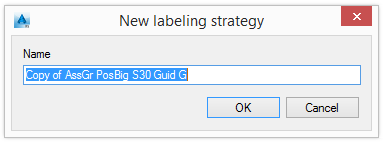
- Enter the name for the new labeling strategy.
The new labeling strategy can be moved to another group.
Note: The associated sub-styles are not copied with the labeling strategy, therefore modifying a sub-style affects all the drawing styles that are using it.
Deep copy a labeling strategy
The deep copy function copies the selected labeling strategy and all associated sub-styles. The new labeling strategy can be modified at any level, without changing the original strategy.
- Select the labeling strategy to be used as template.
- Click Deep copy
 .
.
- Enter the name for the labeling strategy.
The new labeling strategy can be moved to another category.
Delete a labeling strategy
- On the tree panel, select a labeling strategy to delete.
- Click Delete
 .
. - In the warning box, click Yes to delete the labeling strategy.