Advance Steel details can be exploded into its component ACIS elements according to the rules defined in the Detail explode settings.
Advance Steel details can be exploded into their component ACIS elements according to the rules defined in the Detail explode settings.
A detail explode profile defines the layer name, the color, and the line type to use for each Advance object type: beams, plates, bolt holes etc. This user configuration is stored for reuse in future projects.
ACIS elements corresponding to Advance Steel objects are grouped automatically on the specified layers. Their color, line type and weight changes automatically according to the defined settings.
While exploding the details, for each object or sub-object a corresponding setting will be searched in the Current Profile. If there is no setting, the explode settings will be used from Advance Steel category.
There are two methods to explode Advance steel details:
- Directly on the drawing: Using the AutoCAD Explode tool for each detail
- From the Document Manager: Using the Batch explode tool
Access the command
Ribbon: Labels & Dimensions > Parametric views: 
Command line: _AstM4CommExplodeDetail
Enable the detail explode
-
Labels & Dimensions
tab,
Parametric views
panel: Click .
- In the Detail explode dialog box, select Enable Detail explode.
- Click OK.
The current detail explode profile is enabled.
Control the exploded detail file version
-
Labels & Dimensions
tab,
Parametric views
panel: Click .
- In the Detail explode dialog box, select Enable Detail explode.
- From the Exploded detail file version drop-down list, select the desired AutoCAD version.
Define the current profile
-
Labels & Dimensions
tab,
Parametric views
panel: Click .
- In the Detail explode dialog box, select Enable Detail explode.
- Select the desired profile.
- Right click and select Set as current profile from the context menu.
- Click OK.
Create a new explode profile
-
Labels & Dimensions
tab,
Parametric views
panel: Click .
- In the Detail explode dialog box, select Enable Detail explode.
- In the right side of the Detail explode dialog box, select the User group.
- On the toolbar, click New
 .
. - In the New profile dialog box, enter the name of the profile.
- Click OK.
The new profile appears in the User group.
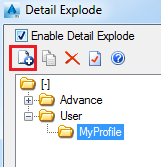
Add a new explode settings in a profile
-
Labels & Dimensions
tab,
Parametric views
panel: Click .
- In the Detail explode dialog box, select Enable Detail explode.
- In the right side of the Detail explode dialog box, in the User group, select the profile in which you want to add new explode settings.
- On the toolbar, click New .
- In the New explode settings dialog box select the object sub-type for which you want to define explode settings. For example, the Visible line for the Beams.
- Click OK.
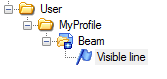
In the right side of the Detail explode dialog box you can configure the layer name, the color, and the line type to use for beams, plates, bolt holes, etc.
Delete an explode settings detail
-
Labels & Dimensions
tab,
Parametric views
panel: Click .
- In the Detail explode dialog box, select Enable Detail explode.
- In the right side of the Detail explode dialog box, in the User group, select the profile you want to delete.
- On the toolbar, click Delete
 .
.
The profile and all its contents is deleted.