Instead of the old behavior, where you were able to filter a bill of material created on a detail based only on the object type, you now have the opportunity to use all the options available in the Search filter tool, including Model Role filtering, Material, Level etc.
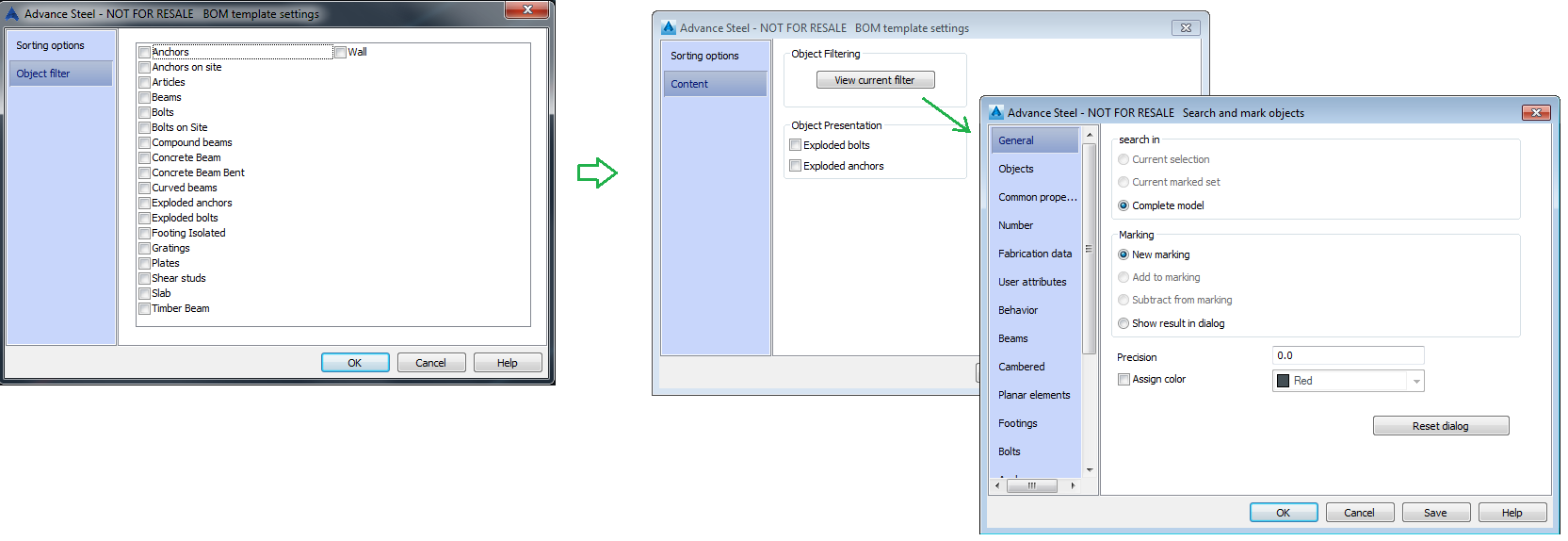
To set up your filter, you need to open a BoM on drawing template and access the List sorting and content. In this window, you will notice that the Object filter tab has a new content with 3 options:
- View current filter-gives you access to the Search filter window, where you can use any of the options that it offers.
- Exploded bolts, Exploded anchors - to show only these exploded elements - these are Presentation options, that are not originally included in the Search filter. After completing your filter setup and validating your changes through the OK button, simply save and close the template file, then use it in a detail drawing. The bill of material will only include all objects that match the criteria you chose for the filter and none of the ones that are different from that.
After completing your filter setup and validating your changes through the OK button, simply save and close the template file, then use it in a detail drawing. The bill of material will only include all objects that match the criteria you chose for the filter and none of the ones that are different from that.