Move a point on a curve to touch another curve
- Use Pick > Edit Point
 to select the edit point you want to move.
 - Click Transform > Move
 .
. - Hold
 and
and  (Windows) or
  and (Mac) to turn on curve snapping.
 - Click the curve you want to move the point onto. You can drag the point along the curve.
Stretch a curve so it touches another curve
- Choose Curve Edit > Modify > Stretch
 .
. - Select the curve you want to stretch
Two control handles appear at the ends of the curve.
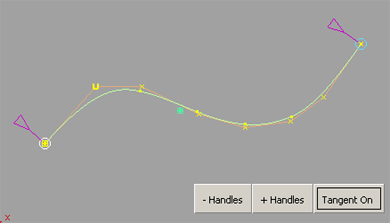
- Click on the handle you want to touch to the other curve.
The handle turns white.
- Hold and (Windows) or and (Mac) to turn on curve snapping.
- Click on the other curve to snap the handle to it.
- Drag the handle along the curve.
How to use the curve stretch handles
- To change the number of handles, press the - Handles or + Handles buttons. The minimum number of handles is 2. The maximum number is equal to the curve’s degree + 1. For example, a degree 3 curve cannot have more than 4 handles.
- To change a handle’s location along the curve, click and drag the purple triangle attached to it.
How to use the tangent manipulator
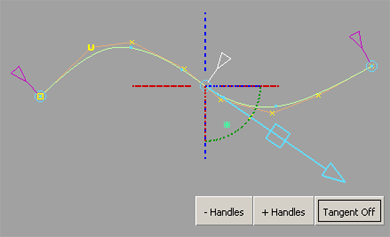
- Press the Tangent On button to bring up the manipulator on the active handle.
- Use the manipulator’s arrow head to modify the position of the curve at that point by sliding it along the tangent.
- Use the manipulator’s square to scale the tangent.
- Use the manipulator’s dotted arcs to rotate the tangent around the X, Y or Z axes.
- Use the manipulator’s axes lines to orient the tangent along the X, Y or Z axes.
- Press the Tangent Off button to remove the manipulator.
What if...?
- You may have turned off the display of edit points, either for this object or the entire scene.
- The curve may have only one span.
I can’t see edit points on the curves?
Transform a curve so it intersects two other curves
The Curve Edit > Modify > Transform Curve  tool provides a direct way of positioning or transforming a curve so that it intersects two rail curves.
Positioning and intersecting a curve can be done in two ways:
- By moving the curve so that it intersects the first rail, then “rocking” (rotating) it so that it intersects the second rail.
- By “dilating” (scaling) the curve, while preserving its shape characteristics, so that it intersects both rails. This is different from the Curve Edit > Modify > Stretch tool, which changes the curvature characteristics of the curve as it stretches it.
Method 1: Translating and Rotating a curve (rocking)
- Choose Curve Edit > Modify > Transform Curve .
- Select the curve.
Two control handles (circles) appear at the start and end points of the selected curve.
Note:You can move the control handles along the curve by clicking on them and dragging the small purple arrow along the curve.
- Click on the Translate button in the window.
- Select the control handle closest to the first rail.
The selected handle turns white.
- Turn on Curve snap mode by holding down the and (Windows) or and (Mac) keys (or Magnet mode by holding down (Windows) or (Mac) only).
- Click on the first rail curve. Drag to change the position of the intersection.
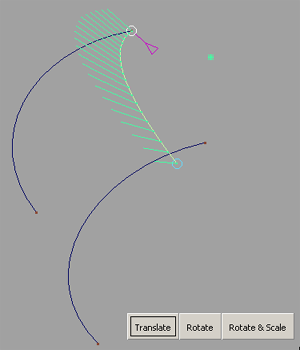
The input curve is translated so that the first control handle intersects the first rail.
- Click on the Rotate button in the window.
The second control handle turns white. A manipulator appears at the location of the first control handle. This can be used to specify the plane of rotation: XY, YZ, XZ. By default, the curve rotates in its own plane.
- Turn on Curve snap mode by holding down the and (Windows) or and (Mac) keys.
- Click on the second rail curve.
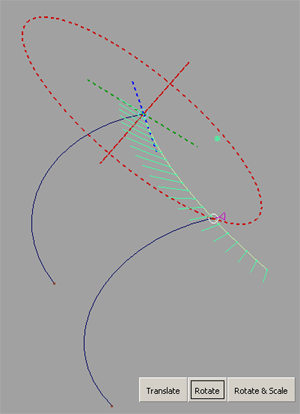
The input curve rotates in the specified plane of rotation, using the first intersection as its rotation pivot, so that it now intersects the second rail.
The shape of the curve does not change.
Method 2: Rotating and Scaling a curve (dilating)
- Choose Curve Edit > Modify > Transform Curve .
- Select the curve.
Two control handles (circles) appear at the start and end points of the selected curve.
Note:You can move the control handles along the curve by clicking on them and dragging the small purple arrow along the curve.
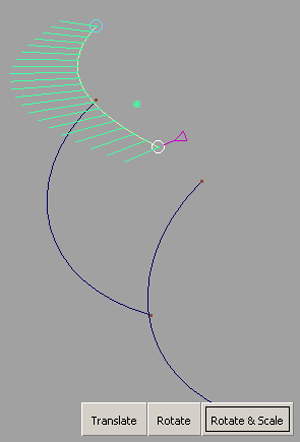
- Click on the Rotate & Scale button in the window.
- Click on one control handle.
The selected handle turns white.
- Turn on Curve snap mode by holding down the and (Windows) or and (Mac) keys (or Magnet mode by holding down (Windows) or (Mac) only).
- Click on the rail curve you want to snap the selected handle to.
- Repeat steps 4 to 6 with the other control handle.
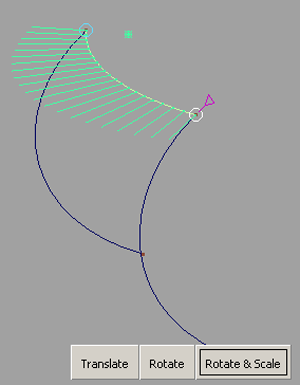
The input curve is scaled so that both control handles make contact with the target points on the rail curves.
The curve is modified, but the general shape characteristics are maintained, as can be verified by using a curvature comb on the curve (Locators > Curve Curvature
 ).
).
How do I use the rotation manipulator?
The rotation manipulator appears when you are in Rotate mode (Rotate button depressed). It has three axes (X, Y and Z), and a circle along which the selected handle on the curve rotates. By default, this circle is drawn in the plane of the curve.
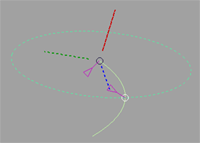
- Click on one of the three axes to change the plane of rotation to the plane perpendicular to that axis.
The circle is redrawn in that plane.
Note:Currently, the only way to go back to using the plane of the curve as plane of rotation is to re-enter the tool, click the curve and then click the Rotate button again.