Creates linear reflections on the model by surrounding it in a cylindrical tunnel of long lights. (Same functionality as in the Hardware Shade Environment.)

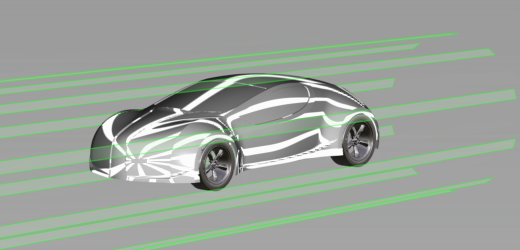
Light Tunnel Options
- Show Tunnel
- Displays the tunnel, representing the lights as green bands.
- Color
- Choose a color for the reflections. Move the slider to change the color value.
- Transparency
- Sets the transparency of the shaded surfaces from opaque (0) to almost totally transparent (0.9).
- Intensity
- Controls the relative brightness of the reflections. Values greater than one are equivalent to setting a light to the same intensity.
- Number of Bands
- Controls the number of light bands used to form the tunnel.
- Band Width
- Controls the width of the light bands.
- Band Fringe
- Controls the edge transition of lights, ranging from a hard, sharp transition to a smooth, soft transition.
- Center Tunnel
- Centers the tunnel at the origin.
- Show Manip
- Displays a manipulator that you can use to place and scale the light tunnel.
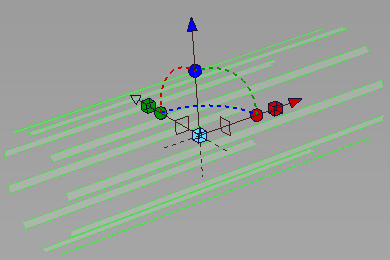
- Click the center move handle, then use curve snapping to snap the manipulator to the curve.
- Drag the arrows to move the light tunnel.
- Drag a cube to resize the tunnel: the red cube changes the length of the tunnel, the green cube changes the diameter, the cyan cube changes both the length and the diameter.
- Click a square plane to reorient the tunnel along another axis.
- Drag a dotted rotation arc to rotate the light tunnel.
- Drag a sphere to rotate the tunnel around an axis.