Autodesk Factory Design Suite features a "front-end" that serves as a common entry point, or Launchpad, to perform various factory tasks. Use of the Launchpad is optional, but the application options it offers help to automate common workflows.
Double-click the Factory Design Suite desktop icon to open the Factory Launchpad  .
.
The Launchpad opens with the Workflows tab active to display the most commonly used workflows. The Autodesk Factory Design Suite Ultimate Launchpad is shown.
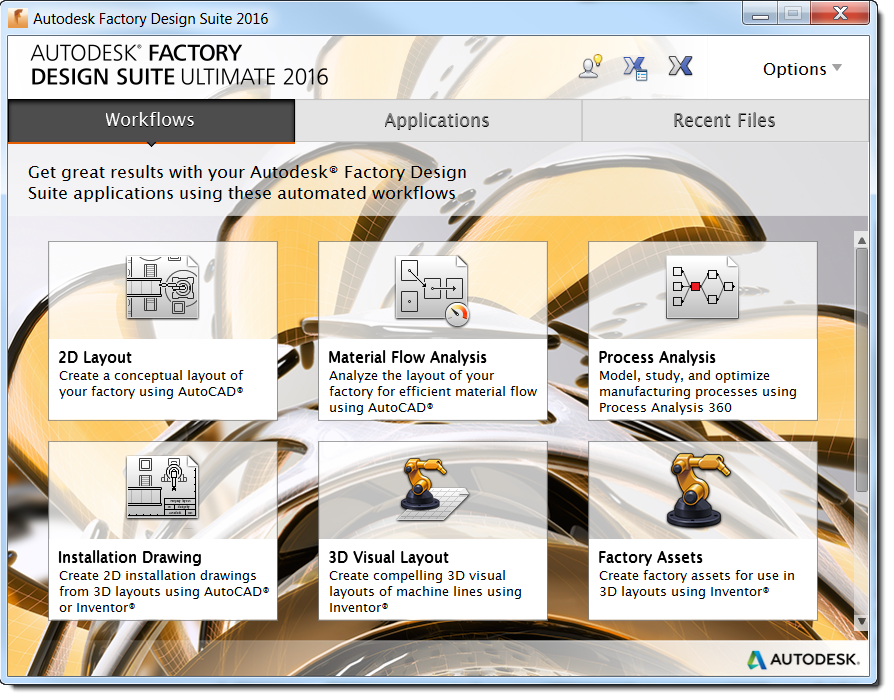
| 2D Layout | This option launches AutoCAD Factory with the Factory Assets library open and ready for asset placement on the factory floor. (AutoCAD Architecture or AutoCAD Mechanical is launched depending on which version was last opened.) |
| Material Flow Analysis | This option launches AutoCAD Factory and lets you analyze routing and machine utilization. You are prompted to choose either Transportation or Machine options. (AutoCAD Architecture or AutoCAD Mechanical is launched depending on which version was last opened.) |
| Process Analysis | This option launches Process Analysis 360 and lets you model, study, and optimize a wide variety of manufacturing processes, from planning to layout. |
| Installation Drawing | Select this option to create a 2D drawing of your factory asset or layout using either Inventor or AutoCAD. (AutoCAD Architecture or AutoCAD Mechanical is launched depending on which version was last opened.) |
| 3D Visual Layout | Select this option to simultaneously start Inventor Factory and begin a new factory layout. |
| Factory Assets | This option launches Inventor Factory where you can model a new part or assembly as a factory asset. You can also import an existing part, an existing assembly, or DWG solids as an asset into the factory layout. |
| AutoCAD Block Converter | This option launches Inventor in the Sketch environment with the option to create either a part or an assembly with an AutoCAD block. |
| 3D Layout from DWG | Select this option to create a 3D Inventor Factory layout from a 2D AutoCAD layout. Any 2D assets and chainable assets in the DWG are automatically replaced with their 3D equivalents. |
| Engineering Review | With a variety of CAD file formats supported, this option opens Navisworks and allows you to build an aggregate factory using parts and assemblies from many different CAD applications. |
| Interactive Presentation | This option launches Showcase where you can transform your factory layout into highly realistic imagery and perform an interactive presentation. |
| Photorealistic Rendering | Choose this option when you wish to create an animated rendering of your factory layout using 3ds Max Design. |
Applications Tab
Clicking the Applications tab lists each of the applications that were installed with your version of Factory Design Suite. As an alternative to using desktop icons or the Windows Start menu, you can left-click any one of the programs displayed in the list to launch that application.
Recent Files Tab
Click the Recent Files tab to display the most recently opened files used in Factory Design Suite. The filename, application that launched it, and the date and time it was last opened are displayed in three columns. From the Filename column, left-click the file you wish to work with to simultaneously launch the associated application and open the file.
 Factory Design Suite IdeaStation Discussion Group
This button opens the Factory Design Suite IdeaStation discussion group where you can share product improvement ideas directly with the developers. Other Factory Design Suite customers can vote (or kudos) your idea. The product development team than reviews all submitted and voted-on ideas, and assigns a status to each idea.
 Autodesk Exchange App Manager
Clicking this button opens the Autodesk Exchange App Manager dialog box where you can view, update, uninstall, and get help on Inventor apps downloaded from the Autodesk Exchange store. An alert on the App Manager icon indicates when updates are available.
 Autodesk Exchange Apps website
This button launches the Autodesk Exchange Apps website which is an online resource where you can browse and purchase apps (including product-specific content such as blocks, models, training materials, and eBooks) - and is available for several Autodesk products.
Options Drop-down
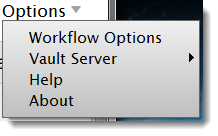
Workflow Options
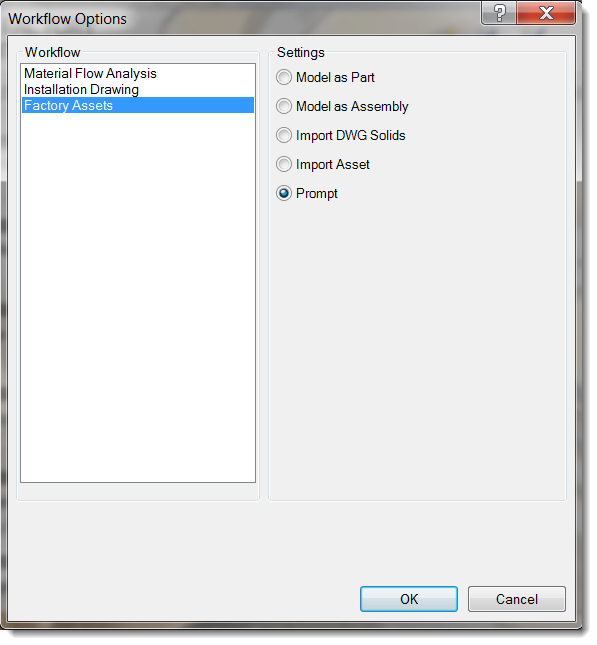 This selection takes you to the settings for Material Flow Analysis, Installation Drawing, and Factory Assets.
Vault Server
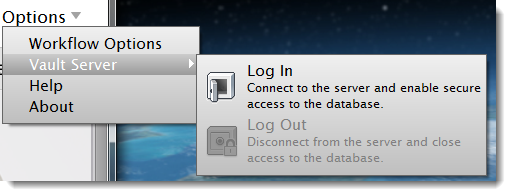 This selection takes you to the log in screen for Vault.
Help
This selection takes you to the main help page for Factory Design Suite.
About
This selection takes you to trademark and copyright information.