Assigning Data Fields
- Refer to the below diagram illustrating an example Paper Worksheet. This example includes pre-configured data fields applied within each window.
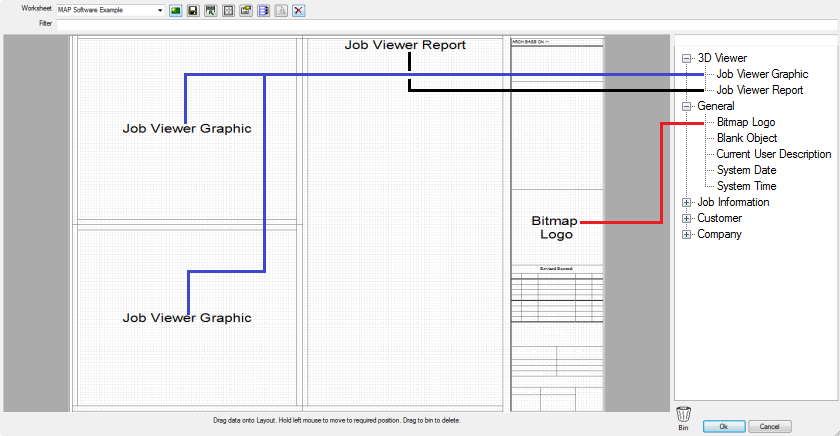
- To customise appropriate data fields within a specific window on a Paper Worksheet.
Job Viewer Graphic
- Go to the Drop Down Menu located to the right of the Paper Worksheet, select the appropriate Data, (Job Viewer Graphic)
- Left click on the mouse, then drag & drop the data into the required Window. De-select the left mouse button to apply the data to the window.
Job Viewer Report
- Go to the Drop Down Menu located to the right of the Paper Worksheet, select the appropriate data, (Blank Object)
- Left click on the mouse, then drag & drop the data into the required Window. De-select the left mouse button to apply the data to the window.
Bitmap Logo
- Go to the Drop Down Menu located to the right of the Paper Worksheet, select the appropriate data, (Bitmap Logo)
- Left click on the mouse, then drag & drop the data into the required Window. De-select the left mouse button to apply the data to the window.