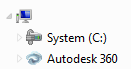
You can open a document, place a component, create an in-place component, and upload a document from Windows Explorer.
Note: You can access Autodesk 360 in all Inventor dialog boxes that have a location panel. You must have an Autodesk account.
Open a Document
- In the File Open dialog box, select Autodesk 360 from the top of the locations panel in the dialog box.
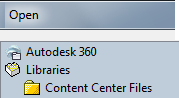
Documents and folders that you have saved to Autodesk 360 display.
- Select the file to open or browse to the file as needed.
Place a Component
- In the Place Component dialog box, select Autodesk 360 from the top of the locations panel in the dialog box.
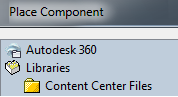
Documents and folders stored in Autodesk 360 display.
- Select the file to open or browse to the file as needed.
Create an InPlace Component
- In the Create In-Place Component dialog box, select the browse button next to the New File Location field.
- In the Save as dialog box, select Autodesk 360 from the top of the locations panel in the dialog box.
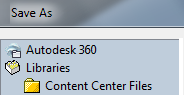
The folder last saved to in Autodesk 360 displays.
- Click Save or browse to the desired location to save the file. Create a new folder if needed.
Upload a Document from Windows Explorer
- In Windows Explorer, locate the documents you want to upload to Autodesk 360.
- Drag and drop the documents from Windows Explorer to the Autodesk 360 drive.