In previous versions, the following toolbars existed as 'environment tabs', which only opened when you clicked on the appropriate icon on the Home tab.
- Geometry
- Boundary Conditions
- Results
- Reports
The expectation was that when you had finished with that tab, you would close it and it would disappear until you opened it again via the Home tab. In response to user feedback, we have updated the ribbon so that all the toolbars are represented as permanent tabs. The icons still exist on the Home tab to provide a visual reminder of the simulation workflow.
As shown in the image below, these toolbars now appear as permanent tabs alongside the Home tab.
- Undock and move
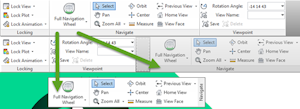
- You can undock and move the panels within a tab to a different location on the tab, or into the model window if you prefer. Simply click on the title of the panel and drag. To return the panel to the tab, just drag it back again. You can even keep the panel in the model window and change tabs, and when you drag the panel back up to the ribbon, it will return to its original tab.
-
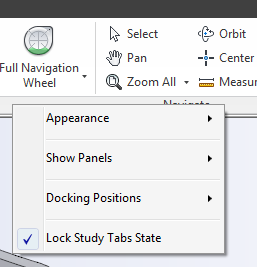
- Lock Study Tabs State
- If you have multiple studies open and you are doing similar tasks in each study, it can be frustrating and time-consuming when you switch from one study to the next and find the wrong tab open. You can make sure all the studies are always have the same tab open, by checking the Lock Study Tabs State option. With this option checked, whichever tab you have open when you switch from one study to the next is the tab that will be open in the new study. To select or deselect the Lock Study Tabs State option, click the right mouse button anywhere in the ribbon.