- Right-click on Loads and choose New.
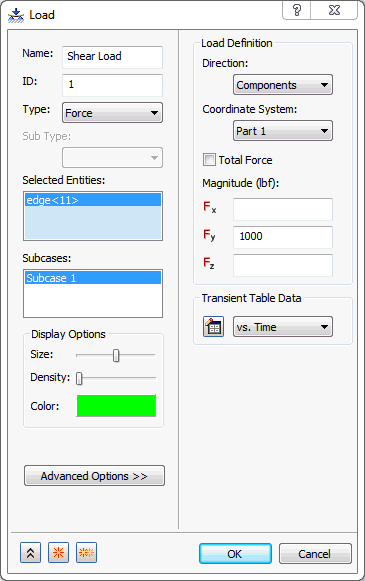
- Change the Name to Shear Load.
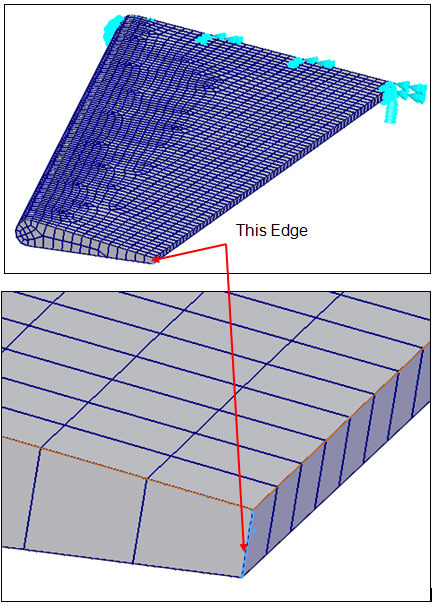
- Select the edge on the outside surface (smaller end) as shown in the pictures below.
- Enter 1000 in the Fy field under Load Definition.
- Click the
 New Table button next to the drop-down, under the
Transient Table Data section.
New Table button next to the drop-down, under the
Transient Table Data section.
- When the Table Data – ‘Table 1’ dialog appears, change the Name to vs. Time, or you can leave it as Table 1.
- From the Type drop-down select Load Scale Factor vs. Time.
- Copy the data from the table below and paste it into the dialog (or simply type in the values).
Time Load Scale Factor 0 0 0.005 0.159318207 0.01 0.314566561 0.015 0.461779176 0.02 0.597195441 0.025 0.717356091 0.03 0.819191568 0.035 0.900100442 0.04 0.95801586 0.045 0.991458348 0.05 0.999573603 0.055 0.982154317 0.06 0.939645474 0.065 0.87313298 0.07 0.784315925 0.075 0.675463181 0.08 0.549355436 0.085 0.40921417 0.09 0.25861935 0.095 0.101417986 0.1 0 0.11 0 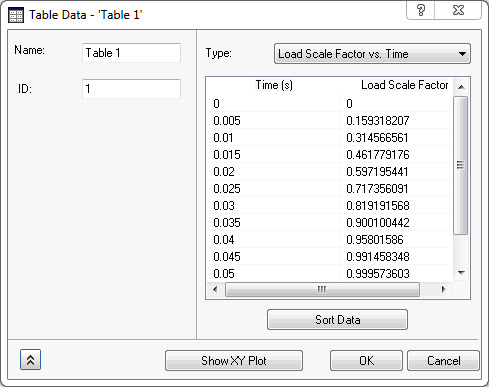
- Click OK to define the table.
- Click
OK once more to finish defining the load.
 The
button will turn to
The
button will turn to
 once a table is defined. The star in the corner of the button means NEW and the pencil means EDIT. If the drop-down is changed back to New Table, then the little button will change to allow you to define a new table.