Right-click on any of the loaded Results plots (von Mises, Displacement, Safety Factor, Deformed, and any custom plots) and choose Animate to start the animation.
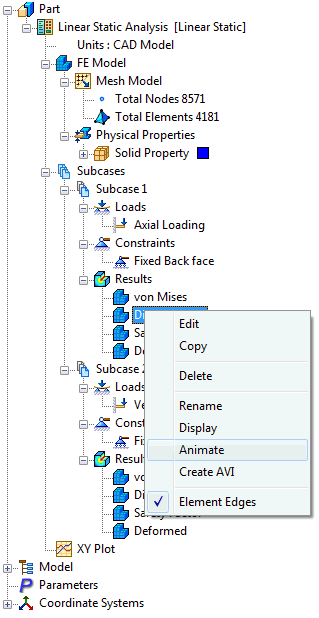
Right-click on any of the loaded Results plots (von Mises, Displacement, Safety Factor, Deformed, and any custom plots) and choose Edit to modify the animation settings. The Results form opens up.
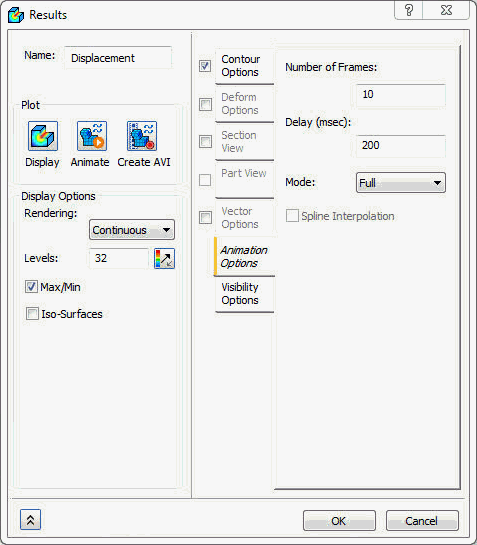
The following sections are available in this form:
- Name: Enter the name of the plot.
-
Plot:
- Display: Displays contour with current settings.
- Animate: Sets up and begins animation with current settings or stops running animation.
- Create AVI: Saves the animation in .AVI format.
-
Animation Options:
- Number of Frames: Number of frames in the animations.
- Delay (msec): Amount of time between frames.
-
Mode:
- Half: Loading for positive load.
- Full: Loading and unloading for positive load.
- Oscillate: Loading and unloading for positive and negative loads.
- Contour Options: This section allows you to choose the result data to be plotted during the animation. A maximum and minimum value range can be specified as well as the different rendering types.
- Deform Options: This section allows you to choose the output vector for deformation. The plot can be scaled by a percent of the model size or by an actual value.
- Section View: This section allows you to choose the section plane for plotting.
- Part View: This section allows you to select the part for animating the particular part.
- Visibility Options: This section allows you to set ON or OFF using the flip button to show or hide the features.