Right-click on Results under Subcases and choose Multiset Animate to start the animation.
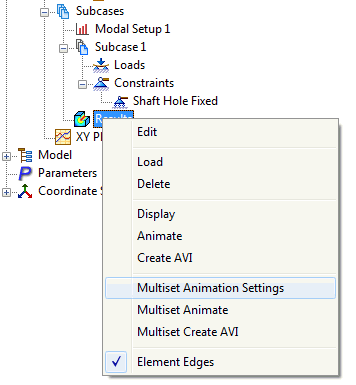
Right-click on Results under Subcases and choose Multiset Animation Settings to modify the animation settings. The Multiset Animation Settings form opens up.
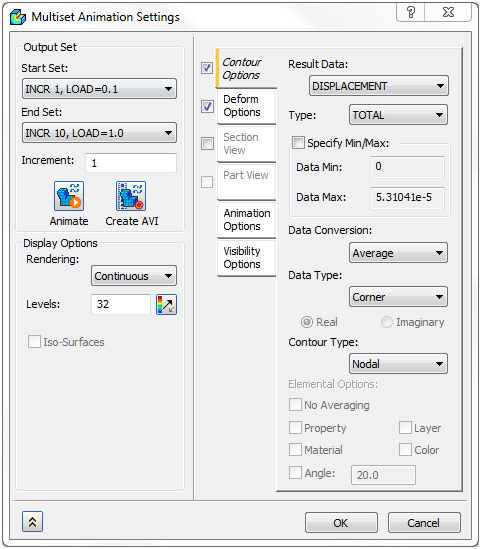
The following options are available in this form:
-
Output Set:
- Start Set: Set of results used at beginning of animation.
- End Set: Set of results used at end of animation.
- Increment: When more than one set is used, an Increment option appears allowing you to specify at what increment the animation progresses through the sets of results.
- Animate: Sets up and begins animation with the current settings or stops running animation.
- Create AVI: Saves the animation in .AVI format.
-
Animation Options:
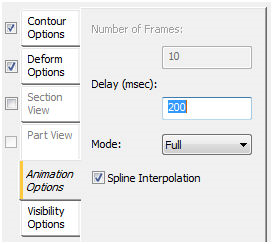
- Delay (msec): Amount of time between frames.
-
Mode:
- Half: Loading for positive load.
- Full: Loading and unloading for positive load.
- Oscillate: Loading and unloading for positive and negative loads.
- Spline Interpolation: For multi-set animations, interpolates intermediate outputs, increasing the number of frames to match the number specified.
- Contour Options: This section allows you to choose the result data to be plotted during the animation. A maximum and minimum value range can be specified as well as the different rendering types.
- Deform Options: This section allows you to choose the output vector for deformation. The plot can be scaled by a percent of the model size or by an actual value.
- Section View: This section allows you to choose the section plane for plotting. The same options are present as in the Result plot dialog.
- Part View: This section allows you to select the part for animating the particular part. The same options are present as in the Result plot dialog.
- Visibility Options: This section allows you to set ON or OFF using the flip button to show or hide the features. The same options are present as in the Result plot dialog.