All the materials created are grouped under Materials in the Model tree and are available to assign to a part under Physical Properties.
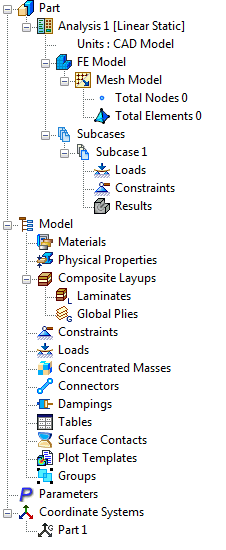
Part
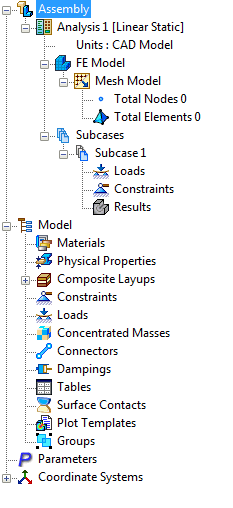
Assembly
Click on the Material button or on Import from Model button under the Properties panel on the ribbon to open the window below. You can also right-click on Materials on the tree and select New to open the same form.


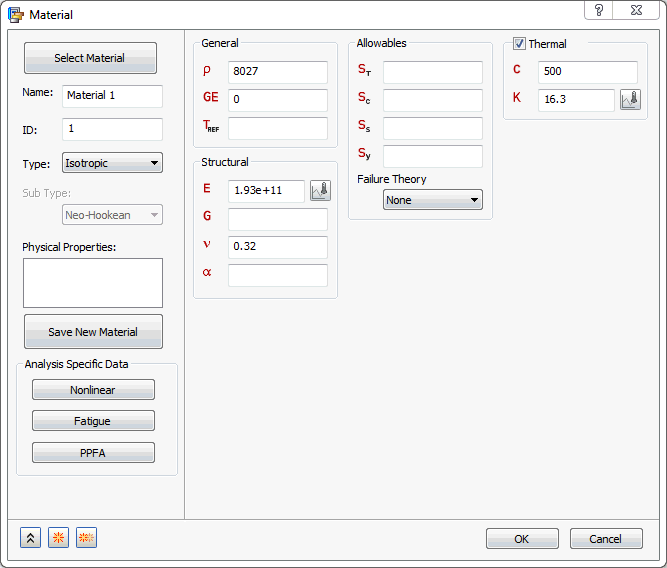
The following sections are available in the Material form:
- Select Material: It automatically loads the Autodesk Inventor material library. If you want to select another material database, then click Load Database.
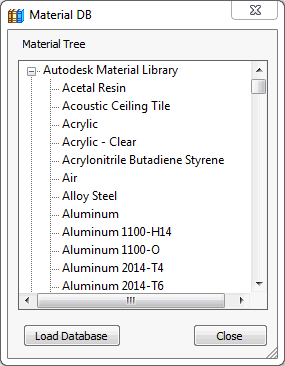
- Load Database: Allows you to access a copy of the material library called NEi_Materials.sldmat located in C:\Program Files\Autodesk\Nastran In-CAD\Materials folder.
- When the material library is loaded, the Material Tree is populated with all the available materials (isotropic), including nonlinear data, in a separate window, as shown in the image below. Once loaded, click the + sign to the left of a group, like Steel for example, then click on a type of steel available under that group as shown in the figure below.
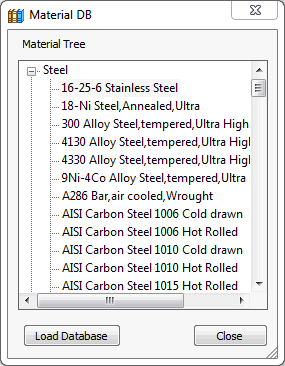
- By clicking on 16-25-6 Stainless Steel, the properties are filled into the corresponding property fields on the Material form under Structural, Thermal and sometimes Allowables. Thermal data is required for Heat Transfer analyses, but not required for Structural analyses.
- Name: Input the name for the material in this field.
- ID: The ID of a material is automatically updated sequentially as new materials are created so that it is unique to each of the material entities.
- Type: Eight material types are supported in Autodesk Nastran In-CAD. Only Isotropic material data can be loaded from the material library. However, you can create and save your own material properties.
- Isotropic
- Orthotropic 2D
- Orthotropic 3D
- Anisotropic 3D
- Hyperelastic
- Nitinol
- Viscoelastic
- Sub Type: Various types of Hyperelastic materials, such as Neo-Hookean, Mooney-Rivlin, Yeoh, Ogden, and Polynomial, can be selected from this pull-down menu.
- Physical Properties: List of available physical properties.
- Save New Material: A custom material property (Isotropic or Orthotropic 2D) can be created and saved to a Filename.xml or a Filename.sldmat library file.
- Analysis Specific Data: Allows you to define some data related to some specific analysis, such as:
- Nonlinear
- Fatigue
- PPFA
- General and Structural: Contains properties of the selected material.
- Allowables: You can specify allowable values for tensile strength compressive strength and shear strength in this section, and the associated Failure Theory.
- Thermal: Can be turned ON and OFF for a structural analysis.
Click the links at the bottom of the page to see more info on these topics.