To change the lifecycle state for a file
- In the Vault Browser, select the file for which you want to change the state.
- Right-click the selection, and click Change State on the context menu. You can also click Change State
 on the ribbon (Vault tab
  Control panel). Note: Be sure the file is vaulted and checked in, otherwise the Change State option is not available.
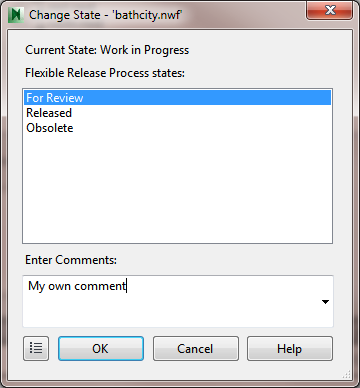
 - In the Change State dialog box, click the lifecycle state you want to apply. States that are not permitted due to transition configurations are not displayed.
- Enter any comments regarding the lifecycle state change in the Enter Comments field or select a comment from the drop-down.
- Optional: Click Preview
 if you want to preview the lifecycle change for the file.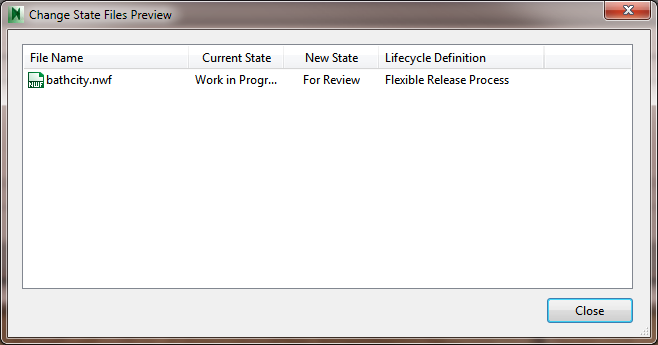
- Click OK to close the Change State dialog and save changes.