In this exercise, you create a sheet and add multiple views to the sheet.
|
You add a section view to the sheet and see that the section mark in the plan view is updated to include the sheet information.
Objectives
- Create a sheet using a title block template.
- Add views to the sheet and modify view placement and title format.
Create a Sheet
- Open project GSG_13_sheets.rvt.
- Click View tab
 Sheet Composition panel
 (Sheet).
 - In the New Sheet dialog, under Select titleblocks, select E1 30 x 42 Horizontal : E1 30 x 42 Horizontal, and click OK.
- Click the title block to select the sheet, then click the sheet number, enter A1, and press Enter.
Add Views to the Sheet
- In the Project Browser, under 3D Views, click the View to Building view title and drag it to the upper-left corner of the sheet, and release the mouse button.
An outline of the view displays for easier placement.
- Click to place the view.
- Using the same method, drag the 02 - Entry Level floor plan view to the sheet, and place it left-aligned below the View to Building view. Note: Dashed lines display to make it easier to align views on the sheet.
- Using the same method, drag the 01 - Lower Level floor plan view below the 02 - Entry Level view, moving the view slightly to the right until the centers align, then click to place the view.
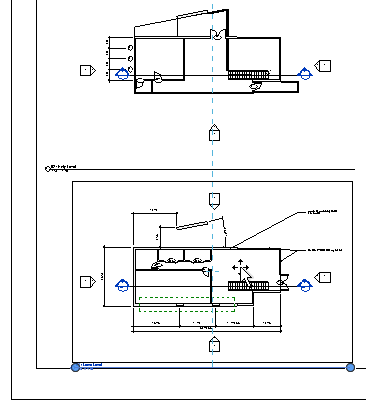
- Click outside the sheet to deselect the view.
- Click the view title for the 01 - Lower Level floor plan view on the sheet, and drag it to the left to align it with the title for the view above. Use the dashed lines to help with alignment.
- Press Esc.
- Select the 01 - Lower Level floor plan view on the sheet (not just the title), and drag the right endpoint to the left to shorten the horizontal title line.
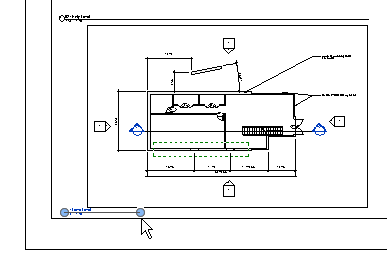
- Use the same method to shorten the lines for the other 2 views.
- In the Project Browser, under Sections (Building Section), click the Section 1 view title and place the view on the sheet.
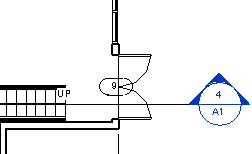
- Zoom in to the section mark for the 01 - Lower Level floor plan view on the sheet. Notice that the section mark is updated to indicate that the Building Section view is the fourth view placed on the A1 sheet.
This is the final exercise in the Getting Started Guide.