This section contains a couple of tutorials that have been specifically designed for the new user. Each procedure page begins with a video demonstrating how to perform the described steps, which are listed immediately below the video. Additional images and guidance have been provided relative to the main set of meshing, modeling, and analysis tutorials. However, the Quick Start Tutorials are also applicable to the more experienced user.
Choose from a linear static stress analysis example and a mechanical event simulation (MES) example.
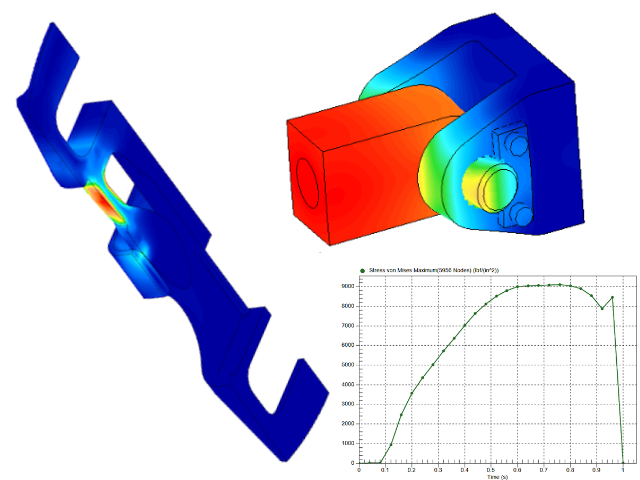
Why do the results vary among different software versions: As part of the ongoing development of the simulation software, adjustments are made to the meshing routine, element formulations, contact algorithms, and so on. These refinements can lead to small differences in the results when comparing the output of different software versions. The images and animations within the tutorials are not revised to reflect insignificant changes in the results.
Model Datasets
Click here to download the Quick Start Tutorials datasets from our online data and downloads site. Open or locally save the target zip file and extract the model files to the folder of your choice on your hard drive. The folder into which you extract the model datasets will be your working folder for both of the Quick Start Tutorials.
Application Options
Several program settings are global and influence the behavior of every model. The following default settings were in effect when the tutorials were created. To ensure that the tutorial steps remain valid, maintain the settings as shown below:
- Tools
 Options Application Options Analysis Automate Analysis: Option activated.
 - Tools Options Application Options Analysis Ask to show mesh results after CAD meshing: Option activated.
- Tools Options Application Options Analysis Default Modeling Units: English (in)
- Tools Options Application Options CAD Import Global CAD Import Options Split surface on import: No
- Tools Options Application Options CAD Import Global CAD Import Options Automatically generate contact pairs: No
- Tools Options Application Options Graphics Navigation Tools ViewCube Fit-to-View on view change: Option activated.
- Tools Options Application Options Mouse Options Mouse settings templates: Autodesk Simulation
- Tools Options Application Options Mouse Options View settings templates: Autodesk Simulation