To identify the version of software that you are running, click the Down Arrow to the right of the Help icon. This icon is located at the far right end of the program title bar. Then, click About:
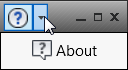
Autodesk Simulation Mechanical 2015 is identified as follows:
Build 2016.00.00.nnnn dd-Month-2015
(where nnnn, dd, and Month are set during the final build of the software)
Note: The following list is not necessarily comprehensive. There may be other minor changes to the software that are not enumerated here. Enhancements introduced after the initial release of V2015 but prior to before V2016 are not listed on this page. For these midyear enhancements, see the following Product Enhancements Addenda:
- Simulation Mechanical 2015 Product Enhancements Release (June 2014)
- Simulation Mechanical 2015 R1 (August 2014)
User Interface (General)
- In Autodesk Simulation Mechanical, you can now solve a model using a remote computer on your network. Add target computers using the Remote Solve Setup dialog box. Then, choose the desired computer for running the solution in the Target Computer column of the Solver Manager. This feature is not applicable to Simulation Mechanical Flex.
- The command No Shading When Moving Model has been renamed Show Wireframe During Movement. Using new settings in the Application Options, you can now define the default viewing behavior for this option separately for the FEA Editor and Results environment. See the When model is moving subtopic in the Miscellaneous section of the Graphics Tab page for more information.
- In the Selection tab of the ribbon, the name of the Subentities panel has been changed to Related. The command names within context menus have been updated accordingly. Additionally, you can now select parent objects as well as child objects. For example, if lines are selected, you can select the surfaces or parts to which those lines belong (parent objects). You can also select the vertices belonging to the selected lines (child objects). This change affects the FEA Editor and the Results environment.
- You can now define L-type (angle) beam elements dimensionally using the predefined sections drop-down menu in the Cross-Section Libraries dialog box. Fill in the thickness and length of the legs in the provided input fields. The L-type section is available for linear and nonlinear structural analyses.
- You can now define a default analysis type for new models in two ways:
- When importing a CAD model for the first time, a Choose Analysis Type dialog box appears. An option in this dialog box allows you to use the selected analysis type as the default for future models.
- Choose the default analysis type within the Analysis tab of the application Options dialog box. You can also choose whether to use the default analysis type or to be asked to choose one when importing or creating each model.
- Log files displayed in the Details tab of the Output Bar have been enhanced in the following ways:
- Color coding has been added. Errors now appear in red text and warnings appear in gold text, making them easy to locate.
- Text search functionality has been added. To find a word or phrase, press Ctrl+F or right-click on a log file in the Output Bar and choose Find from the context menu.
- Displayed log file content is now automatically scrolled to the bottom while the analysis is running, so the most recently generated information is visible.
- You can now specify the refresh rate (in seconds) for log files displayed while an analysis is running. You can also pause and resume refreshing of the log files.
- Selection groups have been enhanced in the following ways:
- In the Results environment, you can now create selection groups containing elements, element faces, nodes, surfaces, or parts.
- Part or surface selection groups are shared and synchronized between the FEA Editor and Results environments. That is, part or surface groups you create in either environment are also made available in the other environment. When you edit a part or surface group in one environment, the changes are also reflected in the corresponding group in the other environment.
- The Center command in the Navigation Bar has been renamed Set Pivot Center to better communicate its function.
- A Simulation Community link has been added to the Community ribbon tab. This command launches the Simulation Community Web site, which is a useful source of tips, technical white papers, events, and discussions. In addition, you can access Simulation TV videos, Autodesk University learning content, a blog, and a projects gallery from this Web site.
- Beam cross section diagrams for user-defined sections have been revised for greater consistency. This revision applies to the dialog box used for specifying beam cross sections and to the Element Information section of the reports.
- With the desktop version of Simulation Mechanical, you can now setup your software to run solutions remotely. Prepare the model on your local workstation, but run the solution on a different computer on your local or wide area network (LAN or WAN). This feature is not applicable to the Simulation Mechanical Flex software (cloud-computing version).
Performance Enhancements
- The process of meshing and setting the initial element definitions has been made more efficient. This enhancement decreases the time it takes for the model to reappear in the display area after meshing has completed, especially for assemblies with many parts.
CAD Interfacing and CAD Format Support
- Your Simulation Mechanical installation now includes Autodesk SimStudio Tools. Use SimStudio Tools to create, simplify, or modify CAD solid or surface models. Push CAD-based geometry from Simulation Mechanical directly into SimStudio Tools, regardless of what CAD application was used to create the original model. You can also push SimStudio Tools models directly into Simulation Mechanical. All tutorials affected by the inclusion of SimStudio Tools (instead of Inventor Fusion 2013 R1) have been revised accordingly.
- Welded features in Autodesk Inventor models now import into Simulation Mechanical, appearing as separate parts within the assembly. Previously, Inventor welded features were ignored.
- The CAD Import tab of the application Options dialog box has been enhanced, as follows:
- Color scheme options for imported CAD models are now located in the Global CAD Import Options dialog box. Additionally, you can now specify the desired options separately for first-time CAD model importing and CAD model reimporting operations.
- New option control whether part names are imported from CAD models. You can specify the desired options separately for first-time CAD model importing and CAD model reimporting operations.
Third-Party FEA Support
- Rigid elements are now supported when exporting Natural Frequency (Modal) results to RecurDyn RFI files. Previously, only solid elements were supported.
- For models exported to the Autodesk Nastran Editor, solved in Simulation Mechanical using the Autodesk Nastran processor, or exported to a Nastran OP2 file:
- Surface contact with thermal resistance is now supported.
- Surface contact support has been improved for the various linear contact types.
FEA Editor Environment
- New functionality has been added for Surface Refinements listed in the browser. Using the Move options in the context menu, you can relocate items from one surface refinement group to another, combining or reorganizing them. You can also use the mouse to drag the surface refinement items. See the Refine an entire surface section on the Mesh Refinement page for more information.
- A new Selection > Expand > All Neighbors command facilitates the selection of many surfaces in a single click. The selection propagates in all directions from the point clicked until a hidden surface or the end of the currently selected part is encountered. An example application for this tool is to quickly select all interior surfaces of a complex pump housing. You merely have to hide outside surfaces that intersect pump inlets and outlets.
- You can now visualize the size of the refinement zone around all mesh refinement points. A transparent orange sphere, sized according to the effective radius, is displayed at every refinement point. You can toggle the visibility of the refinement spheres from the View
 Visibility Object Visibility menu.
 - Forces applied normal to surfaces are now represented by arrows pointing in the surface-normal direction. Previously, downward arrows with a bar at each tip were used to represent normal forces.
- Surface Pressure/Traction loads applied to CAD-based solid or surface models are now visually represented with arrows that point in the load direction. "P" glyphs continue to be used for all other types of models.
- A Suppress Unselected command has been added to the context menu that appears for selected parts. This command makes it quick and easy to reduce an assembly to one or two active parts for simulation.
- An Unsuppress All command has been added to the context menu for the Parts parent heading to quickly make all suppressed parts active.
- Hydrostatic pressure loads applied to CAD-based model surfaces are now displayed using arrows that indicate the load direction. The arrows do not appear at elevations above the specified fluid surface elevation. So, the arrows may only appear on a portion of the selected surfaces. The legacy "H" glyphs remain for non-CAD-based geometry.
- The Centroid Creator has been enhanced in the following two ways:
- Support for CAD edges has been added. You can now create centroids and centroid connections for specified surfaces or edges.
- A Centroid Mesh item is now listed in the browser each time you complete the Centroid Creator command. The centroids (construction vertices) and spokes (line elements) included in centroid meshes are associative with the model. When remeshed, the lines are regenerated in the appropriate location and number. You can now Edit the specified Centroid Creator geometry and connection options without deleting and recreating the centroid meshes. You can also Delete a centroid mesh more easily. Right-click a Centroid Mesh heading in the browser to access the Edit and Delete commands from the context menu.
- When creating joints, you now have the option of selecting existing points on the model to specify axis endpoints or center points.
- When a new part is created by the bolt wizard, the part name in the browser is now automatically set to the same name as the bolt mesh (such as Bolt without Nut Mesh 1 ).
- The Joint command has been enhanced in the following three ways:
- You now have the option, Do not dismiss dialog after joint generation. This option simplifies the creation of multiple joints. When activated, the dialog box remains open, the participating surfaces list is cleared, and the part number is automatically incremented when you click OK to create a joint.
- The dialog box now includes a unique set of coordinate input fields for the center point of a universal joint. Previously, the Axis endpoint 1 coordinates were used both for pin joints and for the center point of universal joints. Along with this change, the center point coordinates are now automatically determined.
- You can now rename Joint Mesh entries listed under Meshes in the browser.
Results Environment
- When running a Static Stress with Nonlinear Material Models simulation using the Autodesk Nastran solver, incremental results are now available for review in the Results environment while the solution progresses.
- The Moldflow Results panel of the Results Contours ribbon is now hidden if Moldflow results are not available within the current file set. This change maximizes the display size of the remaining ribbon panels.
- The default editing mode for slice planes has been changed from Rotate About I to Translate Parallel.
- The Inquire: Results by Part tool has been enhanced in the following ways:
- Smoothing is now supported. Listed results are based on the same smoothing method as currently defined for the legend. Previously, this tool listed only unsmoothed results.
- The dialog box indicates whether interior results are included, based on the state of the option, Results Options View Show Internal Mesh.
- Location information is now reported for the minimum and maximum results of each part. The additional output includes the node number and X, Y, and Z coordinates.
- Using new Save Values and Save to Report buttons, you can now save the output of this dialog box to a text file or directly to the HTML report for the current design scenario.
- Dimensional shape data has been added to all non-AISC beam cross section libraries to enable 3D visualization within the Results environment. Previously, only the three newest revisions of the AISC library supported 3D visualization. Additionally, 3D visualization capability has been added for double-angles and T-shaped sections (analogous to AISC 2L, MT, ST, and WT types) in all applicable libraries. Click here for more information.
- The Stress Linearization utility has been enhanced to report primary membrane stress (Pm), primary bending stress (Pb), and primary membrane plus bending stress (Pm+Pb) based on the von Mises stress combination method as well as the maximum shear stress method. Previously, Pb was not reported, and the primary stresses were based on the maximum shear stress method only.
- Context menus in the Results environment have been revised to include Visibility, Isolate, and Show All commands for parts, surfaces, and elements.
Reports Environment
- The scope and presentation of beam element properties have been enhanced within HTML reports. The section database, section type, and section name are now reported for beams selected from the cross section libraries. Also, diagrams of predefined beam cross sections, and the associated user-specified dimensions, are now included in the reports.
Meshing
- An option has been added to Include internal nodes in Local Mesh Refinement results. By default, only surface nodes are considered. Internal nodes should be considered when peak stresses might be legitimately located within the interior of a part (such as in some thermal stress analyses).
- Global Mesh Refinement is now supported for Steady-State Heat Transfer and Electrostatic analyses in addition to Static Stress with Linear Material Models.
Linear Analyses
- Australian and Canadian beam cross section libraries have been added, which are accessible from the Cross-Section Libraries dialog box for linear beam elements. Click here for more information.
- Dimensional shape data has been added to all non-AISC beam cross section libraries to enable 3D visualization within the Results environment. Previously, only the three newest revisions of the AISC library supported 3D visualization. Click here for more information.
- The Analysis Parameters dialog box for Frequency Response analyses has been redesigned for better ease of use.
Nonlinear Analyses
- A new option enables you to choose whether to output strain results for all nonlinear analysis types. If you are not interested in strain results, omitting them can save a significant amount of solution time for large models. (By default, strain output is enabled, which is consistent with the legacy software).
Heat Transfer Analyses
- You can now optionally define Total Heat Generation for parts. Previously, you had to specify heat generation on a per-unit-volume basis. This option is available for CAD-based and hand-built parts. However, for models to be exported to the Autodesk Nastran Editor or solved using a Nastran processor, you must define heat generation on a per-unit-volume basis.
- For CAD-based parts, you can now optionally define the Total Heat Source for surfaces. Previously, you had to specify surface heat sources on a per-unit-area basis. This option is not available for hand-built parts.
Autodesk CFD Interoperability
- A Fluid Reaction column has been added to the Load Case Multipliers table in the Analysis Parameters dialog box for linear static stress analyses. You can now apply reaction forces from an Autodesk CFD analysis as a load in multiple load cases, and with varying multiplication factors.
- It is no longer necessary for the unit systems to match between Autodesk CFD models and corresponding Simulation Mechanical models. The units are now converted automatically.
Autodesk Nastran Editor Interoperability and Solutions Run using the Nastran Processor
- The *.fno file format (FEMAP Binary) is now supported for merging Nastran Editor results into a Simulation Mechanical model. This capability is applicable to models originally generated in Simulation Mechanical but exported to the Nastran Editor for solving. Outputting results in the *.fno format is now automatically specified when you export a model to the Nastran Editor. The *.fno format provides improved translation accuracy relative to *.op2 file format translation. Click here for more information.
- For structural analyses run in the Nastran Editor or solved in Simulation Mechanical using the Nastran processor, both stress and strain results are output for all solutions. V2015 and earlier output only stress or only strain, based on a user-specified option. That option has been eliminated from all Nastran-supported analysis types.
- Pyramid elements are now represented using CPYRAM cards in the Nastran deck for all of the following situations:
- When using the Export Autodesk Nastran Editor command.
- When using the Export Third Party FEA command to create a Nastran deck.
- When solving a model within Simulation Mechanical using the Nastran processor.
Previously, each pyramid element was split into two tetrahedra for exports to the Autodesk Nastran Editor and for Nastran processor solutions run within Simulation Mechanical. For third party FEA Nastran exports, pyramids were previously represented as degenerate CHEXA brick elements.
Note: CPYRA elements are accepted as equivalent to the CPYRAM element type when importing Nastran models. - When using the Export