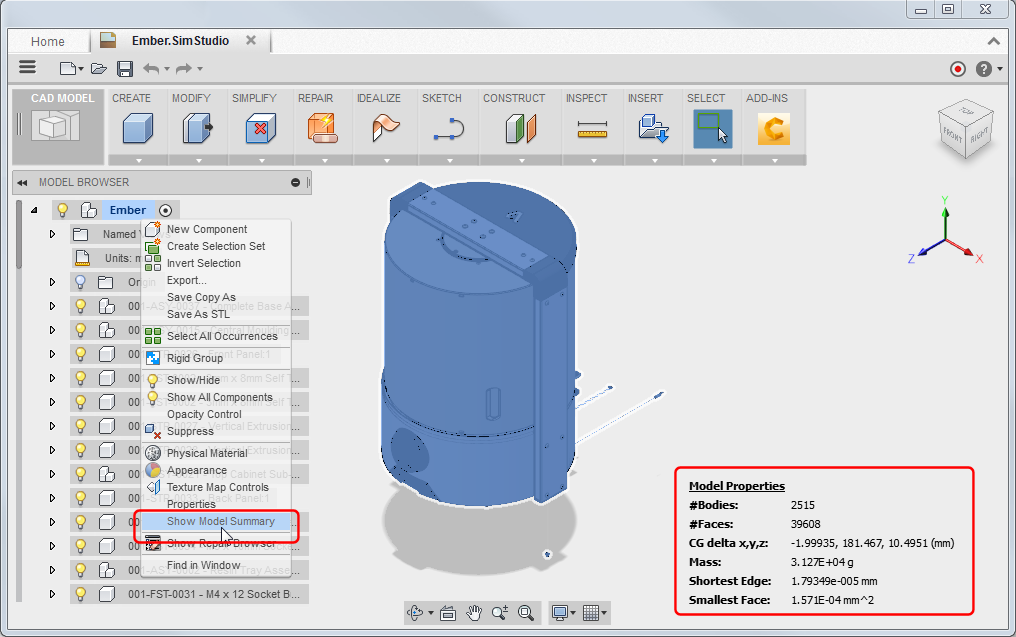
Use the SimStudio browser to navigate model data and potential geometry issues. Toggle between the model and repair browsers using REPAIR  Show Repair Browser / Show Default Browser.
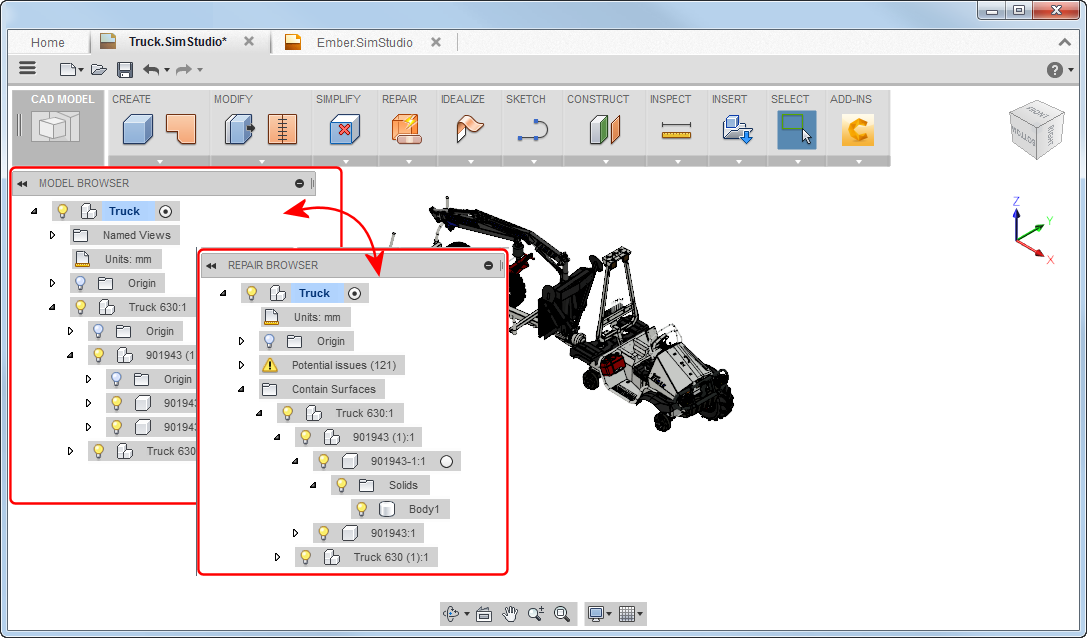
Highlights:
- Expand and click potential issue nodes to highlight in the graphics windows and display the repair guide.
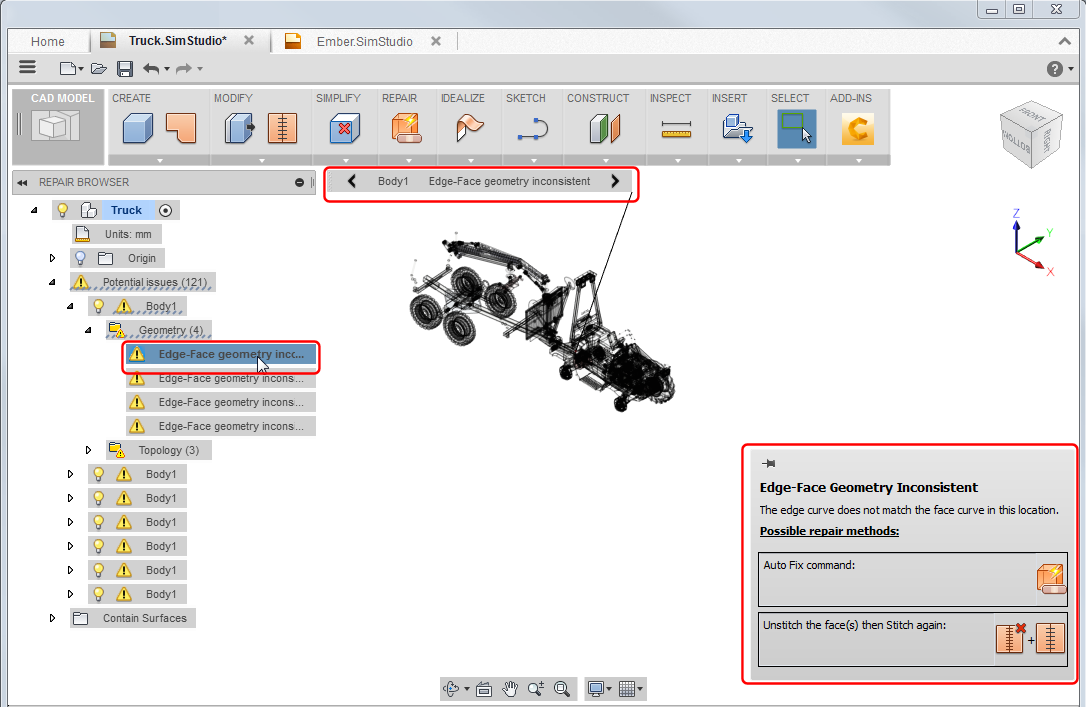
- Explore Contain Surfaces to quickly identify free surface geometry.
- Right-click nodes to access context menu commands, including collecting components into a Rigid Group so they move as one object.
- You can activate the model, components, change units, and more. Pause the cursor over the appropriate node and click the radio button.
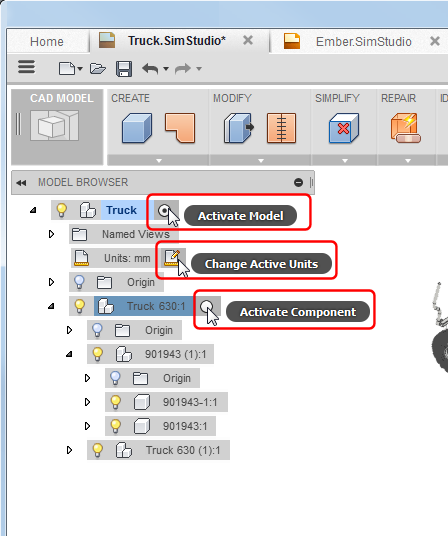
- Clicking nodes highlights the objects in the graphics window and vice-versa.
- Quickly locate and zoom to objects in the graphics window. Right-click the browser object and select Find in Window. Note: You can also find objects in the browser. Right-click a selected object in the graphics window and select Find in Browser.
- To view model information, right-click the model node and select Show Model Summary.